

Mideye Fleet Docker upgrade: new release, backup, check, roll back
How to move a Docker install from the quickstart or the step-by-step install to a newer Mideye Fleet and Mideye Server release. One release of the bundle brings matching versions of Mideye Server, Fleet, the setup container and MariaDB.
The database stays on MariaDB 11.4 until a bundle release moves it to a newer Long Term Support release. Why, and the plan: Why MariaDB 11.4.
Before you upgrade
Section titled “Before you upgrade”- You need
sudoon the host and the host must reach the download portal and the registry. - You cannot upgrade from Fleet 0.25.x to 0.26. Fleet 0.26 refuses a database from 0.25.x. Install again on a new host or with a new database.
- A host that was set up before Fleet 0.25.7 has no
mideye upgradecommand. Use the line under Way 2. - A warm standby cannot be upgraded this way yet: nothing runs there, so the backup step fails.
- Read which versions run now, see Check the versions.
Way 1: one command
Section titled “Way 1: one command”sudo mideye upgradeIt fetches the newest quickstart from the portal named in FLEET_DOWNLOADS_URL in .env, and prints Upgrading <old> -> <new>. Portal: <url>. Check that the portal is the one you use. For another portal:
sudo DOWNLOADS_URL=https://downloads.dev.mideye.com mideye upgradeWhat it does, in this order:
- Compares the release in
/opt/mideye/install-docker.shwith the new one. The same release: it printsAlready up to dateand changes nothing. An older one (a downgrade) is refused unless you add--force. - Works out the new
.env. Every value of yours stays, secrets included. An image line (MIDEYE_IMAGE,FLEET_IMAGE,SETUP_IMAGE,MARIADB_IMAGE) that still holds the old release’s default gets the new release’s default. An image you set yourself is kept and named in the output. Fields that are new in this release are added at the end with their defaults. The output lists each changed image line and the name of each added field, never a value. - Pulls the images that are missing. If a pull fails, nothing has changed.
- Runs
mideye backup. If the backup fails, nothing has changed. Mideye Server and Fleet stop for a moment. - Copies the old
.env,compose.yml,README.md,.env.example,mideye,install-docker.shanddb/init.shto/opt/mideye/upgrade-from-<old>-<UTC time>/. Then it puts the new files and the new.envin place. - Runs
docker compose up -dand waits up to 10 minutes until the database and Mideye Server are healthy and Fleet answers on/health. It prints the images before and after.
Success: the last line reads Upgraded to <new>. The previous files are in <folder>, the backup is <file>.
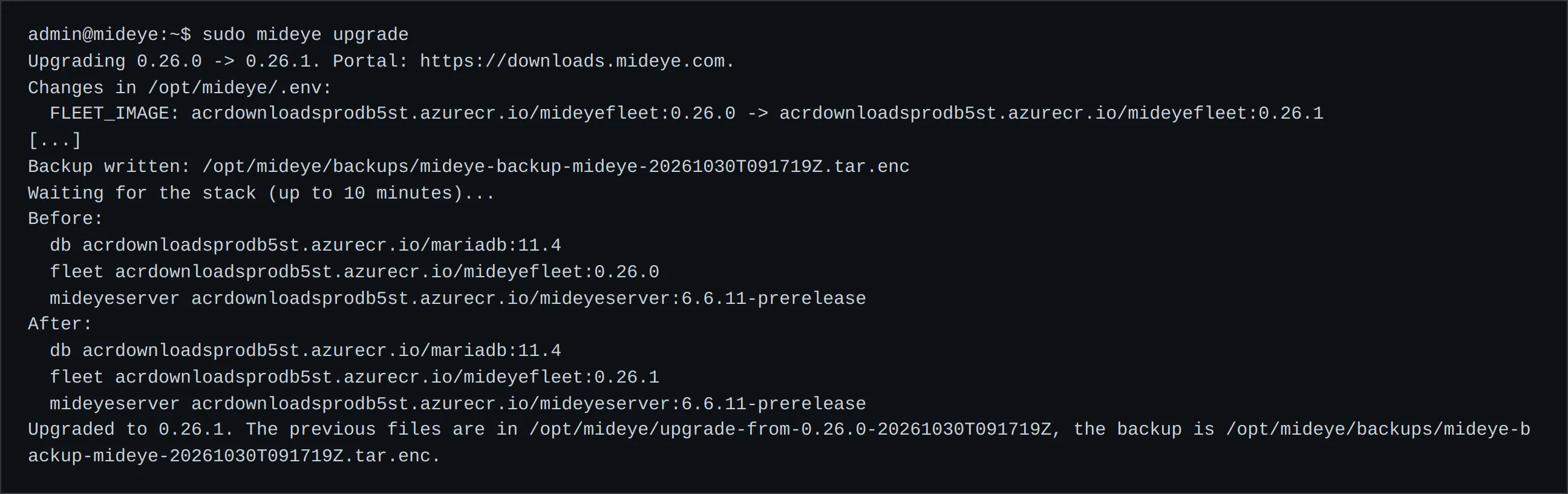
The command does not change the backup timer or the folders. On an air-gapped host mideye upgrade refuses; see Air-gapped host.
Way 2: the new bundle, by hand
Section titled “Way 2: the new bundle, by hand”Use this when mideye upgrade is not there or you want to see the new files first. The new bundle’s own install-docker.sh --upgrade does steps 2 to 6 above, so you run the same code.
1. Back up, and keep the passphrase at hand.
sudo mideye backupSuccess: Backup written: /opt/mideye/backups/mideye-backup-<host>-<time>.tar.enc.
2. Download the new bundle and check its SHA-256. Take the file name and the SHA-256 from the download portal: sign in with your Mideye account, click the Fleet tab, then Docker on the left; the newest bundle is listed there. Steps 2 to 4 of the step-by-step install show the commands. Unpack it into a new folder, not into /opt/mideye.
3. Sign in to the registry again if the login ran out.
sudo docker login <registry> -u <username>Success: Login Succeeded.
4. Run the new bundle’s script with --upgrade. Run it from the unpacked folder, not from /opt/mideye.
cd /root/mideye-install/bundlesudo bash ./install-docker.sh --upgradeIt does steps 1 to 6 of Way 1. Add --force to allow a downgrade.
The same upgrade without a download folder, on a host that has no mideye upgrade: the portal’s install line with --upgrade.
curl -fsSL https://downloads.mideye.com/install-docker.sh | sudo bash -s -- --upgradeWay 3: only the images, fully by hand
Section titled “Way 3: only the images, fully by hand”Only if you must. The new bundle may change compose.yml and add .env fields, and this way does not bring them. Way 1 or 2 does.
cd /opt/mideyesudo mideye backupsudo nano .env # set the four *_IMAGE lines to the new tagssudo docker compose pullsudo docker compose up -dSuccess: see the next section.
Air-gapped host
Section titled “Air-gapped host”mideye upgrade refuses on a host with MIDEYE_AIR_GAPPED=true. On an online host that is already upgraded, run sudo mideye export. It writes one file and prints its SHA-256. Carry the file and the SHA-256 apart. On the air-gapped host:
sha256sum mideye-export-<time>.tar # must match the printed SHA-256mkdir export && tar -xf mideye-export-<time>.tar -C exportsudo docker load -i export/offline/images.tar(cd export && sudo bash install-docker.sh --upgrade)sudo cp export/offline/* /opt/mideye/offline/ # the endpoint MSI and SHA256SUMSCheck the versions
Section titled “Check the versions”After an upgrade, check that all four containers run the new images and are healthy.
cd /opt/mideyesudo docker compose ps -a --format '{{.Service}} {{.Image}}'The image tags are the versions: mideyeserver for Mideye Server, mideyefleet for Fleet, mideye-setup for the setup container and mariadb for the database.
sudo docker compose ps -acurl -fsk https://localhost:9443/healthsudo grep -E '^(MIDEYE|FLEET|SETUP|MARIADB)_IMAGE=' .envsudo grep -E '^(mideye|fleet|setup|mariadb)_image=' install-docker.shSuccess: docker compose ps -a shows mideye-setup as Exited (0) and the others running, db and mideyeserver healthy. The /health call answers "UP". The .env lines show the tags you expect. The last line shows the release this folder’s script belongs to (the defaults of the installed bundle).
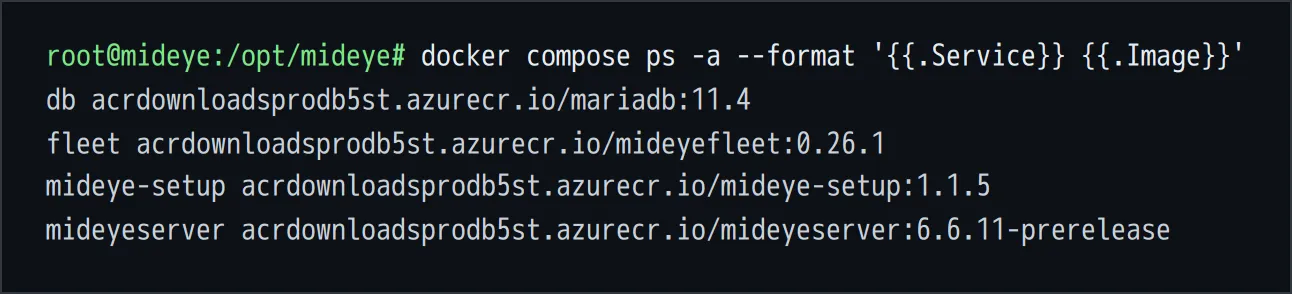
Then open https://<PUBLIC_HOSTNAME>:9443 and https://<PUBLIC_HOSTNAME>:8443 and sign in. Sign-in works the same as before.
Roll back
Section titled “Roll back”Fleet changes its database in one direction only. So the old Fleet image may not start on a database the new Fleet has used. Go back with the files, and with the backup when the data needs it.
If a step after the backup fails, the upgrade stops and prints the two commands, with your folder and backup file filled in. If the upgrade finished and you still want the old release, run them yourself.
1. Put the old files back and start the old images.
cd /opt/mideye && sudo cp -a upgrade-from-<old>-<time>/. . && sudo docker compose up -dThe folder upgrade-from-<old>-<time> is in /opt/mideye. ls /opt/mideye shows its name. It holds the old .env, compose.yml and the other files.
2. Restore the backup, if the new release already changed the data.
sudo mideye restore /opt/mideye/backups/mideye-backup-<host>-<time>.tar.enccd /opt/mideye && sudo docker compose up -dmideye restore asks for the backup passphrase unless /opt/mideye/.backup-passphrase exists. It refuses a backup that is older than the newest one restored or verified on this host, unless you add --allow-older. After the restore, sign in to Fleet as root and confirm the restore hold: computers get no secrets until you do.
Success: sudo docker compose ps -a --format '{{.Service}} {{.Image}}' shows the old tags, and the checks in Check the versions pass.
The kept folder has mode 0755, like /opt/mideye, so the copy leaves /opt/mideye at 0755. If you roll back from Fleet 0.25.7 and /opt/mideye is 0700, run sudo chmod 0755 /opt/mideye.
A backup only restores onto the same image versions as it was made with. Keep the upgrade-from-... folder and the backup file until you have checked the new release for a few days. Never lose /opt/mideye/mideyeserver/keystore.p12.