

Connection page: Mideye Cloud and Mideye Server fields
This page is for administrators who connect the Mideye endpoint to its backend. The Connection page says where sign-in requests go and how this computer reaches that place. The computer must reach the backend before anyone is signed in, so nothing else works until Test on this page passes. For the steps, see Connect Mideye Cloud or Connect Mideye Server.
Backend
Section titled “Backend”Backend (“Where authentication requests go.”) has two choices. The rest of the page changes with the choice.
| Choice | What it is | Default |
|---|---|---|
| Mideye Cloud | The hosted Mideye Authentication API. No server of your own. You need a client ID and a client secret from the Mideye portal. | Selected while nothing is saved. |
| Mideye Server | The Authentication API of your own Mideye Server 6.6.6, one to five servers. You need an API token for each. |
Mideye Cloud card
Section titled “Mideye Cloud card”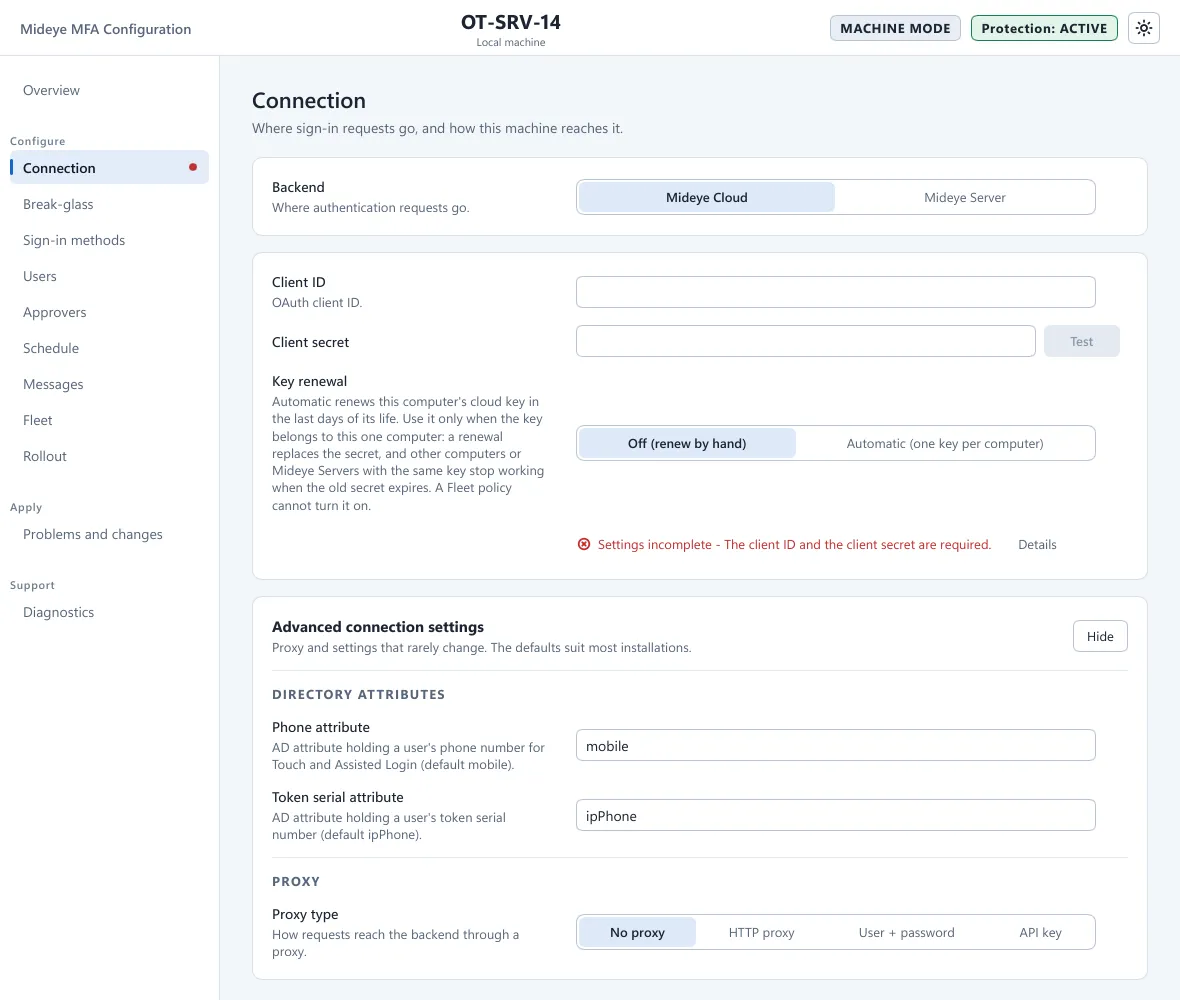
| Field | What it does | Default |
|---|---|---|
| Client ID (“OAuth client ID.”) | Names this computer’s key in the Mideye portal, portal.prod.mideye.com. | Empty |
| Client secret | The secret of that key. A saved secret shows as Enrolled or dots and is never shown again. Typing replaces it, emptying the box removes it, leaving it alone keeps it. One key can serve many computers. | Not set |
| Key renewal | Off (renew by hand): you create a new secret in the portal and enter it. Automatic (one key per computer): the computer renews its key in the last days of its life. | Off (renew by hand) |
| Test | Runs the connection test with the values you typed, saved or not. The result is one line under the card, with Details. |
Key expiry and renewal
Section titled “Key expiry and renewal”- The Mideye service asks the Mideye portal for the key’s expiry at most every 6 hours. The computer must reach
portal.prod.mideye.comfor this. If it cannot, sign-ins still work, but you get no expiry warning. - Overview and Diagnostics show Mideye Cloud key with the days left: yellow from 30 days, red from 7.
mideye cp healthprints the same. - Event 2015 is written at 30 and 7 days (Warning) and 1 day (Error) before expiry.
- Use Automatic (one key per computer) only when the key belongs to this one computer. A renewal replaces the secret, so other computers or Mideye Servers that use the same key stop working when the old secret expires. A Fleet policy cannot turn it on.
- To renew by hand, create a new secret in the Mideye portal and type it into Client secret.
Servers card (Mideye Server)
Section titled “Servers card (Mideye Server)”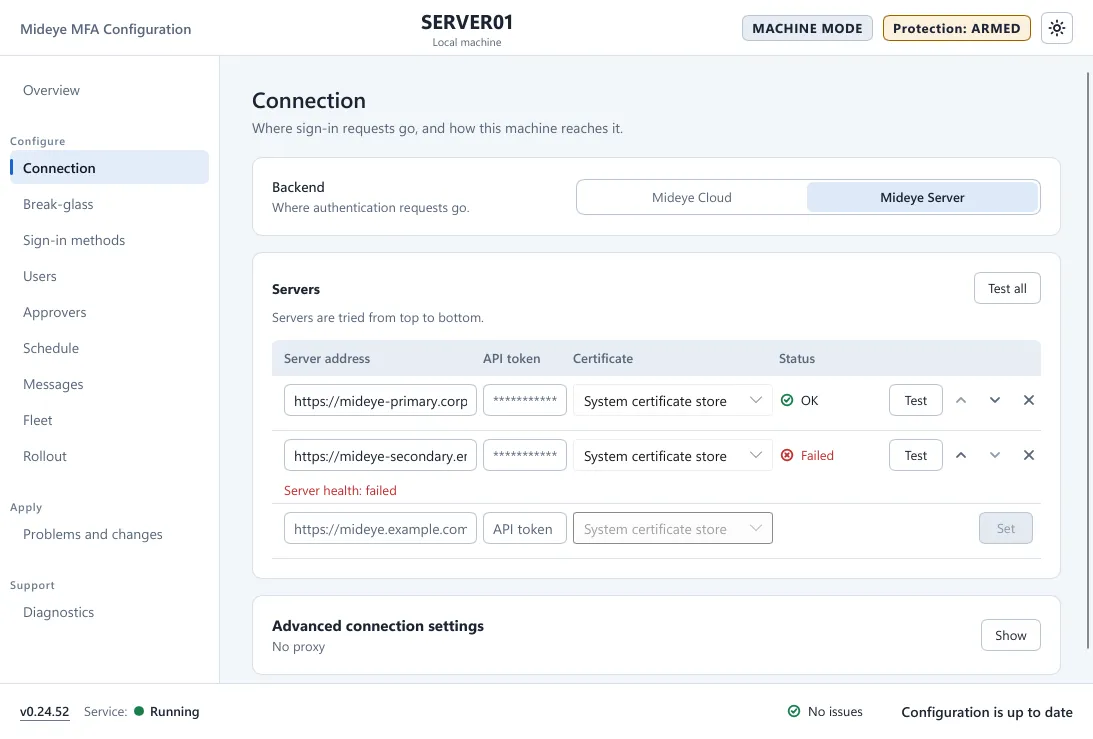
“Servers are tried from top to bottom.” Each row is one Mideye Server. The first is used until it fails, then the next. There are at most five. Each server has its own API token and its own certificate trust.
| Column or button | What it does |
|---|---|
| Server address | The URL of the Mideye Server, like https://mideye.example.com:8443. |
| API token | The token of the Authentication API endpoint on that server. Shown as dots after you press Set. |
| Certificate | How this computer trusts that server’s certificate: System certificate store, CA bundle or Pinned public key. See Certificate trust. |
| Status | Not tested, OK, Warning or Failed, from the last test. |
| Set | On the empty last row, and on a row with typed input. Stores what you typed. A typed address or token that you did not store with Set is reported as a problem. |
| Test | Tests that one server. Test all at the top tests every row. |
| Up and down arrows | Change the order. |
| X | Removes the row. |
A skipped server is recorded with event 1013.
Certificate trust
Section titled “Certificate trust”| Choice | Use it when |
|---|---|
| System certificate store | The server’s certificate comes from a CA the computer already trusts. |
| CA bundle | You use an internal CA that is not in the Windows store. Choose a PEM file that holds certificates only, no private key (8192 bytes at most). |
| Pinned public key | Always for a fresh Mideye Server. Its self-signed certificate (CN=Mideye Server, no other name) fits neither of the other choices. A row shows for example “1 of 2 pins” and Manage pins. |
A pin checks the server’s public key, not its name. In Manage pins press Fetch certificate, check that the address is your own Mideye Server, and press Accept and pin. A server can hold two pins, so a new key can be added before the certificate changes. The last pin cannot be removed. To stop pinning, choose another trust setting. A server whose trust changed asks for its API token again.
If a test reports a certificate that does not match, press Trust this server… and use Trust and pin. On the command line, mideye cp trust-server <url> shows the pin and --accept <pin> stores it only if it still matches. There is no setting that turns certificate checking off.
Advanced connection settings
Section titled “Advanced connection settings”The card is closed by default and says what is set, for example “No proxy”. Press Show. The defaults suit most installations.
| Field | What it does | Default |
|---|---|---|
| Phone attribute | The Active Directory attribute that holds a user’s phone number, for Touch and Assisted Login. | mobile |
| Token serial attribute | The attribute that holds a user’s token serial number. | ipPhone |
| User ID attribute | Mideye Server only. The AD attribute sent as the user ID. | Empty |
| Health check cache | Mideye Server only. How long a health check result is reused before the server is checked again. | 30 seconds |
| Fail-back interval | Mideye Server only. How often the computer tries to go back to the first server. | 300 seconds |
| Proxy type | No proxy, HTTP proxy, User + password or API key. | No proxy |
| Proxy URL | For example http://proxy.example.com:3128. | Empty |
| Proxy user, Proxy password | With User + password. The password is a secret. | Empty |
| Proxy API key, API key header | With API key. The header is the HTTP header that carries the key, for example X-API-Key. | Empty |
| Proxy timeout | How long to wait for the proxy when connecting. | 30 seconds |
A proxy that answers 407 is recorded with event 5812. The request timeout (10 seconds) is not shown in the tool. It is set in the configuration file or by Fleet.
What the connection test does
Section titled “What the connection test does”Test runs these steps and shows each as ok, failed or skipped: Configuration, DNS, Proxy, TLS and Server health. The result says how the request travelled (Direct, or through a proxy) and, for a Mideye Server, how the certificate is trusted. When every step passes it says Every step passed. The test is made by the Mideye service when it runs. If the service is not running, it is made by the tool, with the account you started it with.
A Mideye Server also reports whether it can reach Mideye Cloud. A Mideye Server that cannot reach Mideye Cloud cannot send Touch or the SMS link, and users are asked for their one-time code instead. See Sign-in methods.
-
With Mideye Server, the server finds users, phone numbers and tokens in its own database or LDAP. The phone numbers on the Users page are for Mideye Cloud only. For local Windows accounts, see Connect Mideye Server.
-
Set a secret from the command line with the value on standard input, for example:
Terminal window Get-Content -Raw C:\secure\cloud-secret.txt | & 'C:\Program Files\Mideye\mideye.exe' cp set-secret /connection/cloud/clientSecret -
Sign-in to Mideye Cloud failed is event 2010; backend not reachable is event 5810. See Troubleshooting.