

Users page: login types and local account mappings
This page is for administrators who give some users or groups their own sign-in rule. The Users page has two parts. Login type gives a user or group its own rule. User mappings gives phone numbers and token serials to local accounts. Everyone who is not listed follows the Schedule.
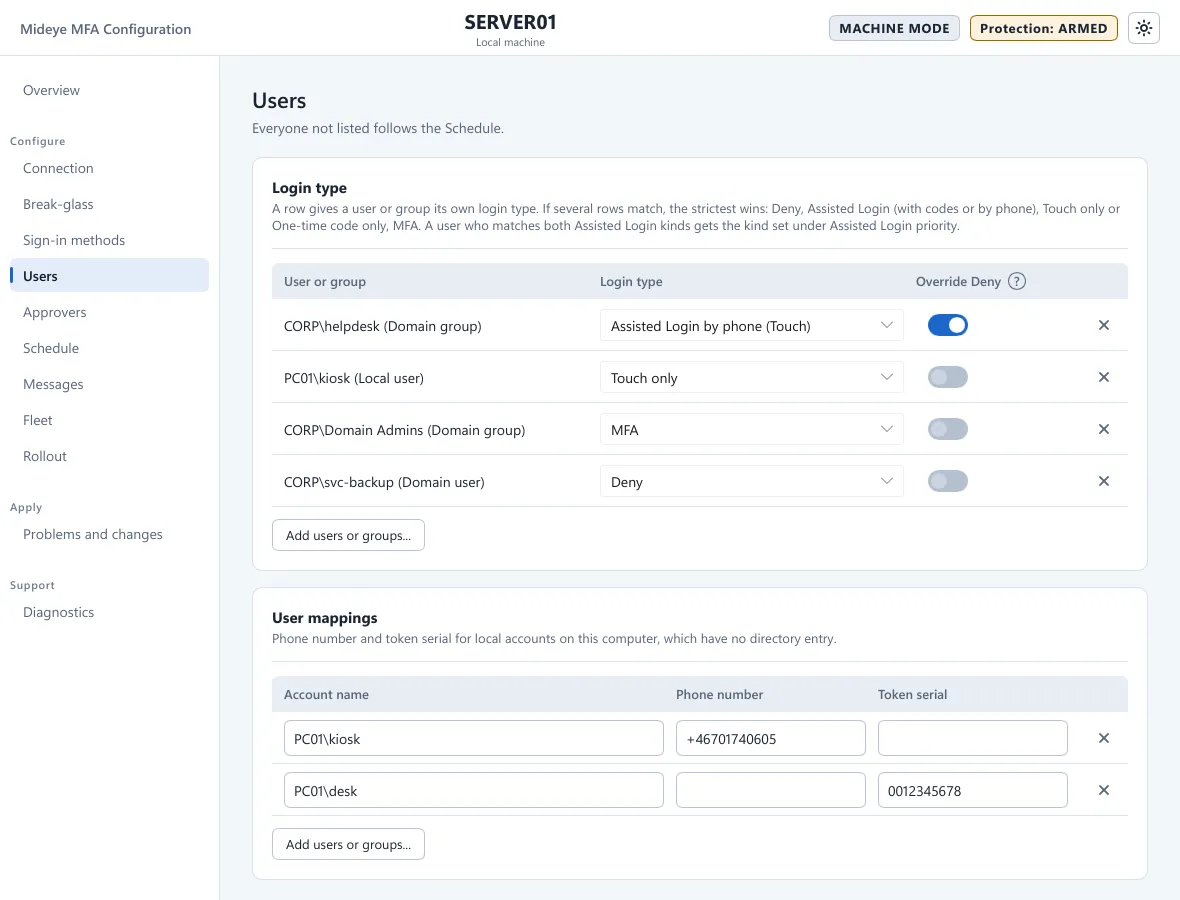
Login type
Section titled “Login type”“A row gives a user or group its own login type.” Press Add users or groups… to pick a user or group from the directory or from this computer, or type the name. Each row has three columns:
| Column | What it is |
|---|---|
| User or group | The name, with its kind: Domain user, Domain group, Local user or Local group. |
| Login type | One of the six login types below. |
| Also in denied hours | A switch (help text: “Applies this login type even in the hours the weekly schedule sets to Deny.”). |
The X at the end of a row removes it. Choose one login type:
| Login type | What the user gets |
|---|---|
| MFA | Touch or a one-time code, as set on Sign-in methods. |
| Touch only | Only a Touch request. |
| One-time code only | Only a code. |
| Assisted Login with codes (TOTP) | The user types their own code, then types the code the approver reads out. Needs a Mideye Server. |
| Assisted Login by phone (Touch) | An approver confirms on the phone. |
| Deny | The user cannot sign in to this computer. |
- A user or group appears in at most one row.
- If several rows match a user, the strictest wins: Deny, then Assisted Login, then Touch only or One-time code only, then MFA.
- If one user matches both Assisted Login kinds, Assisted Login priority on Sign-in methods decides (codes first by default).
- The order of the rows means nothing.
- A user with a row does not follow the schedule. Also in denied hours lets a row apply during hours that the schedule denies, for example for an on-call administrator.
- A group rule also matches the user’s primary group, such as Domain Users.
User mappings
Section titled “User mappings”“Phone number and token serial for local accounts on this computer, which have no directory entry.” The table has the columns Account name, Phone number and Token serial. Add a row with Add users or groups….
- Write the phone number in international format, for example
+46701234567. - The table is used with Mideye Cloud only. With Mideye Server it is greyed out and says “The Mideye Server holds phone numbers and tokens.”
Where the phone number and token come from
Section titled “Where the phone number and token come from”| Account | Source |
|---|---|
| Domain user | Active Directory: mobile for the phone number and ipPhone for the token serial by default. Change the names on the Connection page. |
| Local account, Mideye Cloud | The User mappings table on this page: account name, phone number (international format, for example +46701234567) and token serial. |
| Local account, Mideye Server | A Mideye Server database user with the same name. See Connect Mideye Server. |
The endpoint uses the phone for Touch and Assisted Login and the token serial for one-time codes.
Common problems
Section titled “Common problems”| Symptom | Check |
|---|---|
| “Your account has no sign-in method for this computer.” | The user has no phone number and no token. Check the AD attributes or the mapping. |
| A user is asked for a code instead of Touch | The user has no phone number, or the Mideye Server cannot send Touch. |
| A domain user cannot be found | The domain controller was not reachable (event 2011). |
Rows that name a user or group the computer cannot find are shown with a warning. They do not block saving.