

Sign in at Windows with Assisted Login and an approver
Assisted Login is for the day you cannot use your own factor, for example you lost your phone. A named approver confirms that it is you. Your administrator decides who is signed in this way and who may approve.
There are two kinds. You do not choose the kind. Your administrator does. Assisted Login by phone is for users who cannot do MFA themselves. Assisted Login with codes always needs your own code too, and works without a cloud connection.
Assisted Login by phone
Section titled “Assisted Login by phone”- Type your user name and password.
- The tile says Open the link on your phone and choose an approver. You receive a link by SMS and choose an approver.
- The tile says Waiting for the approver to confirm.
- The approver gets a request on their phone and approves it. Windows signs you in.
If the tile asks for a ticket first (“Enter a ticket or reference number.”), give the ticket your helpdesk gave you.
Assisted Login with codes
Section titled “Assisted Login with codes”-
Type your user name and password.
-
The tile says Assisted Login: first enter your own one-time code. Enter your own code from your authenticator app or token. The Mideye Server checks it. You always need your own code first.
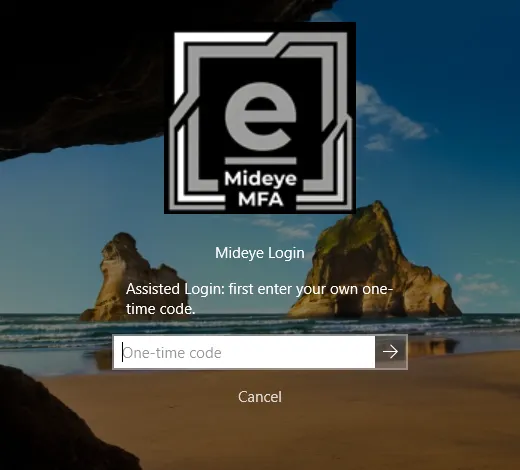
-
The next page says Call your approver. Choose their name, enter the code they read to you, then submit. Call your approver and choose their name in the list. The approver reads their current one-time code to you. Type it in the code box. The sign-in is accepted only together with your own verified code.
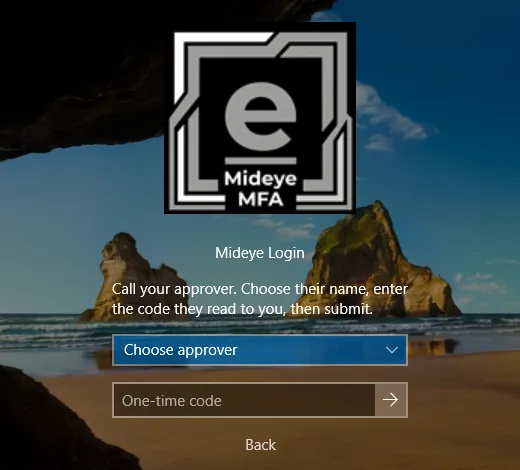
-
Press the arrow. Windows signs you in.
If you press the arrow without choosing an approver the tile says “Choose your approver in the list first.” If the code box is empty it says “Enter the approver’s code.”
What the approver does
Section titled “What the approver does”- By phone: the approver gets a message that says who wants to sign in and to which computer. They press Approve to allow it or Reject.
- With codes: the approver gives the current code from their own token or authenticator, after they have checked that it is really you. Give a code only to a person you have identified, and only once.
If it fails
Section titled “If it fails”| You see | Meaning |
|---|---|
| Your approver denied the sign-in. | The approver pressed Reject. |
| Your approver did not answer in time. Sign in again. | No answer in time. |
| The approver or the code was not accepted. Sign in again. | A wrong approver or code. There is no retry. Start again. |
| No approver can confirm this sign-in. Contact your administrator. | No approver on the list has a phone number or token that can be used. |
| Assisted Login cannot start right now. Contact your administrator. | Assisted Login is required but not available. |
| Mideye Server: approver lookup is off. Contact your administrator. | Assisted Login is not fully set up on the Mideye Server. |
| Mideye Server: OTP approval is off. Contact your administrator. | Assisted Login with codes is not set up on the Mideye Server. |
For administrators
Section titled “For administrators”The setup, including the Mideye Server switches, is in Set up Assisted Login. Who may approve is set on Approvers.