

Mideye Configuration window: modes, header and footer
This page is for administrators who use Mideye Configuration, the graphical tool for the Mideye endpoint. It explains how to start the tool, its two modes, and the frame around every page: the header, the menu and the footer with Review, Save and Apply. The tool edits the same configuration as the mideye cp command line.
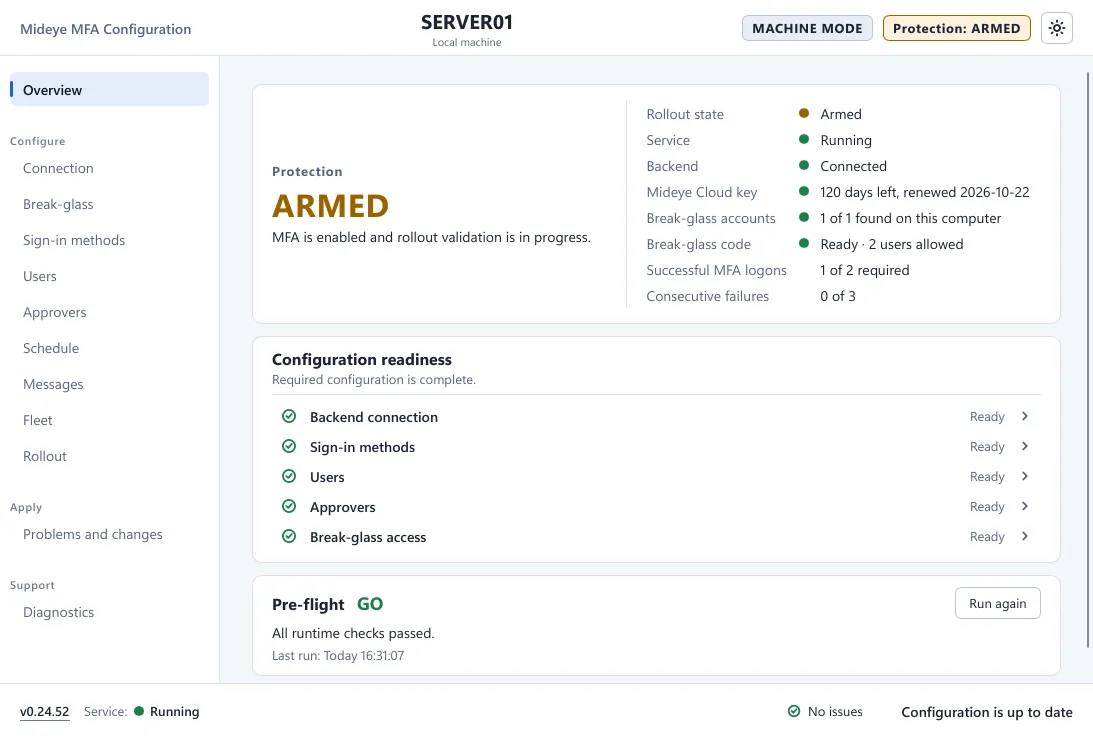
Start the tool
Section titled “Start the tool”- Start, All apps, Windows Tools, Mideye Configuration. On Windows Server also Server Manager, Tools. Or type “Mideye” in Start search.
- Or run
C:\Program Files\Mideye\mideye-config.exe. - The tool is installed in the
adminandstandaloneinstall modes. It is not installed on Windows Server Core. Usemideye cpthere.
Windows asks for administrator approval every time you start it. There is no read-only mode for standard users.
Machine mode, author mode and Fleet
Section titled “Machine mode, author mode and Fleet”| Machine mode | Author mode | Managed by Fleet | |
|---|---|---|---|
| When | The Mideye service is installed on this computer. | No service on this computer. | The computer has joined Mideye Fleet. |
| What you edit | This computer’s stored configuration. | A new document, or a file you open. | Nothing. The window shows the Fleet policy read-only. |
| Apply to this computer | Yes | No. Save As writes a file. | No. Change the policy in Fleet. |
| Connection test | With the stored secrets. | With the secrets you typed in this session. | With the stored secrets. |
| Overview | Live state and readiness. | Readiness of the document only. | Live state, read-only. |
A computer that follows a Group Policy configuration file shows a banner with the path of the file. Change the file to change these settings.
The menu
Section titled “The menu”The menu has four groups, in the order you work through them: the connection and the break-glass safety net first, Rollout last, when everything else is set. The page names are what you see in the tool. A small dot next to a page name means that page holds a problem.
| Group | Pages |
|---|---|
| (top) | Overview |
| Configure | Connection, Break-glass, Sign-in methods, Users, Approvers, Schedule, Messages, Fleet, Rollout |
| Apply | Problems and changes |
| Support | Diagnostics |
The header
Section titled “The header”| Item | What it shows |
|---|---|
| Mideye MFA Configuration | The name of the tool. |
| Computer name and Local machine | The computer you are editing. In author mode, the name of the document. |
| MACHINE MODE | The Mideye service is installed here. You edit this computer’s configuration and can apply it. |
| AUTHOR MODE | No service here. Nothing is applied to a computer. |
| MANAGED · READ ONLY | The computer is managed by Mideye Fleet. |
| Protection: OFF, ARMED, ACTIVE or UNKNOWN | The protection state of the computer. OFF: the Mideye tile is not shown and Windows’ own sign-in is used. ARMED: the Mideye tile is shown and the first sign-ins are counted. ACTIVE: the Mideye tile is the only way to sign in. UNKNOWN: the state could not be read, for example because the service is stopped. See Rollout. |
| Sun / moon button | Switches between the light and the dark theme. The window remembers your choice. |
The footer
Section titled “The footer”| Item | What it shows |
|---|---|
| Version | The version of the tool. Click it to open About. |
| Service: | Running, Stopped, Starting, Error or Unknown: the state of the Mideye Broker service. |
| Issue summary | No issues, or for example 1 error or 2 warnings. Click it to list the problems in a window called Configuration issues. |
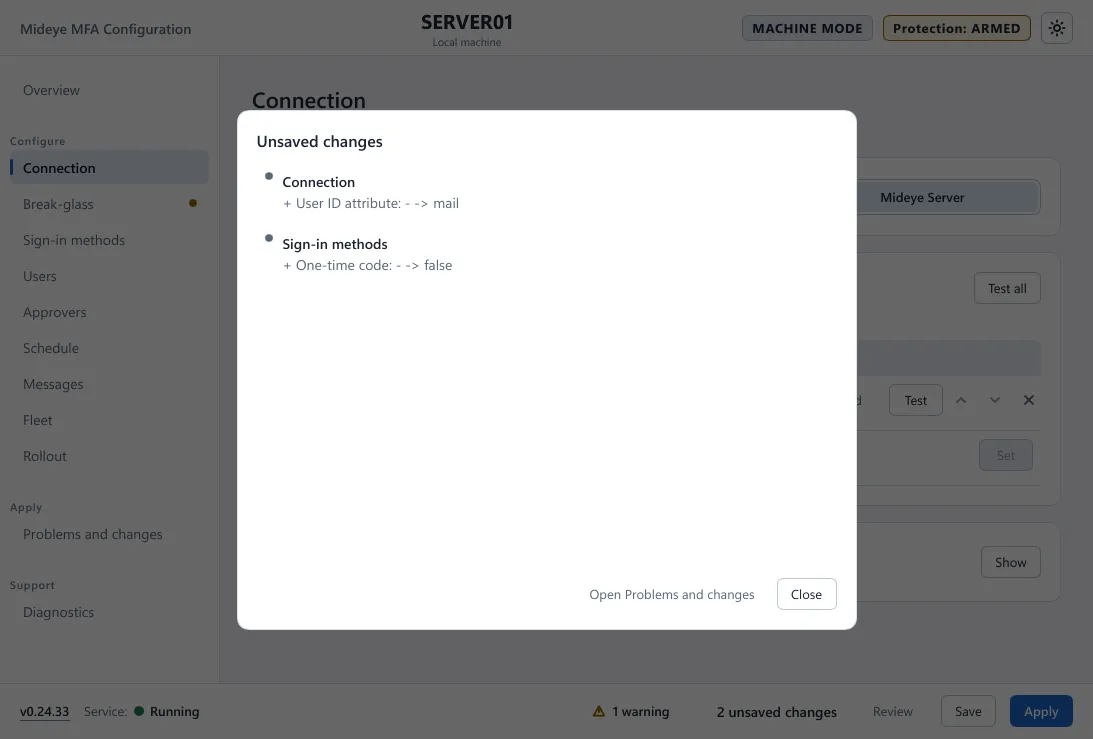
| Change state | Configuration is up to date, or for example 1 unsaved change. Click it to list the changes in a window called Unsaved changes: page, setting, old and new value. A secret shows only as Set or Replaced. Open Problems and changes opens the full review. After a save it says Saved changes not applied. |
| Review | Opens Problems and changes. Shown while there is something to review. |
| Save | Validates the configuration and writes it to this computer. |
| Apply | Does a Save and waits until the service has loaded it. |
In author mode there is Save As instead of Save and Apply. On a computer managed by Fleet the footer reads Managed centrally · Read only, and Save and Apply are not offered.
Save and Apply
Section titled “Save and Apply”- Save is off until something changed. Any edit on any page counts, also a typed secret. Putting a value back to the saved one clears the change.
- The Mideye service loads a saved configuration on its own within about a minute.
- Apply waits up to 90 seconds for the service to confirm. The footer reads Applying configuration… Waiting for service, then ✓ Configuration applied.
- Apply failed · The service did not confirm in time: the configuration is saved, and the service loads it later.
- Apply failed · The service did not accept the configuration: the service refused it. Open Problems and changes and Diagnostics.
- Both buttons are off while the configuration has an error. Warnings do not block them.
- Click N unsaved changes in the footer to see what you are about to save.
- A setting that can lock people out asks you to confirm first. Turning activation on opens the checklist Arm the Mideye sign-in. See Turn protection on.
Secrets
Section titled “Secrets”The tool never shows a secret. A secret field shows Enrolled, Set or Not set. A secret you type is kept in memory until you apply it. It is never written to a file, a log or an event.
Keyboard and accessibility
Section titled “Keyboard and accessibility”Every control can be reached with Tab and Shift+Tab. F6 moves between the header, the menu, the page and the footer. The focus ring is always visible. Esc closes a dialog. The window follows display scaling. The tool is in English.