

Reset root or an admin in Mideye Fleet
Two cases:
| Who lost access | What you do |
|---|---|
| root lost its password or its authenticator app | Reset root on the Fleet host. |
| Another administrator lost the password or the authenticator app | Reset an administrator in Fleet, signed in as root. |
Fix root first. Root is the only account that can reset the others.
Reset root
Section titled “Reset root”Root is the break-glass account. Nobody can reset it from the Fleet web interface, not even root itself. You reset it with a command on the host that runs Fleet.
Who can do this: anyone who can run commands on the Fleet host (sudo on Linux, Administrator on Windows) and read Fleet’s data folder. That person can take control of Fleet, so keep the group small. Fleet writes the reset to its audit log (actor host).
The command makes a new one-time password for root, removes root’s authenticator, clears a lockout and turns root on again if it was disabled. It does not touch other administrators.
If root sign-in was switched off in Settings, the command switches it on again and says so: root sign-in was switched off in Settings: it is switched on again.
Docker quickstart
Section titled “Docker quickstart”Fleet is the service fleet in /opt/mideye. The mideye command has no reset of its own; use docker compose.
1. Host: stop Fleet.
cd /opt/mideyesudo docker compose stop fleet2. Host: run the reset.
sudo docker compose run --rm --no-deps --entrypoint /mideye-fleet-server fleet admin-resetYou should see:
root reset: a new one-time password is in /data/root-one-time-password.txt (read it with the host's file access, ...)restart the server now to end all running sessions (a session opened before this reset stays valid until then)/data/... is the path inside the container. On the host the file is /opt/mideye/fleet/root-one-time-password.txt.
3. Host: start Fleet. The start ends every session that was open before the reset.
sudo docker compose start fleet4. Host: read the one-time password. Read it after the start: until root has chosen a password, Fleet makes a new one at every start, so a password read before the start does not work.
sudo cat /opt/mideye/fleet/root-one-time-password.txtYou should see one line of 20 characters. Only root can read the file.
5. Host: if FLEET_SETUP_CHALLENGE still has a value in /opt/mideye/.env, remove the value. Fleet ignores it now and logs a warning at every start.
Continue with Sign in as root.
Fleet image on its own (docker run)
Section titled “Fleet image on its own (docker run)”Use the same volume and configuration folder as in the install guide. Replace <version> with the version you run.
1. Host: stop Fleet.
docker stop mideye-fleet2. Host: run the reset.
docker run --rm --read-only --tmpfs /tmp --cap-drop ALL \ -v fleet-data:/data -v /srv/mideye-fleet/cfg:/cfg:ro \ --entrypoint /mideye-fleet-server \ mideye-fleet-server:<version> admin-reset --config /cfg/fleet.yamlYou should see the two lines shown above.
3. Host: start Fleet, then read the one-time password.
docker start mideye-fleetdocker run --rm -v fleet-data:/data alpine:latest cat /data/root-one-time-password.txtContinue with Sign in as root.
Windows (MSI)
Section titled “Windows (MSI)”1. Windows: open PowerShell as administrator.
2. Windows: stop Fleet and run the reset.
Stop-Service MideyeFleetServer& "C:\Program Files\Mideye\Fleet Server\mideye-fleet-server.exe" admin-reset --config "C:\ProgramData\Mideye\Fleet\fleet.yaml"You should see the two lines shown above, with the path C:\ProgramData\Mideye\Fleet\root-one-time-password.txt.
3. Windows: start Fleet and read the one-time password. Read it after the start.
Start-Service MideyeFleetServerGet-Content "$env:ProgramData\Mideye\Fleet\root-one-time-password.txt"Continue with Sign in as root.
Linux package (deb or rpm)
Section titled “Linux package (deb or rpm)”1. Host: stop Fleet and run the reset as the account that runs Fleet.
sudo systemctl stop mideye-fleet-serversudo -u mideye-fleet mideye-fleet-server admin-reset --config /etc/mideye-fleet/fleet.yamlYou should see the two lines shown above, with the path /var/lib/mideye-fleet/root-one-time-password.txt.
2. Host: start Fleet and read the one-time password. Read it after the start.
sudo systemctl start mideye-fleet-serversudo cat /var/lib/mideye-fleet/root-one-time-password.txtContinue with Sign in as root.
Sign in as root
Section titled “Sign in as root”1. Fleet: open https://<your Fleet name>:9443 and sign in as root with the one-time password.
2. Fleet: choose a new password (at least 12 characters), scan the QR code with your authenticator app and type the code. Finish the page in one go.
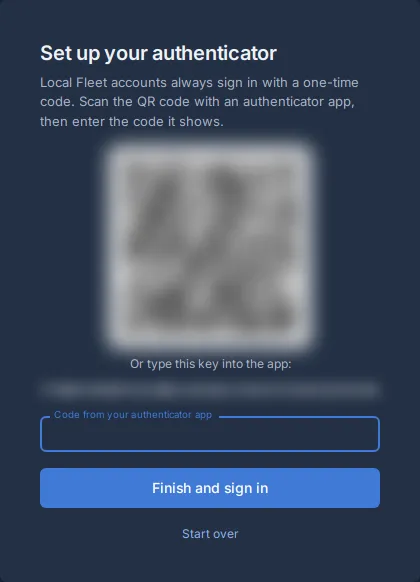
You should land in Fleet. The one-time password no longer works.
If your app still has the old entry for root, delete it first. Since Fleet 0.27.0 the entry is named after the Fleet and the administrator, for example Mideye Fleet (fleet.example.com):root; older Fleets named it Mideye Fleet:root. The reset removed the old secret, so the old entry gives wrong codes.
Reset an administrator
Section titled “Reset an administrator”Do this when another administrator lost the password or the authenticator app. Sign in as root first.
1. Fleet: open Admins and find the administrator.
2. Fleet: press Reset credentials on their row.
3. Fleet: Fleet asks for a code from your own authenticator app (root’s). Type a fresh code. If you just used a code to sign in, wait for the next one: a code works once.
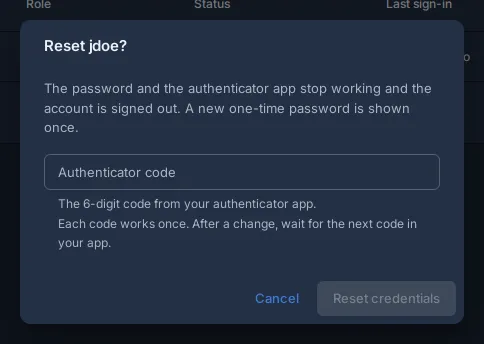
4. Fleet: press Reset credentials in the dialog. Fleet shows One-time password for and the user name. It shows it once; Fleet keeps only a scrambled copy. Copy it, then press I have noted it.
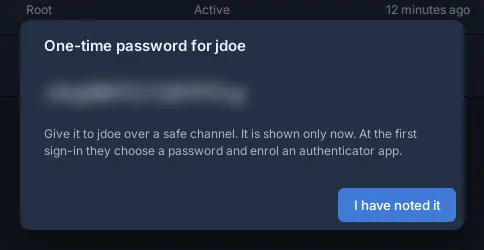
5. Hand over: give the password to the administrator over a safe channel, not in the same message as their user name.
What the administrator does: the old password and the old authenticator stop working at once and any session they had ends. They sign in with the one-time password, choose a new password and enrol their authenticator app again, as root does above. Until then their row shows Waiting for first sign-in.
Notes:
- Only a root administrator can reset others. You cannot reset your own account or
roothere. - Fleet asks for your code on every reset. Five wrong codes block you for 15 minutes. The block ends by itself.
- Fleet writes the reset to the audit log with your name.
If it does not work
Section titled “If it does not work”| Symptom | Fix |
|---|---|
| The command says there is no root account | Fleet has never started on this data. Start it once, then run the reset. |
| The command says it gave up after 10 minutes | Another Fleet process or a backup tool holds the database. Stop it and run the command again. |
| The one-time password is refused | You read the file before the start, or Fleet started again after you read it. Read the file again after the last start. |
| The code is refused at sign-in | Check the time on the Fleet host and on the phone. Five wrong codes block the account for 15 minutes. Wait, or for root run the reset again: it clears the block. |
| An old browser tab still works after the root reset | That session is from before the reset. Restart Fleet to end it. |