

Turn on Mideye MFA protection on a Windows computer
This page is for the administrator who turns MFA on. Until now Windows used its own sign-in and the Mideye tile was not shown. You turn protection on in two stages, armed and then activated, so that a mistake shows up while the Windows sign-in is still there. Every rollout setting is described in Rollout.
Before you begin
Section titled “Before you begin”- The backend connected and tested: Connect Mideye Cloud or Connect Mideye Server.
- A break-glass account and code. See Break-glass.
- On Windows 11, the restart after the install. See Install.
- A second administrator session, kept open until you have tested.
-
Open Mideye Configuration, page Overview. Protection shows OFF. Finish the checklist; Turn on MFA waits until it is complete.
-
Press Turn on MFA. It opens the page Rollout.
-
Turn on Activate Mideye on this machine. The window Arm the Mideye sign-in lists the backend, the break-glass accounts and code, the sign-in methods and the users. Fix any red row first: it keeps Activate off. Press Activate.
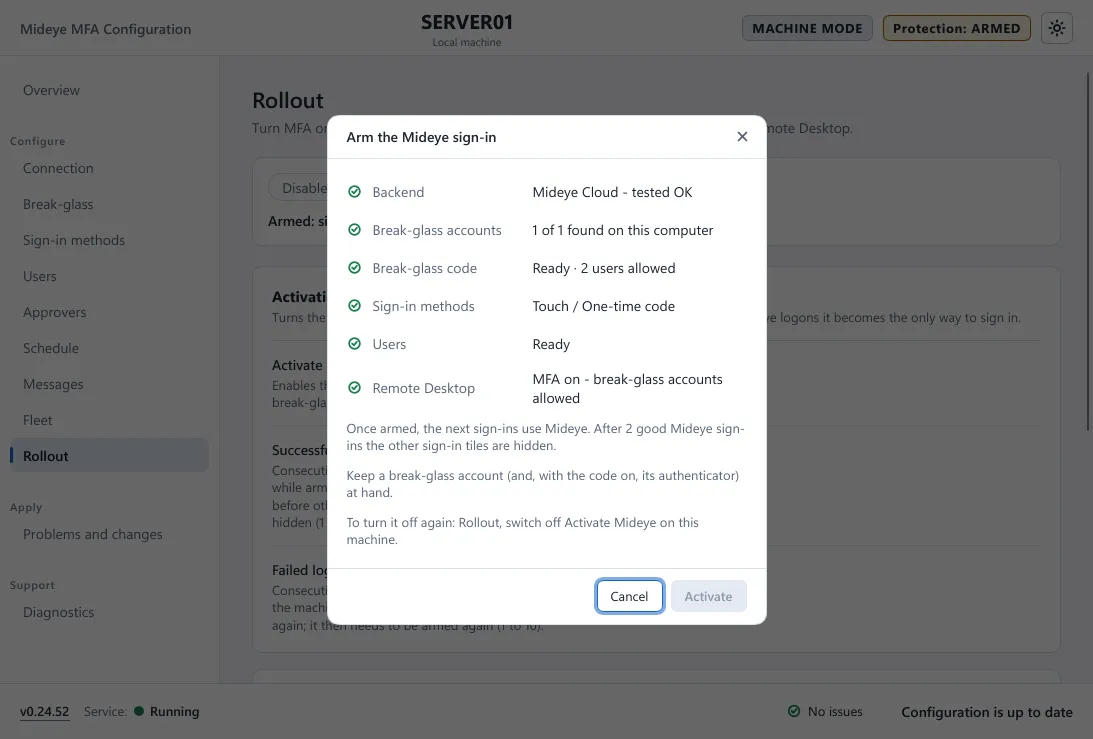
-
Press Apply. The computer is now Armed (Overview: ARMED). The Mideye Login tile appears next to the normal Windows sign-in.
-
Sign out. Sign in with the Mideye Login tile and a real second factor. Do it a second time. Break-glass sign-ins do not count.
-
After Successful MFA logons to activate good sign-ins in a row (default 2) the computer is Activated (Overview: ACTIVE). Only the Mideye tile is left. A failed sign-in restarts the count. After Failed logons to disarm failures in a row (default 3) the computer is Disarmed and shows the Windows sign-in again.
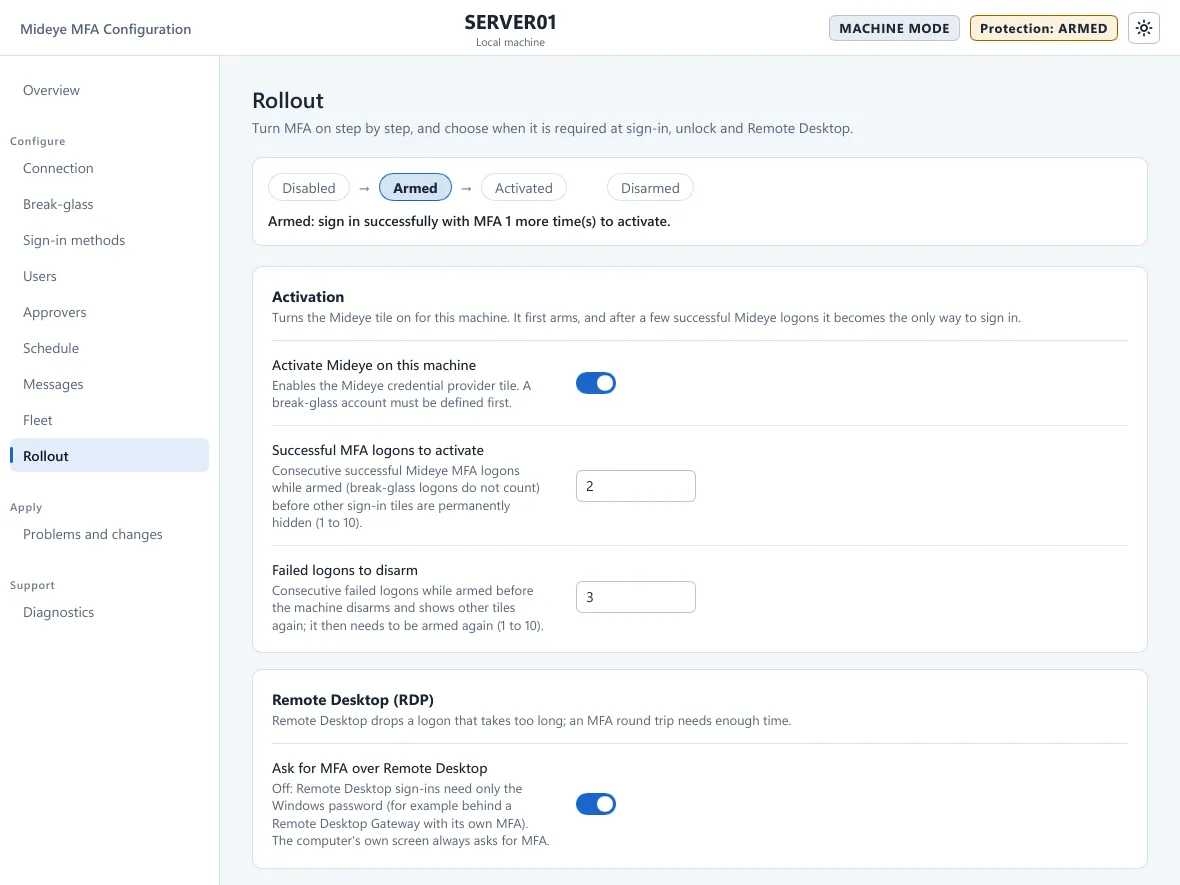
On a computer managed by Fleet, turn Activate Mideye on this machine on in the Fleet policy instead.
Verify
Section titled “Verify”- The Rollout strip says Activated, and Overview shows ACTIVE.
- In an elevated PowerShell,
& 'C:\Program Files\Mideye\mideye.exe' cp healthsaysstate: active. - Application log, source Mideye Credential Provider: event 1000 for each good sign-in.
- Unlock asks for the second factor too. Check Remote Desktop next.
Troubleshooting
Section titled “Troubleshooting”- It stays armed: only Mideye sign-ins with a real second factor count, not break-glass sign-ins.
- It shows Disarmed: find the cause in Diagnostics and the Application log, then arm again.
- To turn protection off, use the Rollout page. If you are locked out, follow the recovery procedure in the Fleet documentation in the downloads portal (login required).
- More in Troubleshooting.
Next: Remote Desktop.