

Break-glass page: accounts, code, blocking and events
This page is for administrators who plan emergency access. Break-glass is how people get in when Mideye or the network is down, or when a setting would otherwise lock everyone out. This page is the reference for how break-glass behaves and which events it writes. For the setup steps, see Set up break-glass. At least one break-glass account must exist before you turn on protection.
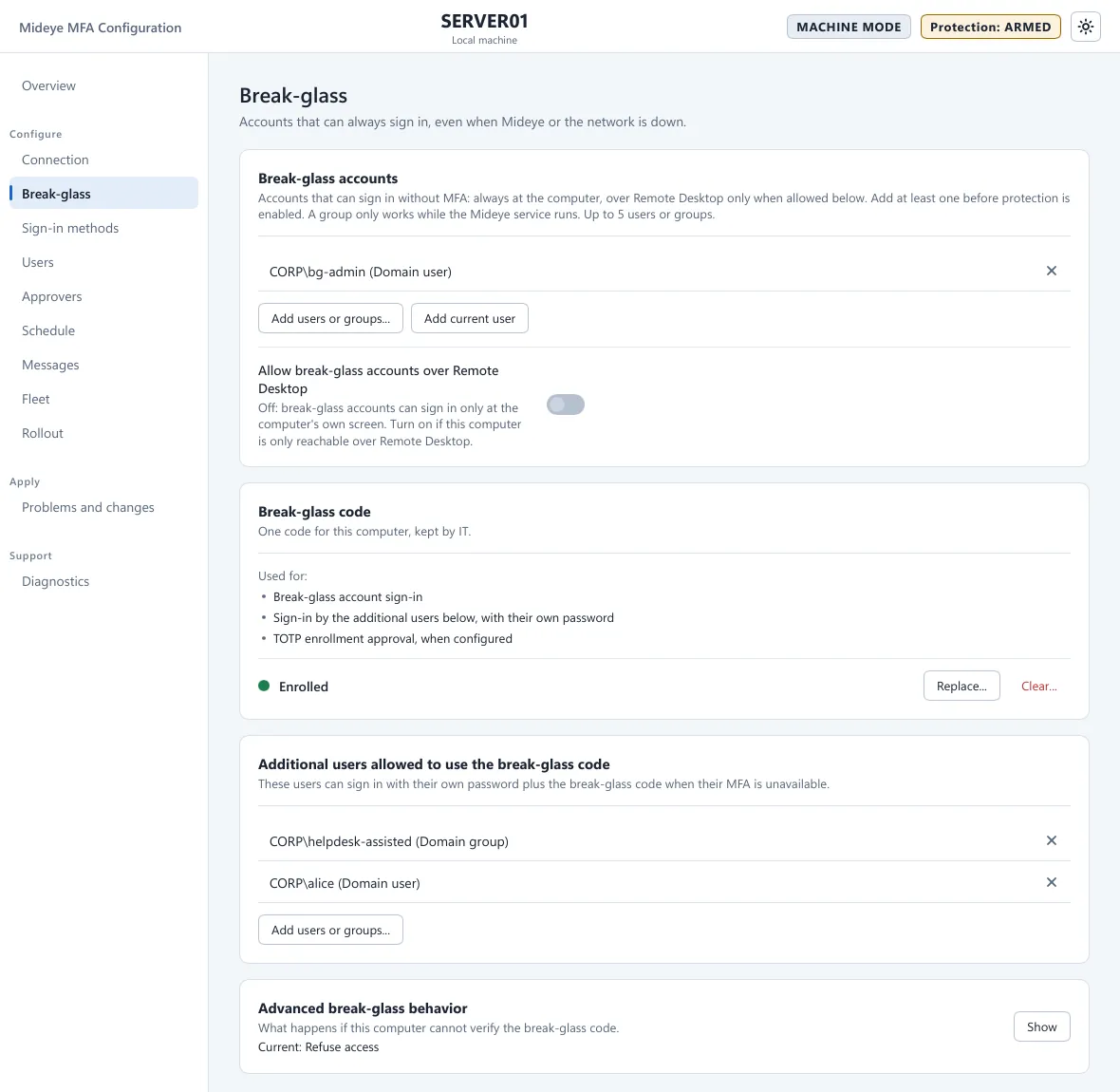
Fields
Section titled “Fields”| Field | What it does | Default |
|---|---|---|
| Break-glass accounts (“Accounts that can always sign in.”) | One to five users or groups, added with Add users or groups…. Add current user adds the account that runs Mideye Configuration. The X removes one. For a local account on a domain-joined computer, write .\name. A group only works while the Mideye service runs. A name the computer cannot find is marked “Not found on this computer”, and the Overview names it. | None. Required before activation. |
| Break-glass code on this computer (“One code for this computer, kept by IT.”) | The state Not enrolled or Enrolled, and the buttons Enroll…, Replace… and Clear…. | Not enrolled |
| Additional users allowed to use the break-glass code | Users and groups who may sign in with their own password and the break-glass code when their MFA is unavailable. Greyed out with “Enroll a break-glass code before adding users.” until a code exists. | None |
| Allow break-glass accounts over Remote Desktop | Off: break-glass accounts sign in only at the computer’s own screen. Over Remote Desktop the tile says “Break-glass accounts cannot sign in over Remote Desktop on this computer.” (event 1001, reason=BreakGlassRemoteDesktop). Turn it on while IT needs Remote Desktop, then off again. Users who sign in with the break-glass code are not affected. | Off |
| If the code cannot be verified (card Advanced break-glass behavior, closed by default) | What happens when the code cannot be checked on this computer. See If the code cannot be verified. | Refuse access |
Break-glass accounts
Section titled “Break-glass accounts”A break-glass account signs in with its Windows password and, if one is enrolled, the computer’s break-glass code. It never follows the schedule. Every sign-in by a break-glass account writes event 5701. Alert on it.
The break-glass code
Section titled “The break-glass code”The break-glass code is one code for this computer, kept by IT in an authenticator app.
- Enroll… saves the configuration first, then shows a QR code. Scan it, type the 6-digit code from the app into Code from the app (6 digits) and press Verify and enroll. The key is shown once. Close and forget the key removes it for good. The code is switched on when you press Save.
- Replace… makes the old entry in IT’s authenticator useless.
- Clear… returns break-glass accounts to a password only, and empties the list of additional users.
- A code enrolled on one computer does not work on another. Enroll again after cloning, sysprep or a restore.
- The code is checked on the computer and works with no network. Over Remote Desktop it works for the additional users; a break-glass account needs Allow break-glass accounts over Remote Desktop on.
The code is used for:
- break-glass account sign-in;
- sign-in by the additional users, with their own password, when their MFA is unavailable;
- approval of authenticator-app enrollment, when Extra approval on Sign-in methods is Break-glass code from IT.
Store the code offline and apart from administrator credentials. Read a code out only to a person you have identified, and only once.
What the user sees
Section titled “What the user sees”The user types user name and password, then chooses Use break-glass code. The next page reads “Enter a reason and the break-glass code from IT.” with the boxes Reason / ticket and One-time code. The reason is recorded in the event, and in Fleet when the computer is managed. If the code is wrong, the tile asks for the next code once or twice more to correct for clock drift (“2 of 3”, “3 of 3”). After the third wrong code the attempt ends with “The break-glass code was not accepted.” On success the tile says “Break-glass sign-in accepted. It has been recorded.”
In a Fleet policy
Section titled “In a Fleet policy”On a computer managed by Fleet, the policy’s Break-glass page sets the same fields, plus one switch that Mideye Configuration does not have.
| Field | What it does | Default |
|---|---|---|
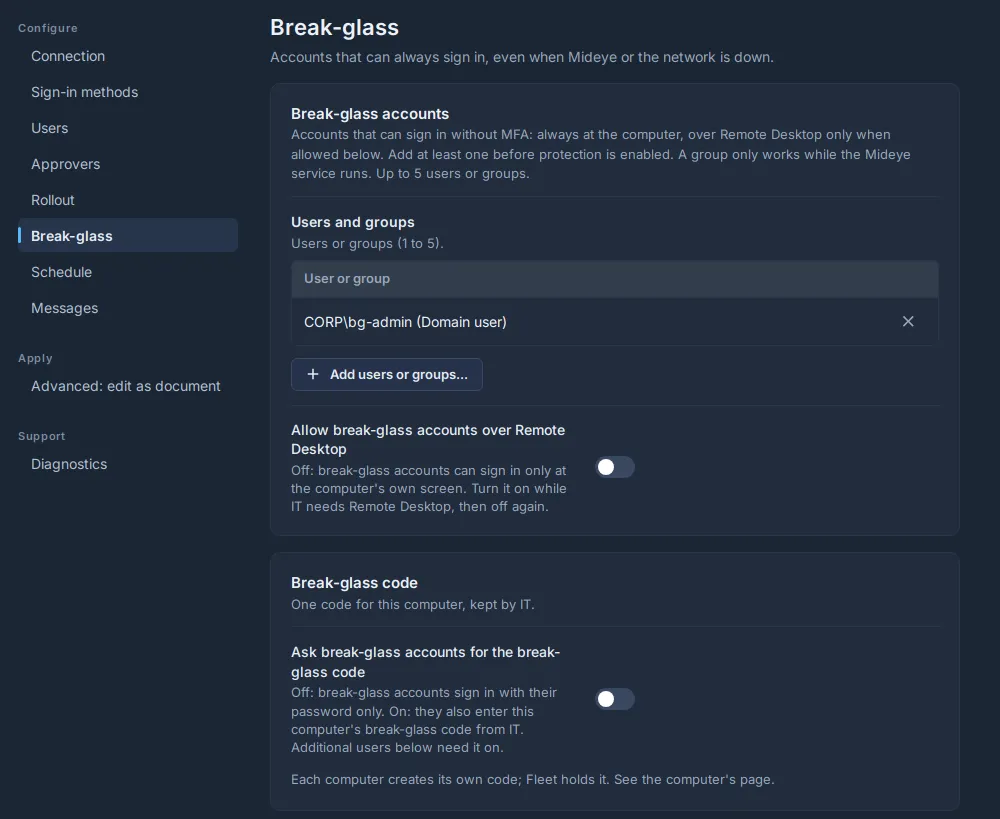
| Ask break-glass accounts for the break-glass code | Off: break-glass accounts sign in with their password only. On: they also enter this computer’s break-glass code from IT. Additional users, and Extra approval Break-glass code from IT, need it on. | Off (Fleet 0.27.0 and later) |
Each computer makes its own break-glass code. Fleet shows it on Nodes, the computer, card Break-glass code, Show code. In Mideye Configuration there is no switch: enrolling a code turns it on.
A policy made from base 2 before Fleet 0.27.0 shows the break-glass code as different from the base.
If the code cannot be verified
Section titled “If the code cannot be verified”| Choice | Result |
|---|---|
| Refuse access (default) | A break-glass account must give a valid code. Without one it cannot sign in (event 5712). |
| Allow password-only break-glass | A break-glass account is admitted on its password alone (event 5703). This is weaker. Choose it only if you accept that. |
Keep the default. With Refuse access, know the recovery procedure before you turn on protection. It is in the Fleet documentation in the downloads portal (login required).
Blocking
Section titled “Blocking”Break-glass codes typed by users have their own limits, separate from the wrong-code protection for one-time codes. Each block writes event 5711. The limits are described in the Fleet documentation in the downloads portal (login required).
Give break-glass accounts long random passwords, and alert on events 5701 and 5704.
Events
Section titled “Events”All events are in the Application log, source “Mideye Credential Provider”. The full list is in Logs and events.
| Event | Meaning |
|---|---|
| 5701 | A break-glass account signed in. |
| 5703 | A break-glass account was admitted on its password alone (the code could not be checked). |
| 5704 | A wrong or reused break-glass code was given for a break-glass account. |
| 5709 | A user signed in with the break-glass code. |
| 5710 | A user’s break-glass code was refused. |
| 5711 | A block on users’ break-glass codes started, for one user or the whole computer. |
| 5712 | The code could not be verified and Refuse access refused the sign-in. |
Alert on every 5701, 5703, 5709 and 5711.