

Configure Mideye Switch for Server 4 Connectivity
Overview
Section titled “Overview”Mideye Server 4 requires outbound TCP connectivity to Mideye’s cloud authentication service (called the “Switch”) to deliver SMS messages and validate OTP codes. This guide explains how to configure the Switch port, verify connectivity, and troubleshoot connection issues.
Switch Address Change (April 2026)
Section titled “Switch Address Change (April 2026)”The Mideye Switch has been migrated to new IP addresses. Two changes are required, in this order:
- Firewall: Allow outbound traffic to the new IP addresses on your customer-specific Switch port. The old and new IP addresses can coexist in the firewall, keeping both open during the transition period is recommended.
- Mideye Configuration Tool: Update the Switch host and Backup switch host fields with the new IP addresses.
- Restart services: Click “Save” and “Close” in the Mideye Configuration Tool to restart the services and apply the changes.
New addresses (active from April 27, 2026)
Section titled “New addresses (active from April 27, 2026)”| Role | IP Address |
|---|---|
| Primary | 94.237.32.75 |
| Secondary | 94.254.89.193 |
Previous addresses (valid until May 22, 2026)
Section titled “Previous addresses (valid until May 22, 2026)”| Role | IP Address |
|---|---|
| Primary | 217.151.192.84 |
| Secondary | 79.136.112.54 |
The previous addresses remain operational during the transition period and may be kept open in the firewall in parallel with the new addresses until May 22, 2026.
Connection to Mideye Switch
Section titled “Connection to Mideye Switch”Each customer receives a unique TCP port for communicating with Mideye’s central authentication service. Access is restricted to pre-registered public IP addresses for security.
| Switch Server | IP Address | Purpose |
|---|---|---|
| Primary | 94.237.32.75 | Main authentication service |
| Backup | 94.254.89.193 | Failover authentication service |
To configure the TCP port, do the following:
- Contact Mideye Support at support@mideye.com or phone +46854514750 to obtain a unique TCP port. Include the public IP-address(es) that the Mideye-server originates from.
- In Mideye Configuration Tool, tab ‘General’, enter the TCP port in the “Switch port:” field.
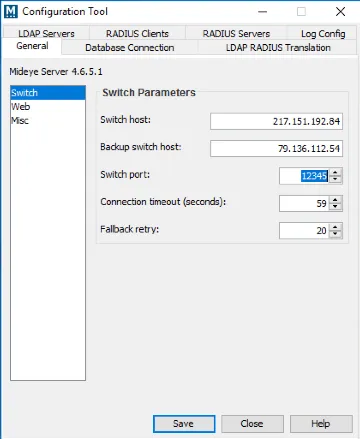
- Click “Save” and “Close” to restart the services.
Verify connectivity
Section titled “Verify connectivity”Make sure that both 94.237.32.75 and 94.254.89.193 are reachable from the Mideye Server on your customer-specific Switch port. This can be verified by using Telnet from a Windows Command Prompt or a Linux terminal. A successful connection results in a blank page, and an unsuccessful connection results in an error message “Connecting to 94.254.89.193…Could not open connection to the host, on port XXXXX: Connect failed”.
Note that Mideye Support first opens for traffic in the backup switch (94.254.89.193). The opening in the primary switch (94.237.32.75) will only be done after volume traffic has been detected in the backup switch. It is safe to proceed with the configuration while waiting for the opening in the primary switch.
Replace <port> with your customer-specific Switch port:
telnet 94.237.32.75 <port>telnet 94.254.89.193 <port>Troubleshooting
Section titled “Troubleshooting”Connection failed
Section titled “Connection failed”If the connection fails to both IP-addresses, check if there is any firewall blocking the TCP connection. If the problem persists, contact Mideye Support for real-time firewall logging.
Change of public IP address
Section titled “Change of public IP address”If the Mideye server is moved and/or originates from a new public IP address, Mideye Support must be informed about the new IP.