

Connect the Mideye endpoint to Mideye Cloud for Touch sign-in
This page is for the administrator who uses Mideye Cloud as the backend. You run no server: the computer talks to the hosted Mideye service, and users approve the sign-in with Touch in the Mideye app or through a link in an SMS. If you use your own Mideye Server, follow Connect Mideye Server instead. Every field is described in Connection.
Before you begin
Section titled “Before you begin”- The endpoint installed. See Install.
- A client ID and client secret from portal.prod.mideye.com. Treat the secret like a password.
- A test user with a mobile phone number in international format, for example
+46701234567. For a domain user the number is in the Active Directory attributemobile. - The computer reaches Mideye Cloud over HTTPS before anyone is signed in.
-
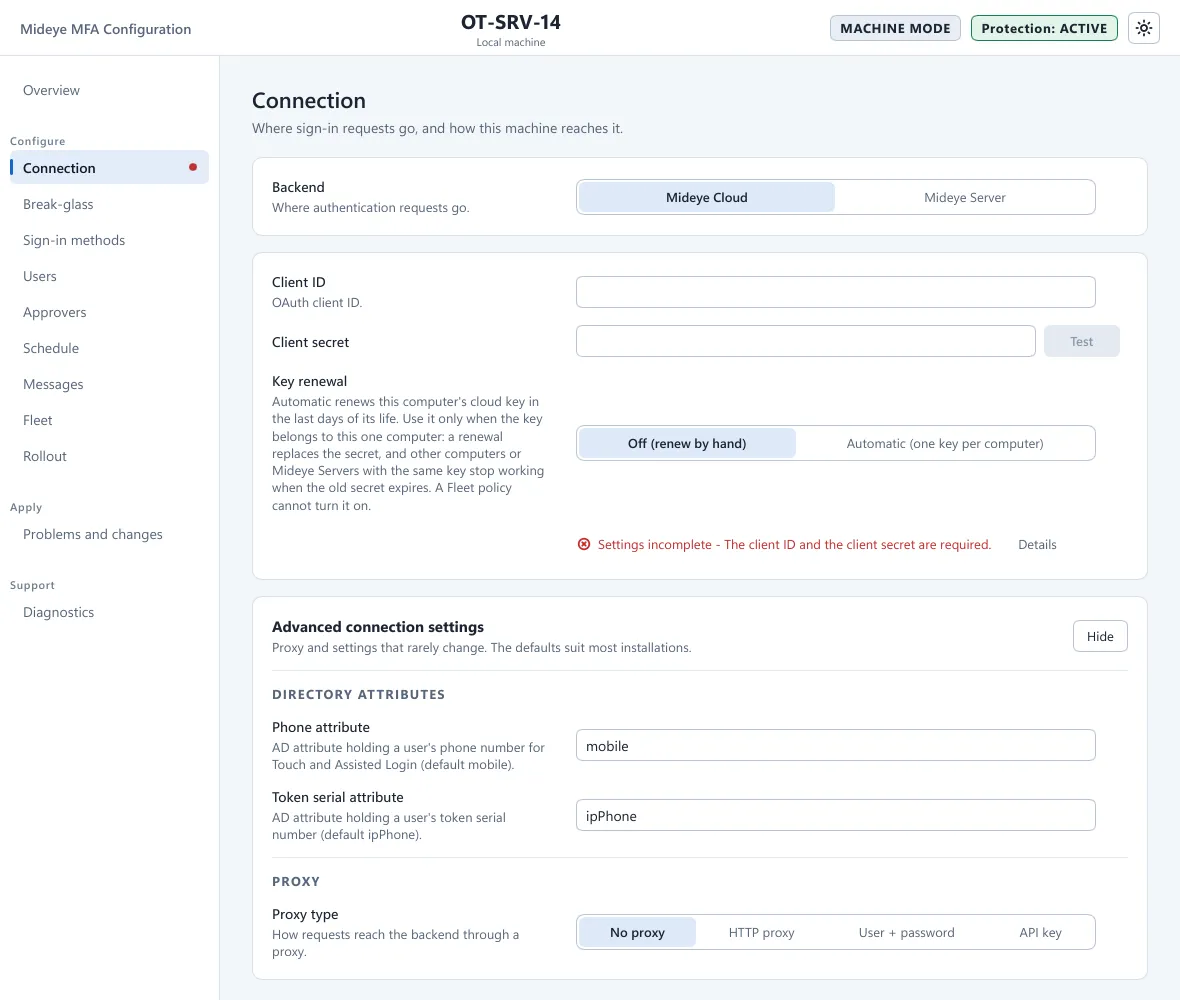
Open Mideye Configuration, page Connection. Set Backend to Mideye Cloud.
-
Type the Client ID and the Client secret. Leave Key renewal on Off (renew by hand).
-
Press Test next to the secret. Wait for Every step passed.
-
Give the phone numbers.
- A domain user needs nothing here. The number is read from
mobile. - A local account: page Users, card User mappings, Add users or groups…, pick the account and type the Phone number.
- A domain user needs nothing here. The number is read from
-
Open the page Sign-in methods. Check that Touch / Magic Link is on. Leave One-time code on if some users have a hardware token. If both are on, When both methods are available decides: Touch first tries Touch and falls back to the code; Let the user choose shows a choice.
-
Press Apply at the bottom. Wait for ✓ Configuration applied.
What the user sees
Section titled “What the user sees”After the password, the tile says “Approve the request on your phone, or open the link in the SMS.” On the phone the user gets “Sign in to {machine}” with Accept and Reject; you can change these texts on the Messages page. Cancel on the tile stops the request. After about 15 seconds the tile adds that an SMS can take up to half a minute, and the wait ends after 60 seconds.
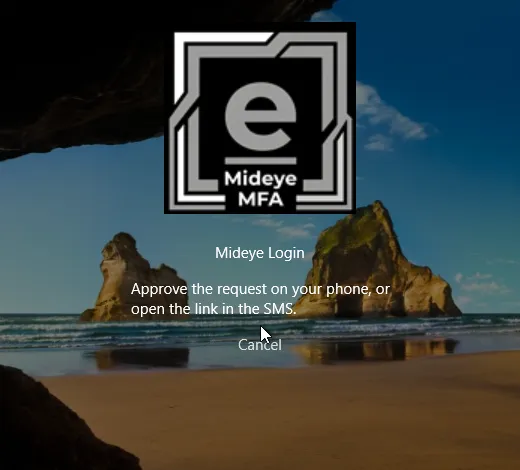
With Let the user choose, the tile first shows Choose how to sign in. with Send a request to my phone, Enter a code and Cancel.
Verify
Section titled “Verify”- Overview: Backend says Connected and Pre-flight says GO.
- Diagnostics, Health: the backend is healthy and Mideye Cloud key shows the days left.
- The first real sign-in happens after you arm the computer in Turn protection on. It writes event 1000 with
method=Touchin the Application log, source Mideye Credential Provider.
Troubleshooting
Section titled “Troubleshooting”- The test fails at DNS or TLS: the computer cannot reach Mideye Cloud. Check the firewall, the proxy under Advanced connection settings, and the clock.
- The client ID or secret was refused (event 2010): type the secret again and check in the portal that the key has not expired.
- “Your account has no sign-in method for this computer.”: the user has no phone number. Check
mobile, or the User mappings row of a local account. The same cause makes the tile ask for a code instead of Touch. - “Your phone did not answer in time. Sign in again.” (event 1002) or “Another sign-in request is still open.”: answer or reject the open request on the phone, then sign in again.
Next: Break-glass.