

Messages page: Touch, SMS and approver message texts
This page is for administrators who change what users and approvers read on their phones. The Messages page sets the texts that go to people’s phones during a sign-in. It has two tabs: User messages for the person who signs in and Approver messages for an approver during Assisted Login.
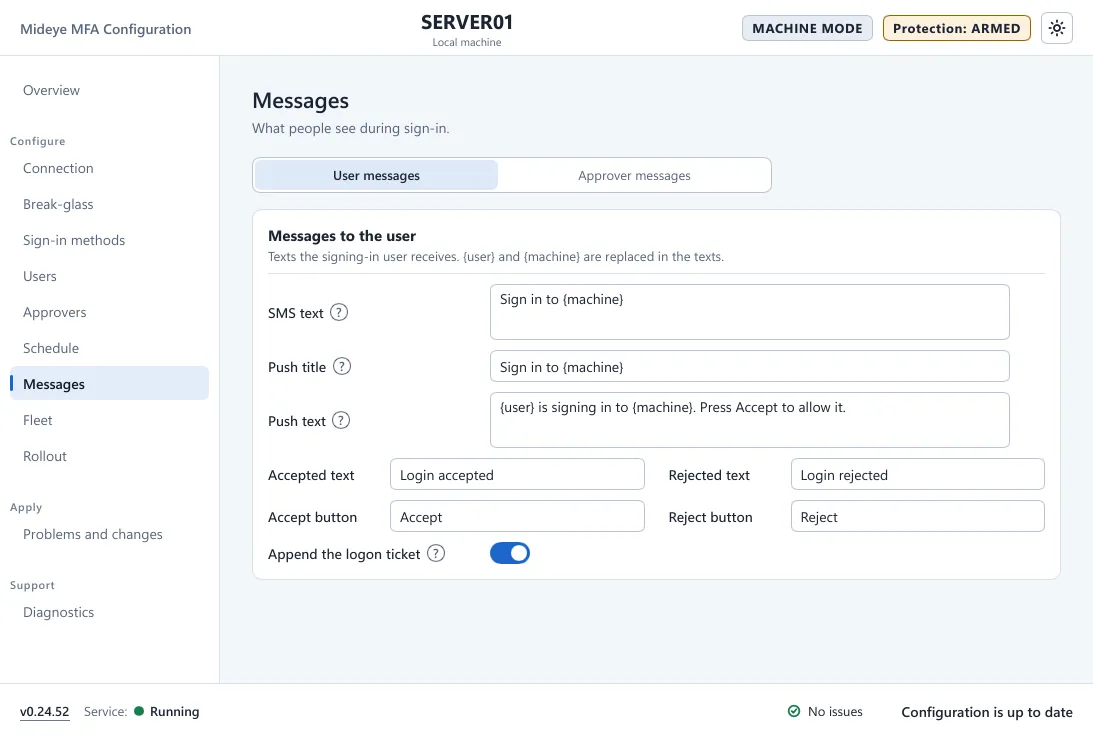
Fields
Section titled “Fields”| Field | What it does | Default (user) |
|---|---|---|
| SMS text | The SMS that carries the Touch link. | Sign in to {machine} |
| Push title | The title of the notification in the Mideye app. | Sign in to {machine} |
| Push text | The body of the notification. | {user} is signing in to {machine}. Press Accept to allow it. |
| Accepted text | Shown after the person accepts. | Login accepted |
| Rejected text | Shown after the person rejects. | Login rejected |
| Accept button, Reject button | Button labels. | Accept, Reject |
| Append the logon ticket | Appends the logon ticket to the text. | On |
The approver tab has the same fields. Its defaults are Approve a sign-in to {machine} for the SMS, Approve sign-in to {machine} for the title, {user} wants to sign in to {machine}. Press Approve to allow it, or Reject to deny. for the body, Approve and Reject for the buttons, and Access approved and Access denied for the results.
Placeholders
Section titled “Placeholders”{user} is replaced with the user’s name and {machine} with the computer’s name. Texts are limited to 500 characters (titles 100, buttons 50).
What you cannot change here
Section titled “What you cannot change here”- The texts on the Windows sign-in tile itself (for example “Choose how to sign in.” or “Approve the request on your phone, or open the link in the SMS.”) are fixed in the product. They are in English.
- The timeouts are not settings. Touch waits up to 60 seconds. For Assisted Login the user has 120 seconds and the approver 60.
Restore the defaults
Section titled “Restore the defaults”Type the default text from the tables above back into the field and press Apply.