

Problems and changes page: review before you apply
This page is for administrators who review a change before it takes effect. The Problems and changes page is the last step of every edit. It shows what is wrong, what will change on this computer, and the button that applies it. It is the page behind the Review button and the issue summary in the footer. The subtitle reads “Compared with the configuration stored on this machine.”
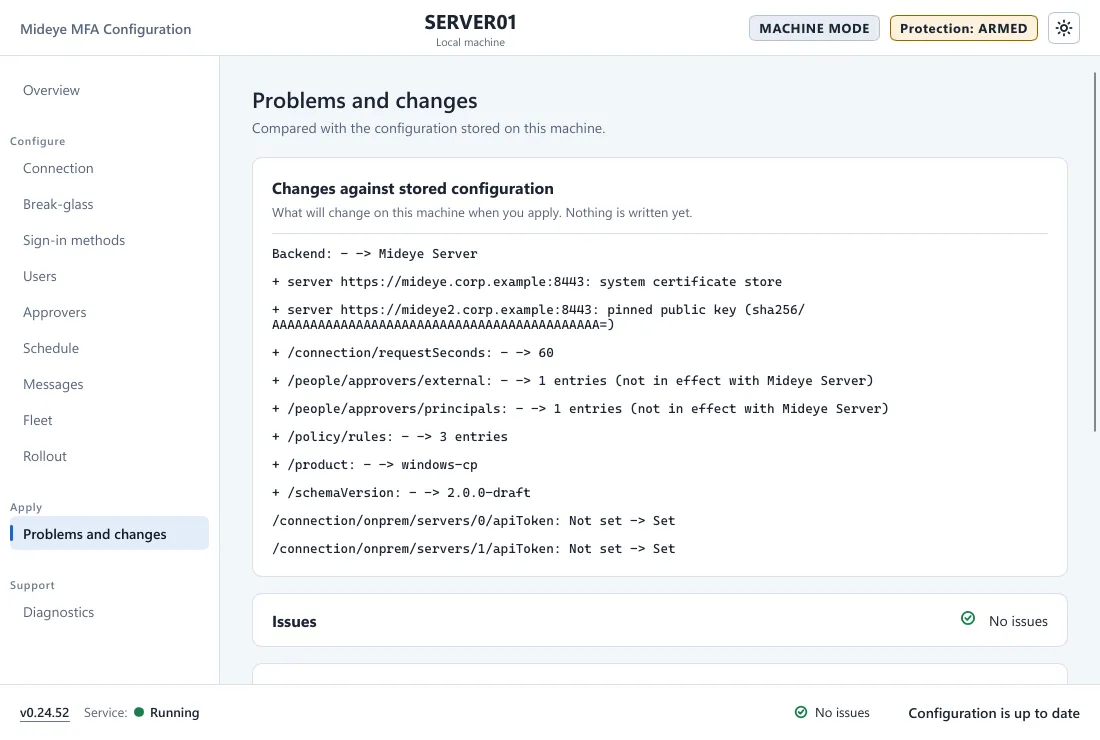
Changes against stored configuration
Section titled “Changes against stored configuration”“What will change on this machine when you apply. Nothing is written yet.” Each line is one setting, with the old value and the new value, for example Backend: - -> Mideye Server. A line with a plus sign adds a setting.
- A secret is never shown. The line says only how it changes, for example
Secret: Not set -> Set. - A setting that does not apply to the chosen backend is marked “not in effect with Mideye Server” (or the other way round).
- With an error in the configuration the page says “Fix the errors below to see the changes.”
- With nothing changed it says No changes.
Issues
Section titled “Issues”“Problems and warnings in the configuration. Errors must be fixed before Apply.” Each issue says what is wrong and has a Show button that opens the page and field that owns it.
| Kind | What it does |
|---|---|
| Errors | Block Save and Apply. For example, a required value is missing or a number is out of range. |
| Warnings | Do not block. For example, a user or group that this computer cannot find, or a break-glass account that is missing. |
The footer shows the count (1 error, 2 warnings). Click it to open the same list in a window called Configuration issues. With no issues it says No issues.
Apply configuration
Section titled “Apply configuration”“Writes the configuration to this machine after the Mideye service has validated it.” The card holds the Apply button. It is off with “Fix the problems first.” while there is an error, and with “There is nothing to apply.” when nothing changed.
While it works the tool says Applying…, then Saved. Waiting for the service to load it…, then “Applied. The service has loaded the configuration.” If the service does not confirm in time, the text says the configuration is saved and that the service loads it within about a minute. If the service refuses it, the text says “Saved, but the service did not accept the configuration” with the reason. See Diagnostics.
Some changes ask for a confirmation first, for example turning activation on. Each confirmation starts unchecked and Apply stays off until every one is checked.
A change to the break-glass code on a computer that already has one asks for the current code: “Type the current code from the authenticator for this computer.” Type the 6-digit code and press Apply with this code.
In author mode
Section titled “In author mode”There is no service to apply to. The card says “Author mode: Save writes the document with secrets masked. New secrets typed here are not saved.” Use Save as… to write the file. See the window.
On a Fleet computer
Section titled “On a Fleet computer”The page is read-only. “Apply is disabled: change the policy in Fleet.”