

Connect the Mideye endpoint to Mideye Server: setup steps
This page is for the administrator who uses their own Mideye Server as the backend. The computer calls the server’s Authentication API over HTTPS, and the server finds users, phone numbers and tokens in its own database or LDAP. You set up the server first, then the computer. If you use Mideye Cloud, follow Connect Mideye Cloud instead. Every field on the computer is described in Connection.
Before you begin
Section titled “Before you begin”- A Mideye Server 6.6.6, reachable over HTTPS from the computer before anyone is signed in.
- For Touch: the server is connected to Mideye Cloud (Server Settings, Cloud Configuration, Client ID and Client Secret). An air-gapped server cannot send Touch; users then sign in with a one-time code.
- The endpoint installed. See Install.
Steps on the Mideye Server
Section titled “Steps on the Mideye Server”-
Open External Endpoints, Authentication API Endpoints and create an endpoint. Give it a Name, for example “Windows computers”. Use one endpoint for these computers and nothing else.
-
On the tab General Settings set the switches:
Setting Value Why Require password (first factor) Off if you have local Windows accounts. On only if every user is a domain user. A domain user’s Windows password is sent and checked by the server. A local account’s Windows password is not sent, so with this switch on a local account is refused. Touch On Users approve on the phone. The Default Touch timeout is between 10 and 60 seconds. Token verification (OTP) On, if users have hardware tokens or an authenticator app The server checks one-time codes. TOTP self-enrollment Optional Only if users should enrol an authenticator app at the sign-in screen. See Authenticator app. Require prior authentication (under TOTP self-enrollment) On (default) Enrolment needs a just-approved Touch first. See Authenticator app. For Assisted Login, the Assisted Login section has its own switches. See Assisted Login.
-
On the tab User Repositories tick Use Mideye database for users stored in the server, and add LDAP Profiles for users in your directory. They are searched in the order you give. An LDAP profile reads the phone number from
mobileby default. -
Press Save. The tab API Tokens is available after the endpoint is saved.
-
On API Tokens create a token with an API token name and an Expires at date. Copy the value at once. It is shown only on that page. If you lose it, delete the token and create a new one.
-
Check that every user has what the methods need: a Phone Number for Touch, a token for codes. Database users are under Users and Tokens, Mideye Users. LDAP users get the phone number from the profile’s mobile attribute.
Steps on the computer
Section titled “Steps on the computer”-
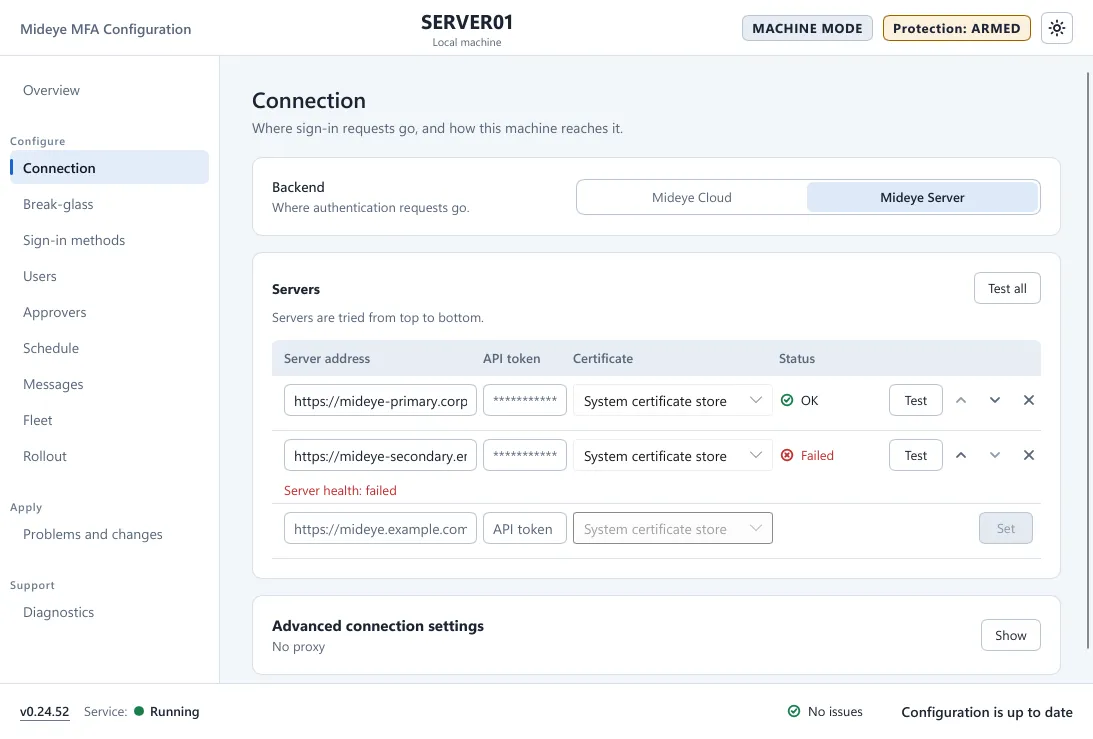
Open Mideye Configuration, page Connection. Set Backend to Mideye Server.
-
In the card Servers, type the Server address in the empty last row, for example
https://mideye.example.com:8443. -
Open the Certificate list of the row and choose how to trust the server:
- Pinned public key for a new Mideye Server, whose certificate is self-signed. The window Pin this server’s key opens. Press Fetch certificate, then Accept and pin. Review or remove pins later with Manage pins.
- System certificate store only when a CA the computer already trusts signed the certificate.
-
Type the API token and press Set. From now on it shows as dots.
-
Press Test on the row. Wait for OK.
-
Add a second server if you have one. Servers are tried from top to bottom; use the arrows to change the order.
-
On Sign-in methods keep Touch / Magic Link on, and One-time code on if you use codes.
-
Press Apply. Wait for ✓ Configuration applied.
Local Windows accounts
Section titled “Local Windows accounts”In Mideye Server mode the server, not the computer, holds users, phones and tokens. Phone numbers typed on the Users page of the tool are for Mideye Cloud only.
- A local account (
COMPUTER\user) needs a Mideye Server database user with the same name, with a Phone Number or a token. - Its Windows password is not sent for sign-in, so Require password (first factor) must be off on the Authentication API endpoint.
- Enrolment of an authenticator app always checks the password at the server. A local account that enrols needs the same password on its database user as in Windows.
What the user sees
Section titled “What the user sees”The same as with Mideye Cloud. For Touch the tile says “Approve the request on your phone, or open the link in the SMS.” For a code it says “Enter your one-time code.” If the server cannot reach Mideye Cloud, the tile says “Touch could not be started. Enter your one-time code.”
Verify
Section titled “Verify”- Overview: Backend is Connected. Diagnostics, Health: the backend is healthy.
- After you turn protection on, each sign-in writes event 1000 with
server=naming the server that answered. Event 1013 means a server was skipped and the next one was used. - Mideye Server, Logs, Authentication Logs: the sign-in appears with the user name.
Troubleshooting
Section titled “Troubleshooting”- The test says the certificate does not match: press Trust this server… and pin it. A changed server certificate needs a new pin.
- A local account is refused at once: Require password (first factor) is still on, or no database user has the same name.
- “The Mideye Server did not accept this sign-in.”: the server answers with a generic refusal. Read its Authentication Logs for the real reason.
- “The Mideye Server cannot be reached.” (event 5810): check the network, the firewall and the pin.
Next: Break-glass.