

Join a Mideye endpoint computer to Mideye Fleet
This page is for the administrator who moves one standalone computer under Mideye Fleet, so that a central policy sets its configuration. For the full process and for many computers at once, see the Fleet guides in the Mideye downloads portal (login required). The fields are described in Fleet page.
Before you begin
Section titled “Before you begin”- A running Mideye Fleet and its address.
- The computer installed in Local or Fleet mode. A computer installed in Admin mode cannot join.
- The computer can reach Fleet on TCP port 9444, outbound. Fleet never connects in.
- In Fleet open Nodes, then Add computers. Create the join key and copy it, or download the onboarding file. It works once.
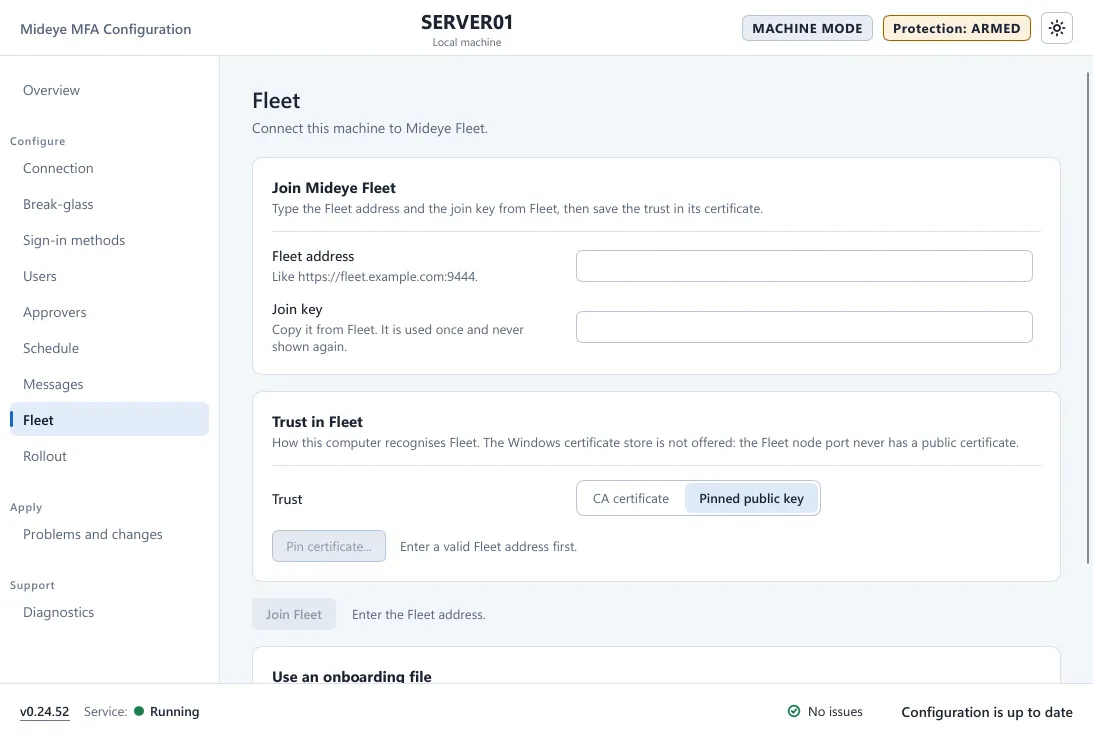
- On the computer open Mideye Configuration, page Fleet. Type the Fleet address, for example
https://fleet.example.com:9444, and the Join key, or press Choose onboarding file…. - In the card Trust in Fleet set the trust, then press Join Fleet.
- In Fleet open Nodes. Check the new computer and press Approve, or Reject if you do not recognise it.
Verify
Section titled “Verify”- Mideye Configuration shows Managed by Mideye Fleet, and the Fleet page is read-only. Change settings in the Fleet policy from now on.
- In Fleet the computer is listed on Nodes and checks in regularly.
Move a computer from local configuration to Fleet
Section titled “Move a computer from local configuration to Fleet”A computer that already runs with its own configuration from Mideye Configuration can join Fleet without a reinstall. This is what happens.
- The local configuration stays in force until the first Fleet policy applies. Nothing is deleted. While the computer waits for approval, users sign in as before.
- The first Fleet policy replaces the local configuration. Check the policy of the computer’s group before you press Approve: Mideye Server, break-glass accounts, sign-in methods.
- A changed Mideye Server connection is tested first. This applies when the computer is armed or active, or when the policy turns protection on. If the policy’s Mideye Server connection differs from the one in force, the computer runs the same test as Test connection. If no server accepts it, nothing is written and the local configuration stays in force. Fleet shows the computer as apply-failed: “This computer could not reach or was not accepted by the Mideye Server in this policy. The policy in force was kept.” The Application log has event 6069. The computer tries again by itself, with longer waits each time. Fix the server or the policy; Force re-apply in Fleet tests again at once.
- An active computer is armed again. When the computer was active and the first Fleet policy keeps Activate Mideye on this machine on, the computer goes back to Armed (event 5308). The other sign-in tiles show again. 2 successful Mideye sign-ins in a row make it active again. 3 failed ones in a row disarm it. Later policies leave an active computer active. Keep a second way in, for example a console, until the computer is active again.
- Break-glass follows the policy. Whether break-glass accounts must also give the break-glass code is the policy’s switch Ask break-glass accounts for the break-glass code (off by default). See Break-glass.
Reset an enrolment
Section titled “Reset an enrolment”Reset the enrolment to start the join again, for example when the onboarding file was refused because it expired, or to use another Fleet.
- Before Fleet approved the computer (waiting for approval, the onboarding file refused, or no contact with Fleet yet): open Mideye Configuration, page Fleet, and press Reset enrolment…. Read the dialog and press Reset enrolment. The join form shows again. Load a new onboarding file or join key from Fleet.
- Once the computer is managed the page is read-only. Run
mideye agent reset-enrollmentin an elevated prompt, or release the computer in Fleet.
A reset deletes the computer’s Fleet keys, certificates, stored policies and held secrets. Mideye MFA keeps running with the configuration in force. Fleet keeps its record of the computer until an administrator removes it.
Troubleshooting
Section titled “Troubleshooting”- Join Fleet stays grey: the line next to it says what is missing.
- “The onboarding file was refused (it may have expired).”: press Reset enrolment…, then load a new file from Fleet. See Reset an enrolment.
- The computer never appears on Nodes: check port 9444, the clock and the proxy.
- The join key was already used or has expired: create a new one in Fleet.