

Approve a Mideye Touch request on your phone at Windows sign-in
Touch sends a request to your phone. You approve it there, and Windows signs you in.
What happens
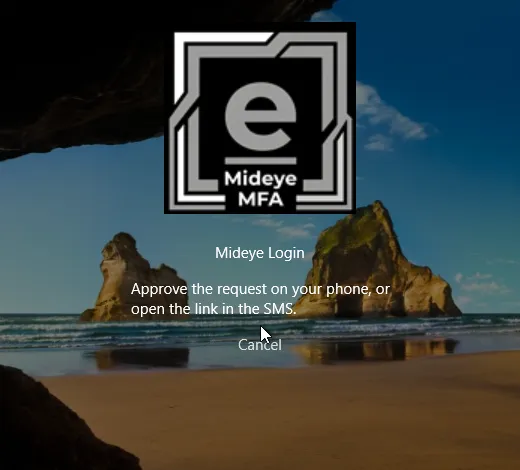
Section titled “What happens”After your password is accepted, the tile shows:
Approve the request on your phone, or open the link in the SMS.
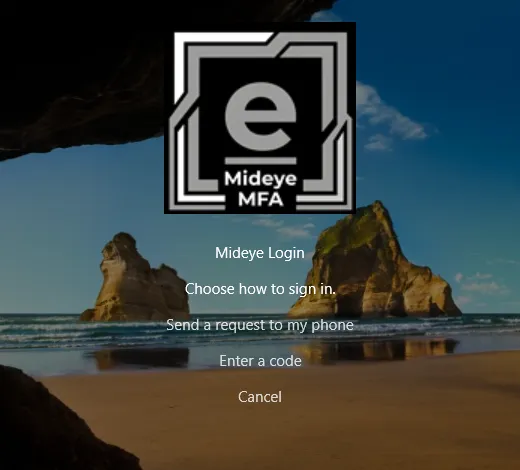
If your administrator lets you choose, you first see Choose how to sign in. with Send a request to my phone, Enter a code and Cancel.
What to do
Section titled “What to do”- Open the Mideye app on your phone and press Accept, or open the link in the SMS.
- Wait a moment. The tile signs you in.
After a short while the tile adds “An SMS can take up to half a minute to arrive.” If nobody answers, the request times out.
If it does not work
Section titled “If it does not work”| You see | What it means | What to do |
|---|---|---|
| The request was rejected on your phone. | You (or someone) pressed Reject. | Sign in again and press Accept. |
| Your phone did not answer in time. Sign in again. | No answer within the time limit. | Sign in again, and have your phone ready. |
| The request could not be sent to your phone. Contact your administrator. | The request could not be delivered. | Contact your helpdesk. |
| Another sign-in request is still open. Answer it or wait a minute, then sign in again. | An earlier request is still waiting on your phone. | Approve or reject it, or wait a minute. |
| A request is already waiting on your phone. Approve it there. | Same as above. | Open the app and approve. |
| Your account has no sign-in method for this computer. Contact your administrator. | No phone number or token is set for you. | Contact your helpdesk. |
Cancel stops the request for good. A cancelled request cannot be approved later. If you have no phone, select Cancel, then Use break-glass code if your administrator gave you one.
Approved but the screen did not change
Section titled “Approved but the screen did not change”If you approve while the lock screen is showing, one key press signs you in. If you approve while nobody touches the computer, the sign-in happens when the tile next refreshes, within about 15 seconds.