

Sign in at Windows with a one-time code from a token or app
You may be asked for a one-time code instead of a Touch request. The code can come from a hardware token, an authenticator app or a YubiKey. The tile does not ask which. It has one page for all of them.
Enter the code
Section titled “Enter the code”After your password, the tile shows Enter your one-time code. and a One-time code box.
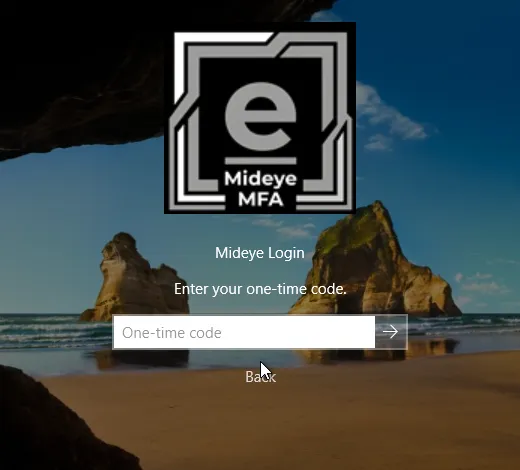
- Read the current code from your token or app.
- Type it into the box and press the arrow.
- Windows signs you in.
Type the code while it is still valid. A code can be used only once.
| Your device | What to type |
|---|---|
| Hardware token with a display | The digits it shows. |
| Authenticator app | The digits for your Mideye entry. |
| YubiKey | Press its button in the box. It types the code for you. |
If the code is not accepted
Section titled “If the code is not accepted”The tile says That code was not accepted. Enter a new code. and keeps your user name and password. Wait for the next code from your device and try again.
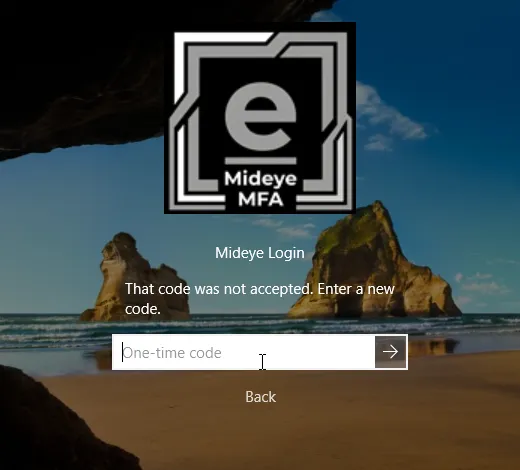
- Too many wrong codes block you for a while. The tile then says Too many wrong codes. Try again later, or contact your administrator.
- If a code is refused again and again, the clock on your device may be wrong, or the token may be out of sync. Your helpdesk can fix a token.
- Your account has no token or phone: the tile says Your account has no sign-in method for this computer. Contact your administrator.
Set up an authenticator app
Section titled “Set up an authenticator app”If your administrator allows it, the code page shows the link No authenticator app? Set one up. Follow it and scan the QR code with your authenticator app. Administrators: see Set up the authenticator app.
When the Mideye Server cannot be reached
Section titled “When the Mideye Server cannot be reached”Codes are checked by the Mideye Server whenever it can be reached. If your administrator turned on offline sign-in:
- If you set up your authenticator app on this computer, the same entry also works offline.
- If you set it up elsewhere, this computer offers you a separate entry for this computer only, named
Mideye offline:followed by the computer name. Use the code from that entry when the server cannot be reached.
Otherwise the tile says “The Mideye Server cannot be reached. Try again later, or contact your administrator.”