

Quickstart: MFA on Windows RDP in ~10 minutes
The bare-minimum path from a fresh Windows host to “RDP users need MFA.” Four clicks-and-paste steps in the GUI, no JSON, no PowerShell.
Before you start
Section titled “Before you start”You need:
- A Windows host (Server 2019 / 2022 / 2025 or Windows 10 / 11 Pro, x64), with local admin rights and RDP already enabled.
- A test user with a phone number in their AD
mobileattribute, E.164 format (e.g.+46701234567). - A Mideye Client ID and Client Secret: generate them at https://portal.prod.mideye.com.
- The Mideye+ app on the test user’s phone.
1. Install
Section titled “1. Install”Download mideye-credential-provider.msi from the downloads page and run it as administrator (Welcome → License → Install → Finish). It lays down the credential-provider DLLs and MideyeProviderConfig.exe. Nothing changes about how Windows logon behaves until you finish step 4: Mideye is inactive after install.
2. Paste Client ID and Client Secret
Section titled “2. Paste Client ID and Client Secret”Open C:\Program Files\Mideye\MideyeProviderConfig.exe. On the General tab, leave Deployment Mode on Cloud, paste your Client ID and Client Secret, then click Test Connection.
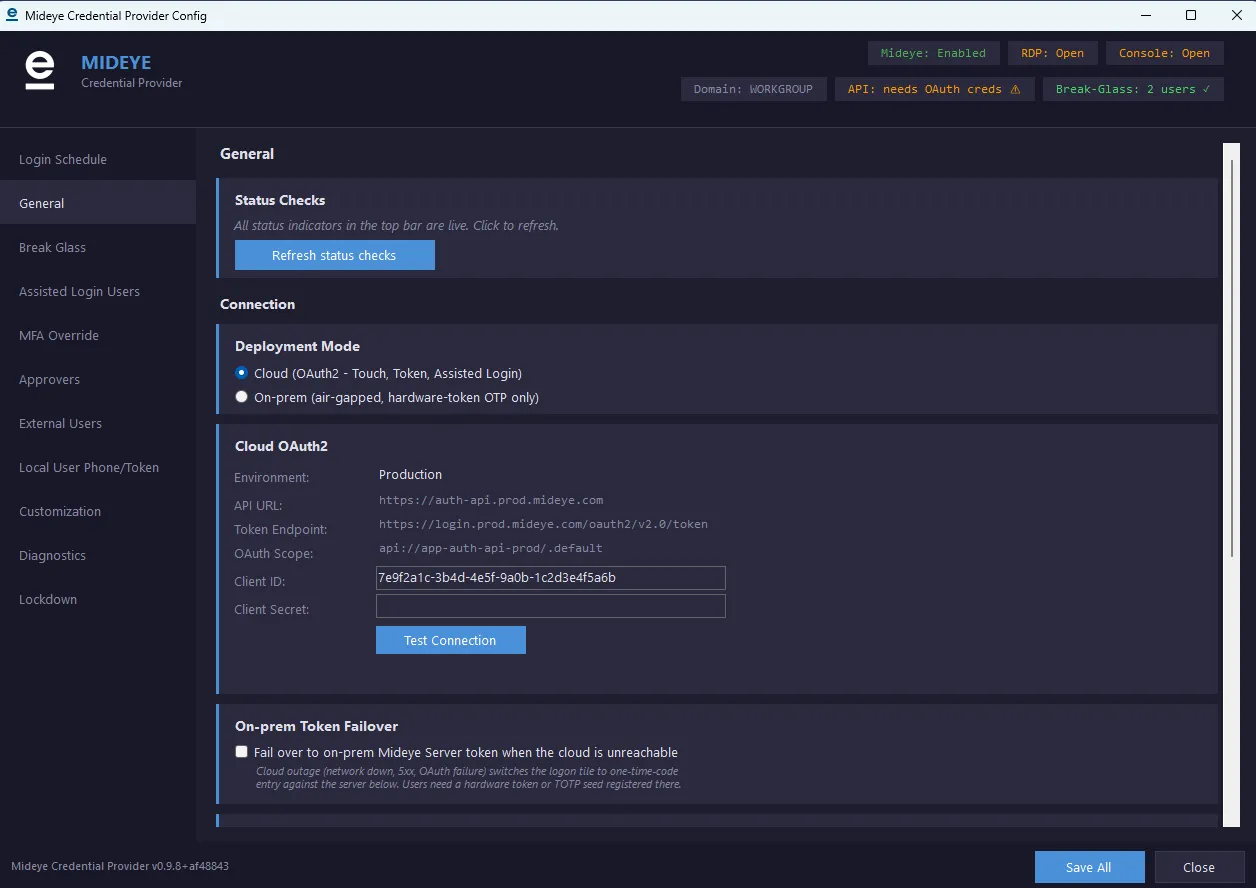
You should see API: OAuth ready in the status bar at the top of the window.
3. Add yourself as a Break-Glass account
Section titled “3. Add yourself as a Break-Glass account”On the Break Glass tab click + Add User and pick your current admin account (local SAM or AD domain). Break-Glass accounts always skip MFA, they’re the recovery path if something goes wrong. Mideye refuses to activate without at least one.
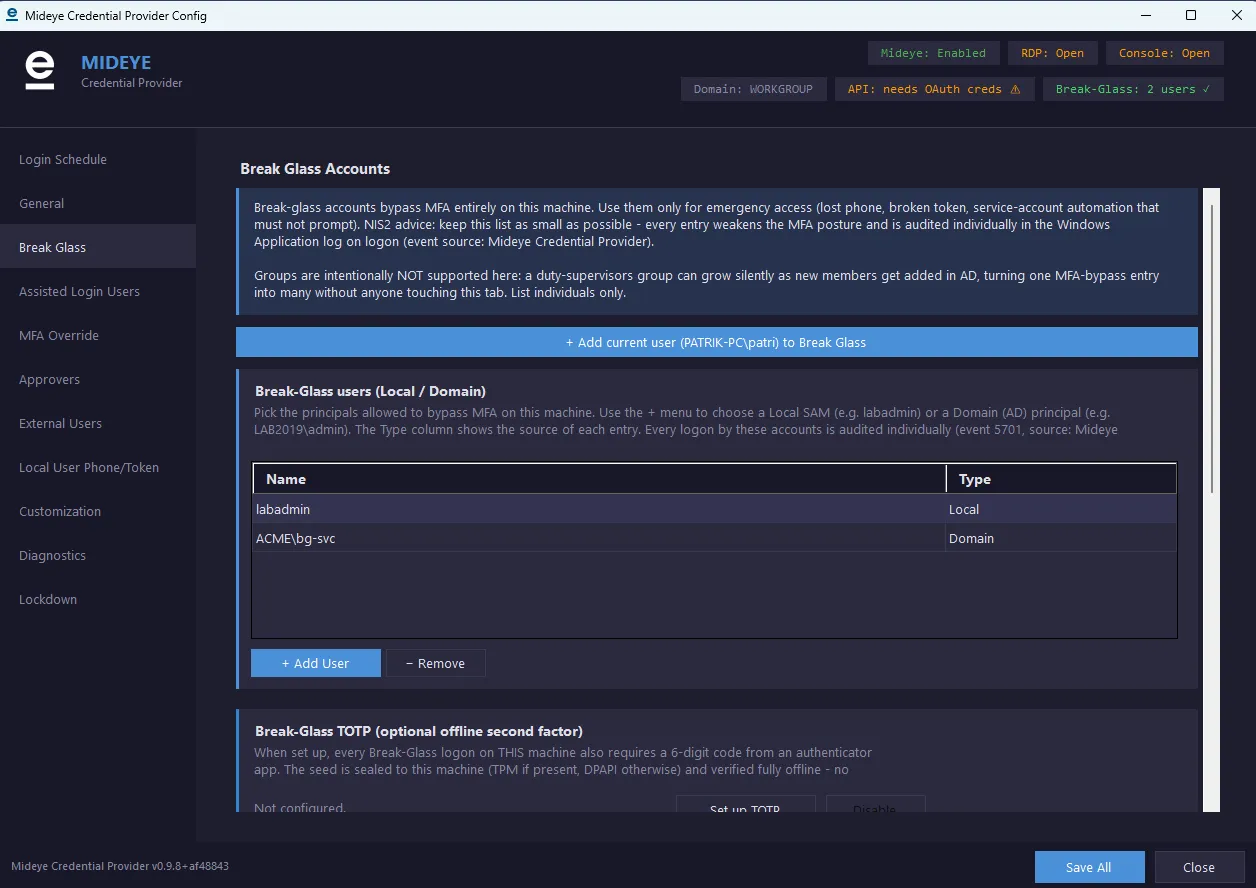
Click Save All in the bottom-right.
The tab lists individuals only, on purpose: a group grows silently as people are added in AD, turning one MFA-bypass entry into many without anyone opening this tab. Groups do work if you need one, but you add them through a reviewed --apply-config JSON rather than a click. Five entries is the cap either way.
4. Activate and enforce on RDP
Section titled “4. Activate and enforce on RDP”On the Lockdown tab:
- Click Activate (Stage 1). The Mideye tile now appears on the logon screen alongside the regular password tile. You can still log in either way, verify that the Mideye flow works before locking anything down.
- RDP into the host once as your test user, accept the Touch push on their phone, and confirm Windows lets them through.
- Click Enforce on RDP (Stage 2). Every other credential-provider tile is now hidden on RDP and Network Level Authentication is disabled on the RDP listener so logons reach the Mideye tile. The console still shows the password tile as a recovery path.
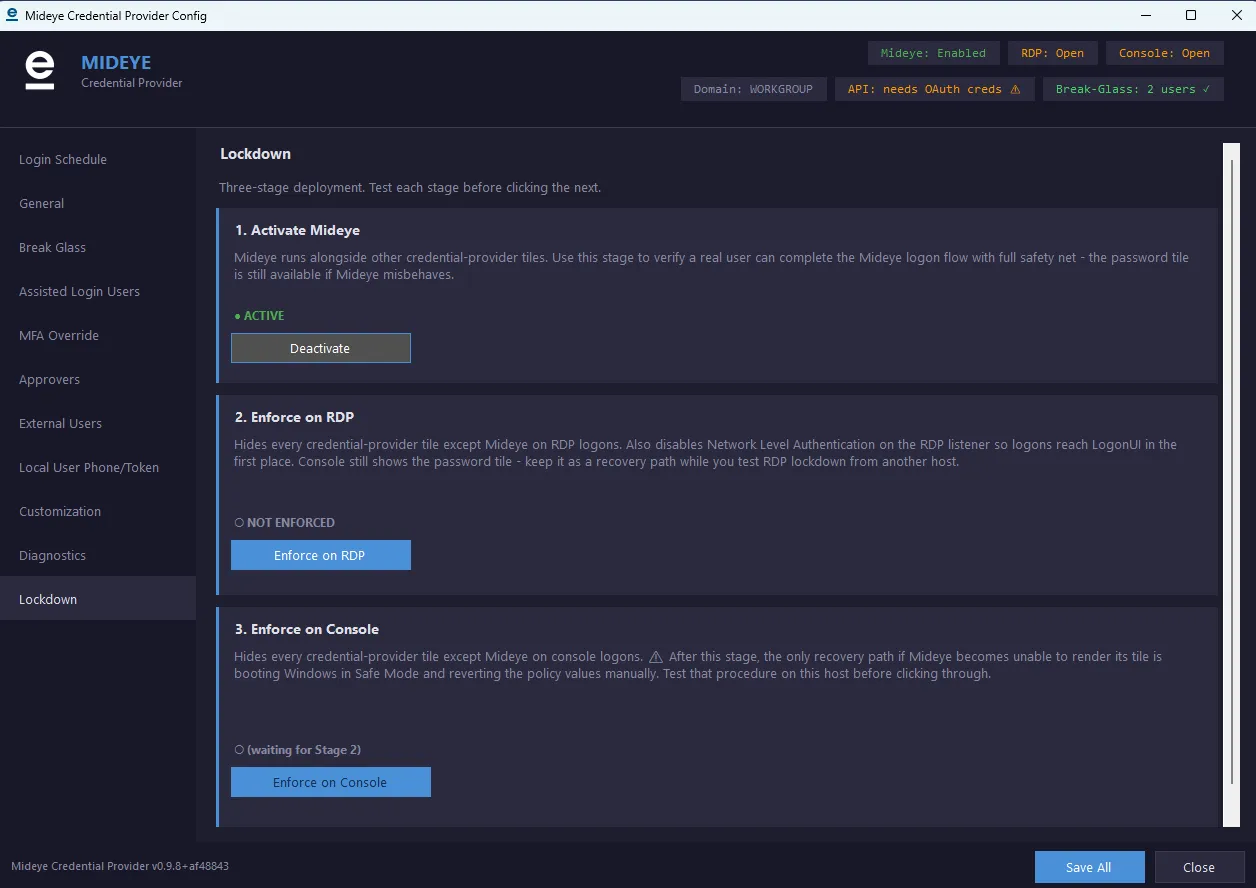
Done. Any user permitted to RDP into this host who has a phone number in their AD mobile attribute is now prompted for MFA on every RDP logon.
Leave Stage 3, Enforce on Console, off until you’ve run Stage 2 in production for a while. Once enforced on the console there is no password-tile fallback.
5. Confirm it is actually enforcing
Section titled “5. Confirm it is actually enforcing”& "C:\Program Files\Mideye\MideyeProviderConfig.exe" --preflightWorth 30 seconds, because the failure this catches is the quiet one. A half-configured deployment does not break logon: the provider returns E_NOTIMPL, the filter stops hiding the Windows tile, and the password alone lets everyone in. It looks exactly like a working install from the logon screen.
--preflight is read-only, so it is safe on production hardware. Exit 0 means the host is enforcing. Exit 4 means do not rely on this one yet, and the output names what to fix.
What’s next
Section titled “What’s next”Read Recovery before Stage 3. One command undoes any lockout; knowing it in advance is the difference between a five-minute fix and a rebuild. Sign in with your Break-Glass account once, over both RDP and console, so you know it works before you need it to.
Beyond that, the configuration tool exposes a Login Schedule (per-hour MFA / Assisted / Deny), per-user MFA Override pinning, Assisted Login approver rosters (local, domain, and external phone-only approvers), customisable user-facing prompts, and the interface language for both the logon screen and the tool itself. Explore those tabs in MideyeProviderConfig.exe once the basic RDP-MFA flow is working.
If your users need to get in during a cloud outage, look at On-prem Token Failover on the General tab, and provision the hardware tokens or TOTP seeds on the local Mideye Server before you need them.