

LDAP Password Comparison
The Password Comparison feature authenticates users against a hashed password stored in an optional LDAP attribute, instead of the standard password attribute. This feature is designed for Microsoft Active Directory user repositories.
The attribute containing the hashed password can be any user attribute in Active Directory. It must contain the hashed password in the format {HASH_TYPE}hashed_Password_Base64_Encoded (case-sensitive).
An account with appropriate permissions to read the specified attribute from Active Directory is required.
Supported password hashes
Section titled “Supported password hashes”| Hash type | Description |
|---|---|
{SHA} | SHA-1 hash algorithm |
{SSHA} | Salted SHA |
{CRYPT} | Unix crypt function |
{MD5} | MD5 hash algorithm |
{SMD5} | Salted MD5 algorithm |
The plain-text password must be UTF-8 encoded and the resulting hash must be Base64 encoded.
Hashing process
Section titled “Hashing process”-
Hash the UTF-8 plain-text password using one of the supported algorithms.
Example — MD5 hash of “password”:
5f4dcc3b5aa765d61d8327deb882cf99 -
Base64 encode the hash output.
Hex: 5f4dcc3b5aa765d61d8327deb882cf99Base64: X03MO1qnZdYdgyfeuILPmQ== -
Prepend the hash algorithm name in curly brackets. The hash type string is case-sensitive.
Valid examples for the password “password”:
{SSHA}VtpoxGYLenxwGC88loHYDwb1SpqBbOb6c1OyZiyAQcgFYPPnqRFviA=={SHA}W6ph5Mm5Pz8GgiULbPgzG37mj9g={CRYPT}aajfMKNH1hTm2{MD5}X03MO1qnZdYdgyfeuILPmQ=={SMD5}swXK27O85U86pZxk/sAN6nNhbHQ=
Enable Password Comparison
Section titled “Enable Password Comparison”-
Open the LDAP Server Configuration dialog.
-
Select the Authentication tab.
-
In the Password Override field, specify the Active Directory attribute that stores the hashed password.
For example, using the
physicalDeliveryOfficeNameattribute: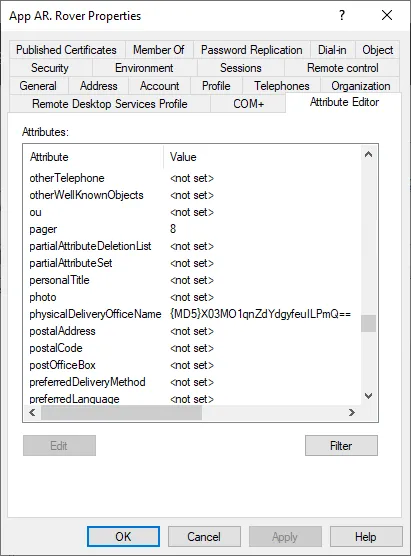
-
Ensure the authentication type, mobile number, and/or token number settings are correct.
-
Save the configuration.
After saving, RADIUS authentication will validate against the hashed password in the specified LDAP attribute.
Related pages
Section titled “Related pages”- LDAP Profiles — Configure LDAP directory connections
- RADIUS Translation — Map LDAP attributes to RADIUS responses