

Certificate Management for LDAPS and Web GUI
Overview
Section titled “Overview”Certificate Management handles SSL/TLS certificates for secure LDAPS connections to Active Directory and the Mideye Web GUI.
Certificate types:
- LDAPS certificates — Encrypt connections to LDAP directories
- Web GUI certificates — Secure the administrative web interface
Certificate Management allows management for:
- the LDAPS bind when using an encrypted connection to a configured LDAP-server such as Active Directory
- the certificate for the Mideye Web GUI.
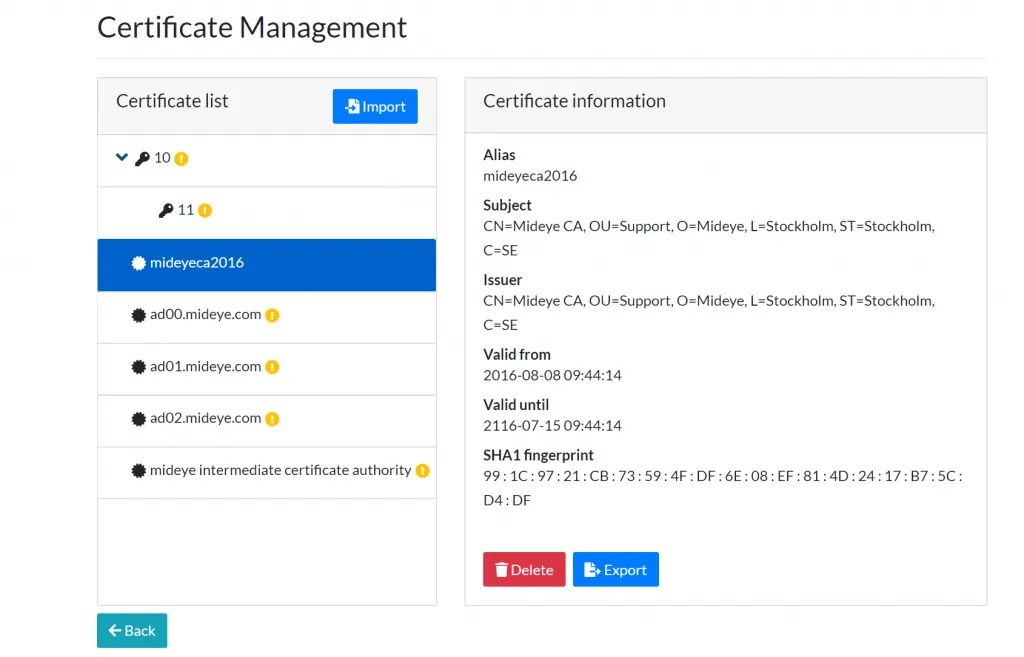
To accessCertificate Management, navigate to “Configuration” → “Certificate Management”. An overview of all the imported and fetched certificates will be shown.
Import a new certificate
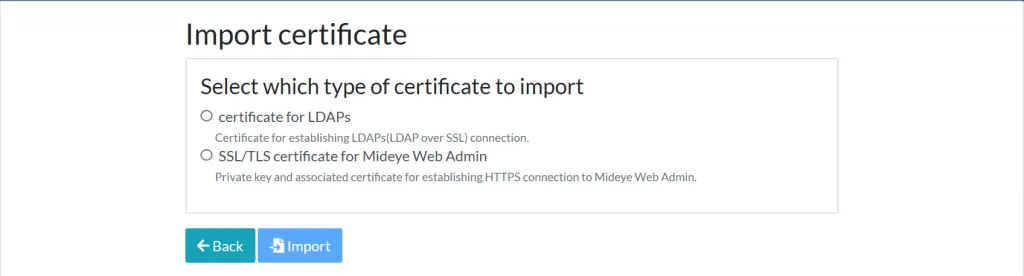
Section titled “Import a new certificate”To import a new certificate, click “Import”. Then choose to import a certificate for LDAPs or Mideye Web GUI.
Certificate for LDAPs
Section titled “Certificate for LDAPs”When importing a new LDAPS certificate, make sure that the certificate is present on the actual domain controller as well. Then follow these steps to import the certificate:
- Choose “Certificate for LDAPs”.
- Click on “Choose File” and upload the file to the Mideye Server.
- Click “Import”.
- The certificate will now show up in the “Certificate Management”.
- Go to the LDAP profile and test the connection.
Certificate for Mideye Web GUI
Section titled “Certificate for Mideye Web GUI”- Choose “SSL/TLS certificate for Mideye Web Admin”
- Click on “Choose File” and upload the file to the Mideye Server.
- Enter the password for the certificate keystore file.
- If the private key entry has a different password, check the box and enter the second password.
- Click “Import”.
- The certificate will now show up in the “Certificate Management”.
- Use a web browser to go to the Mideye Web GUI and check in the browser that the correct certificate is being used.
Monitoring of certificate expiery
Section titled “Monitoring of certificate expiery”The expiry of imported certificates is monitored and presented in the dashboard of the Mideye Web GUI. The server also starts to issue warnings to the log files 10 days before imported certificates expire.
Troubleshooting
Section titled “Troubleshooting”How do I get a .pfx file?
Section titled “How do I get a .pfx file?”Read more in the Knowledge base on how to convert a CSR or .cer file into a .pfx file.
The wrong certificate is being used in the web browser
Section titled “The wrong certificate is being used in the web browser”If the wrong certificate is being used in the web browser you might have to point to the right certificate in the Mideye Server keystore.
-
Log in to the Web GUI
-
Go to “Configuration” → “Certificate Management”.
-
Click on the certificate and note the certificates “Alias”.
-
Go to the server containing the Mideye Server.
-
Use a text editor and open the following file:
Windows:
C:\Program Files (x86)\Mideye Server 5\config\application-prod.ymlLinux:/opt/mideyeserver/config/application-prod.yml -
Add the “Alias” string from step 3 to the file, in this example the “Alias” is webadmin. If the “Alias” ends with a
0, likewebadmin0, remove the0.
server: port: 8443 ssl: key-store: C:\Program Files (x86)\Mideye Server 5\config\keystore.pfx key-store-password: "123456789" enabled: true key-alias: webadmin compression: enabled: true mime-types: text/html,text/xml,text/plain,text/css, application/javascript, application/json min-response-size: 1024It now points to the Alias that the new certificate is using.