

Mideye Server 5 Web Administration Interface
Overview
Section titled “Overview”The Mideye Server 5 Web GUI provides a browser-based interface for server configuration, user management, and monitoring. Access it at https://<FQDN>:<ssl-port>, where the port is specified during installation.
Key features:
- User role management (Root, Super Admin, Admin, Operator)
- SSL certificate configuration
- LDAP group mapping for administrative access
- Database user creation and management
Accessing the Web Interface
Section titled “Accessing the Web Interface”The Mideye Server has a web interface for server operation, administration and management. The web interface is reached via https://<FQDN>:<ssl-port>, where the port is specified during server installation.
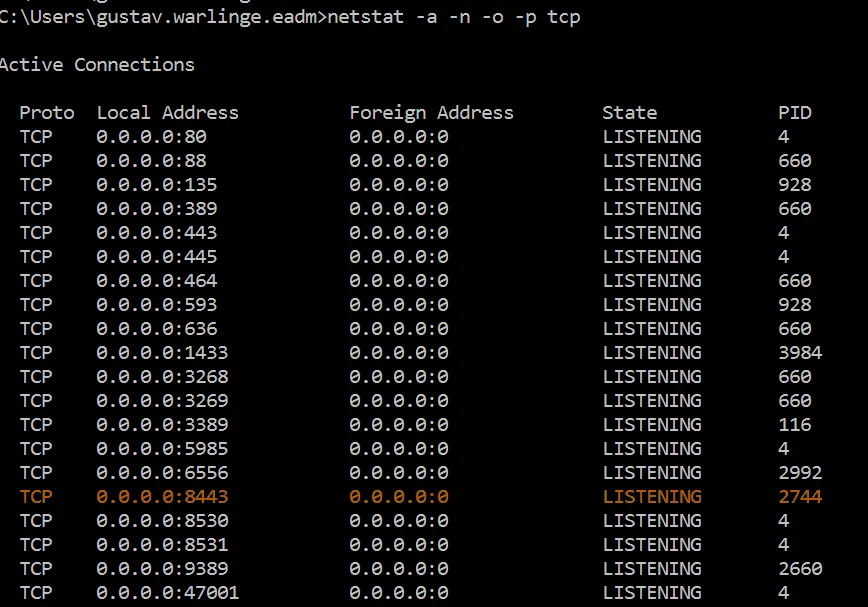
To find out which port is used for the web interface, use Netstat or similar tool to list all TCP-ports the server is listening to. The default port for Windows is 443, for Linux it is 8443. In the example below, netstat -a -n -o -p tcp was executed on a Windows Server 2019 to list all possible ports used by Mideye Server 5.
It is recommended to access the web interface from a desktop client using a web browser such as IE, Edge, Firefox, Chrome or Safari. Web browsers on servers are often locked down and may not work as expected.
Web interface SSL-certificate
Section titled “Web interface SSL-certificate”During the installation of a Mideye Server a self-signed certificate will automatically be generated. To replace this with a custom certificate please see section Certificate Management.
Web interface Root password
Section titled “Web interface Root password”A root user is created at server installation. This account should only be used for creating administrative accounts and for emergency purposes.
Reset password for Root account
Section titled “Reset password for Root account”Encrypt the new Root password using
https://<FQDN>:<ssl-port>/api/get-hashed-password?password=<new_password>Example:
https://mideye.company.com:443/api/get-hashed-password?password=MyNewSuperPasswordLog on to the database using an account with write permission and execute
mysql> UPDATE mideye_user SET jhi_password = 'encrypted_password' WHERE user_name = 'root';Unlock Root account
Section titled “Unlock Root account”To unlock the Root account, log on to the database with write permission and execute
UPDATE mideye_user SET is_locked = 0 WHERE user_name = 'root';Web interface administrative accounts
Section titled “Web interface administrative accounts”To administer the web GUI, Mideye Server has four user roles:
- Root: There is only one root user, and this account should not be in use after creating a Super Administrator.
- Super Administrators: Same permissions as root user.
- Administrators
- Operators
All roles except for the root role can be mapped to LDAP accounts. See section LDAP-RADIUS Translation for details.
User Management (only authorized to perform these operations on a user with a lower security level)
- Create user
- Update user
- Delete user (any user is not allowed to delete itself)
Note: Operators are not allowed to write to any table except locked LDAP users.
The table below shows different tasks and what roles are allowed to perform the entity:
| Radius Server | Create | Root, Super Admins, Admins |
|---|---|---|
| Update | Root, Super Admins, Admin | |
| Delete | Root, Super Admins, Admin | |
| Read | Root, Super Admins, Admin, Operators | |
| Radius Client | Create | Root, Super Admins, Admins |
| Update | Root, Super Admins, Admins | |
| Delete | Root, Super Admins, Admins | |
| Read | Root, Super Admins, Admin, Operators | |
| Ldap Profile | Create | Root, Super Admins, Admins |
| Update | Root, Super Admins, Admins | |
| Delete | Root, Super Admins, Admins | |
| Read | Root, Super Admins, Admin, Operators | |
| Approved Radius IP | Create | Root, Super Admins, Admins |
| Update | Root, Super Admins, Admins | |
| Delete | Root, Super Admins, Admins | |
| Read | Root, Super Admins, Admin, Operators | |
| LDAP RADIUS Translation | Create | Root, Super Admins, Admins |
| Update | Root, Super Admins, Admins | |
| Delete | Root, Super Admins, Admins | |
| Read | Root, Super Admins, Admin, Operators | |
| Accounting | Read | Root, Super Admins, Admin, Operators |
| Authentication Log | Read | Root, Super Admins, Admin, Operators |
| Locked Ldap Users | Update | Root, Super Admins, Admin, Operators |
| Read | Root, Super Admins, Admin, Operators |
Create a new database Super Administrator
Section titled “Create a new database Super Administrator”To create a new Super Administrator account, navigate to “Users” followed by “Database users”. Select “Create a new Database User” and select Super Administrator from the dropdown list “Role”. Add the following data to the account:
- Username
- Authentication Type
- Password
- Phone number (optional)
- Token number (optional)
- Message type (default FLASH-SMS)
- Expiration Date (optional)
- Select Web Admin RADIUS client in the “Radius Client” dropdown list
Change password for database account
Section titled “Change password for database account”All database accounts can have their password changed. It is not possible to change the password of an account with the same privileges level as the logged-on account meaning that a Super Administrator can only change the password on accounts that have lower permission i.e Administrators, Operators and database users.
An administrator or operator can change their own password inside the portal using the “Change password” page located at the top right menu.
Map LDAP-groups to Mideye Web GUI roles
Section titled “Map LDAP-groups to Mideye Web GUI roles”Instead of using database accounts to administrate Mideye Server, LDAP-groups can be mapped to all roles except for the ROOT-role. Complete the following steps to add LDAP-groups:
- Connect to LDAP with a LDAP Profile.
- Enable LDAP Profile – LDAP-RADIUS Translation and add the attribute memberOf next to “LDAP Attribute Name”.
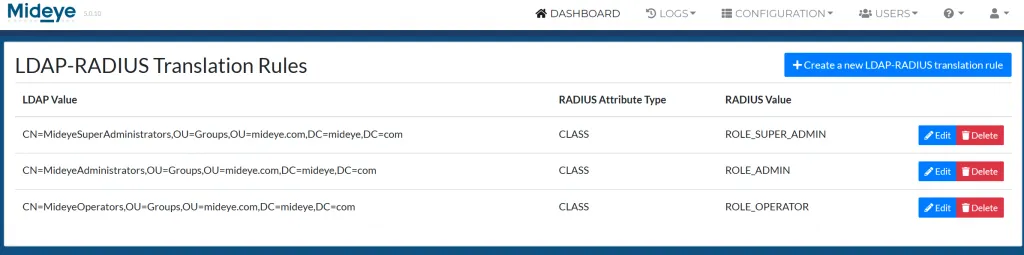
- Last part is to map LDAP-accounts or groups to the predefined roles used by Mideye Server. Navigate to “Configuration” followed by “LDAP-RADIUS Translation”.
- Add the DN of a user or group to the predefined roles. In the example below, three groups was added to Super Administrator, Administrator and Operator
Database users for end-user authentication
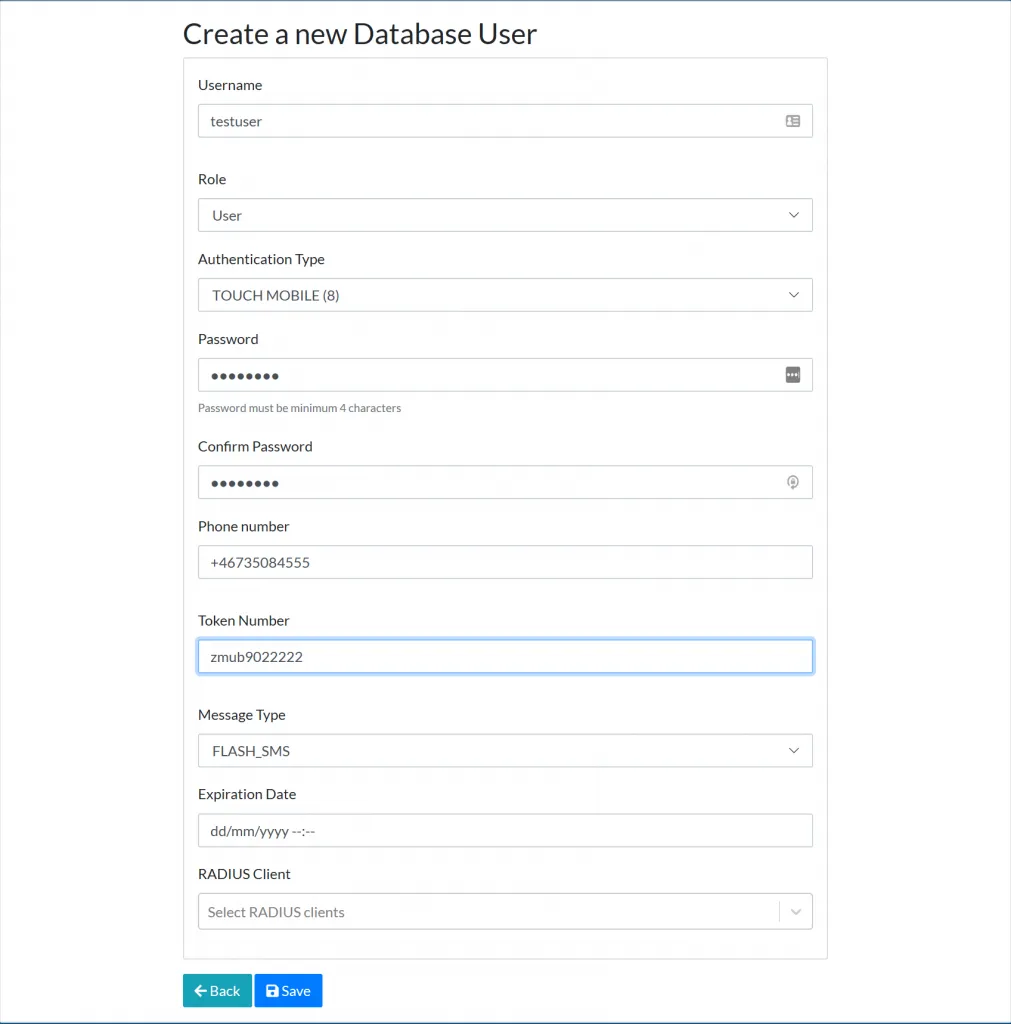
Section titled “Database users for end-user authentication”Mideye Server can create database users that can be used by RADIUS-clients that will work as an alternative to LDAP-accounts. To create a new database user, navigate to “Users” followed by “Database users”. Click “Create a new Database User”. Give the user a username, select “User” as role and select a password. If RADIUS client field is left empty, the user will be able to authenticate to any radius client that have the flag “Check database” enabled.
Search for database users
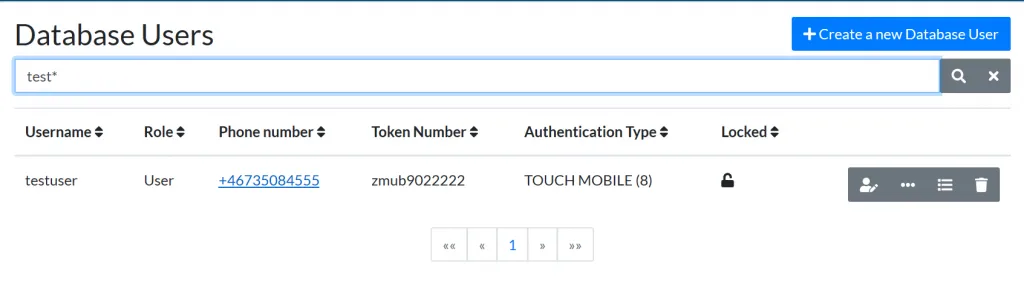
Section titled “Search for database users”To search for any database user (both administrative accounts and with the role “user” navigate to “Users” followed by “Database users”. In the “Search for Database User” field, type any data that can be used to find the user. It is also possible to search for users using the Token number. All searches can be made using wildcards, for example, test*. This example will show any user that starts with the username test.
Password change
Section titled “Password change”When creating a new database user, a temporary password can be set that will allow the user to set a new password when logging in for the first time. This can be done from “Users” followed by database users.
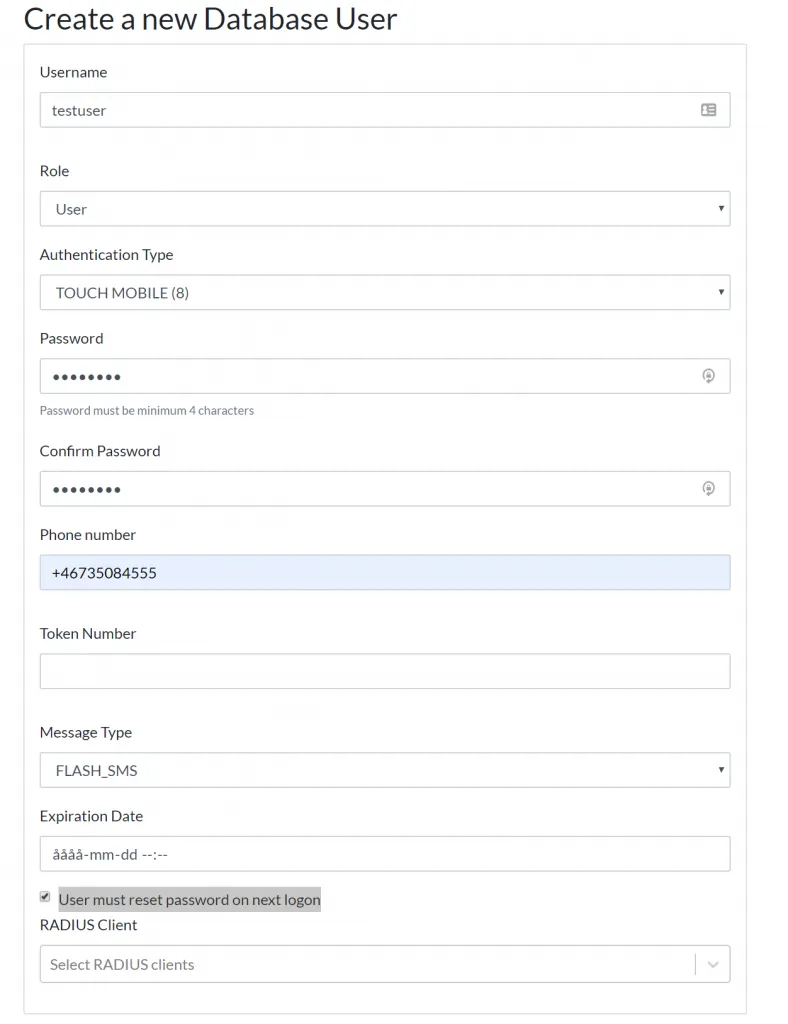
Enable password must be changed on next logon