

Microsoft NPS Expired Password Change with Mideye
Overview
Section titled “Overview”Need to allow users to change expired Active Directory passwords during VPN login? This guide explains how to configure Microsoft Network Policy Server (NPS) alongside Mideye Server 4 to enable password change workflows using the MS-CHAPv2 protocol. Users can reset expired passwords or change passwords marked “must change at next logon” while authenticating through Mideye MFA.
Mideye Server 4 can integrate with Microsoft NPS to support password changes during RADIUS authentication. This requires:
| Requirement | Purpose |
|---|---|
| MS-CHAPv2 protocol | Required for password change functionality |
| NPS role installed | Validates credentials against Active Directory |
| Same LDAP server | NPS and Mideye must use the same AD |
| Mideye as NPS client | NPS accepts requests from Mideye Server |
Requirements:
- The authentication must use the MS-CHAP v2 protocol.
- A configured Network Policy Server (NPS) pointing to the Active Directory repository.
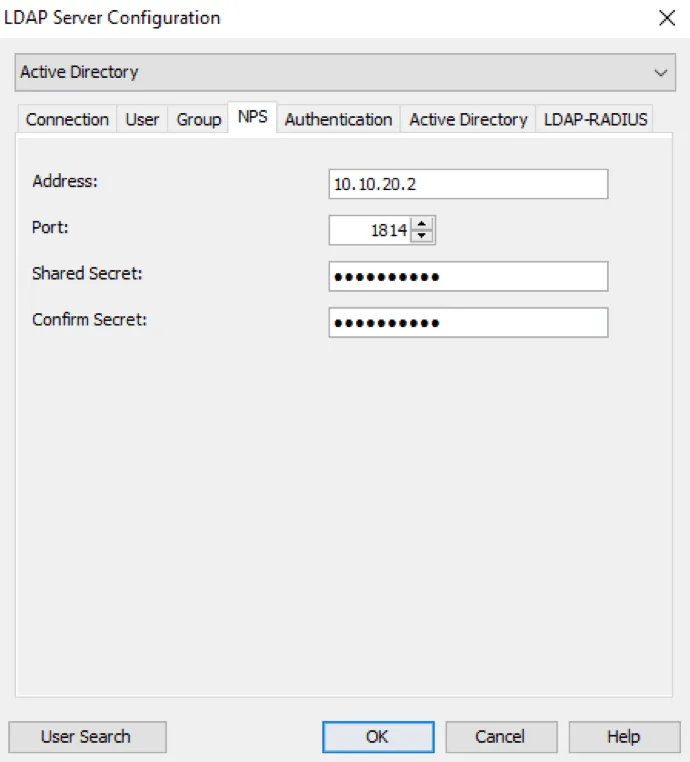
Configure address, port and shared secret for the NPS. In order for the password change to work, it is important that:
- The NPS points to the same LDAP server as configured for the Mideye Server.
- The IP or hostname of Mideye Server is present among the NPS’s RADIUS clients (in order to be able to accept RADIUS requests).
- The NPS policies are correctly configured.
Configure Network Policy Server to enable password change.
MS-CHAP-V2
Section titled “MS-CHAP-V2”In order to perform a password change, the RADIUS client (or aggregator, e.g. Citrix Netscaler or Cisco ASA) must initiate the authentication using the MS-CHAP v2 protocol. Mideye Server will automatically detect the authentication protocol. When MS-CHAP v2 is used, Mideye Server will use the configured NPS to validate the credentials.
Requirements & prerequisites
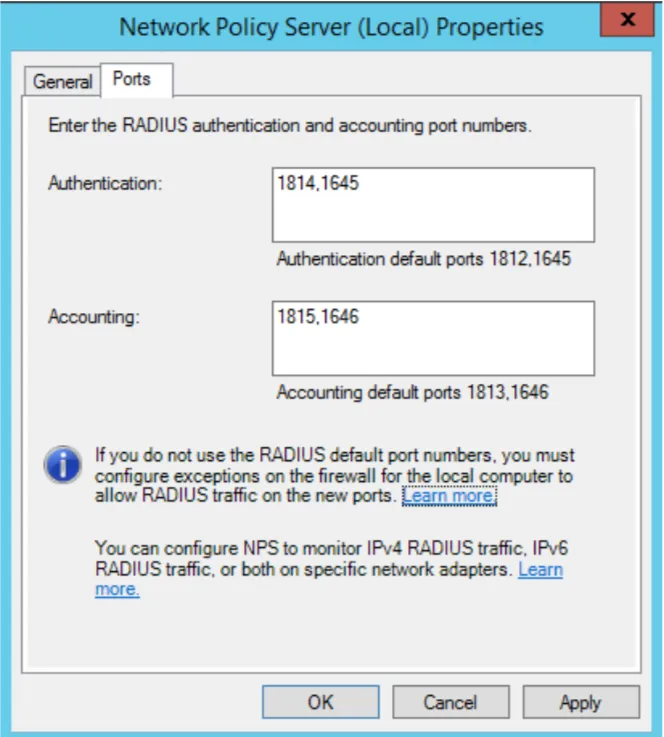
Section titled “Requirements & prerequisites”A Mideye Server (4.3.0 or higher) is required. If the NPS server is installed on a separate machine the firewall must allow UDP/1812 (default) two-way traffic between Mideye-server and the NPS. By default, both the Mideye-server and the NPS runs on UDP/1812. Therefore either the NPS or the Mideye-server have to change port if they run on the same server. We recommend that you run the NPS on a different port since the Mideye-server normally serves more than one RADIUS-clients.
Install the NPS-role
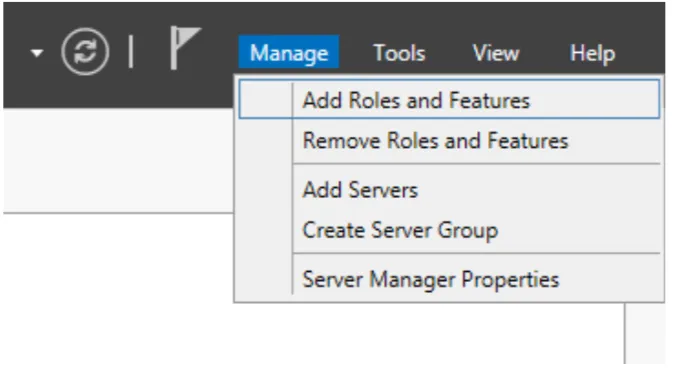
Section titled “Install the NPS-role”From the Server Manager click “Add Role and Features”
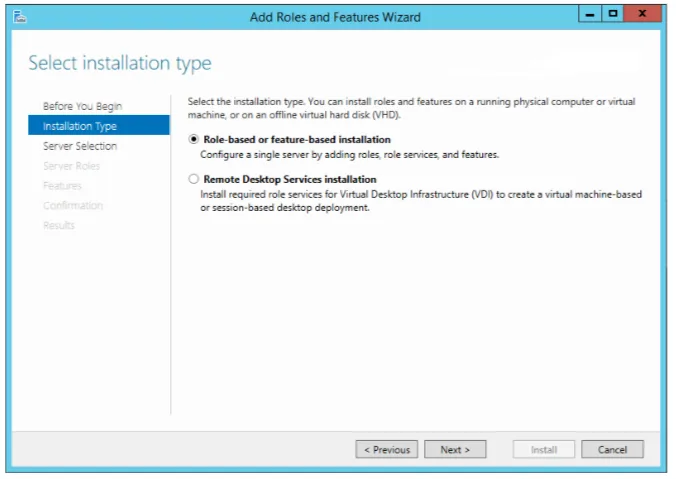
Select “Role-based or feature-based installation”.
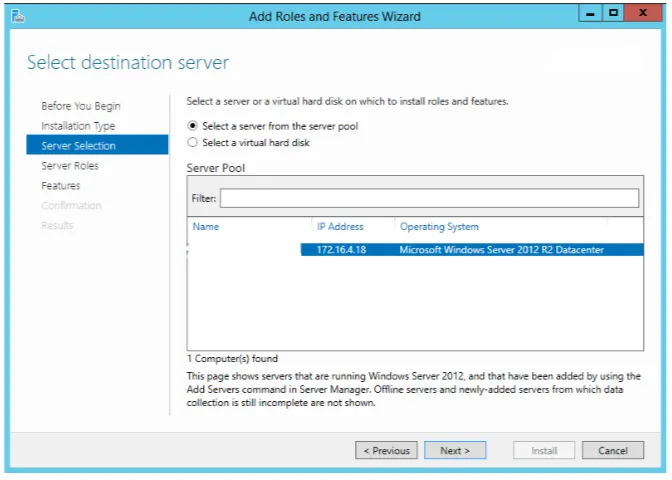
Select destination server for the feature.
Select “Network Policy and Access Services” and add features, and click next then “Install”.
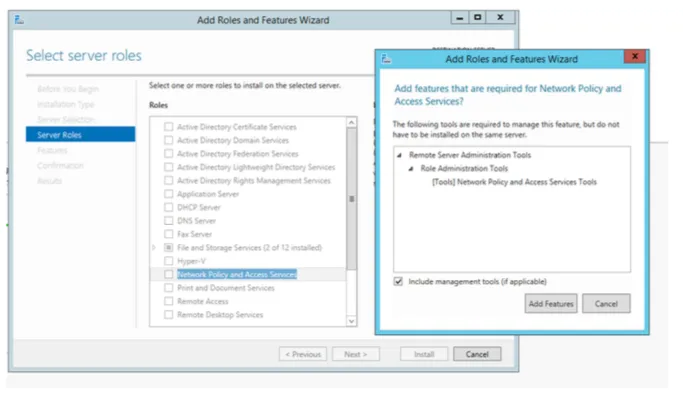
Configure the NPS-server
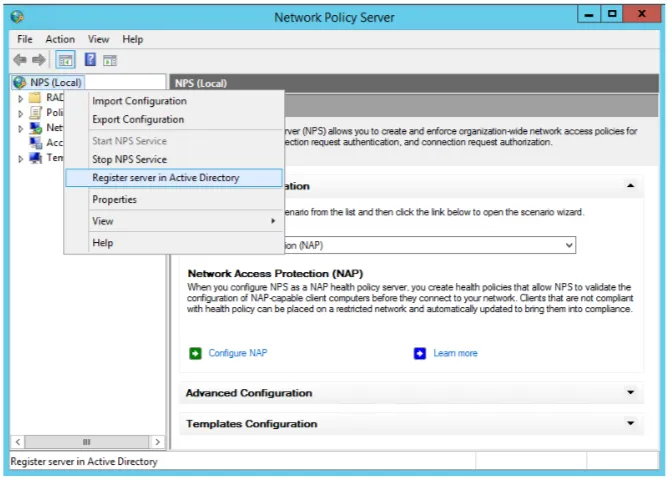
Section titled “Configure the NPS-server”Once the installation is completed, open the Network Policy Server console. First time you need to register the NPS with your domain. Right-click NPS at the top of the tree and choose “Register server in Active Directory”
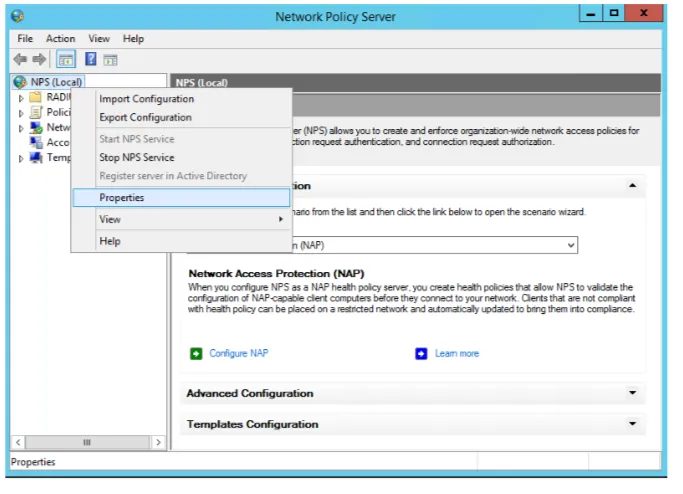
To change the UDP-port for NPS right-click NPS and choose “Properties”. By default UDP/1812 will be used, but this is recommended to be changed to another UDP-port if NPS is installed on the same machine as your Mideye-server.
If NPS and Mideye-server are installed on the same server, change the port.
Add a new RADIUS-client
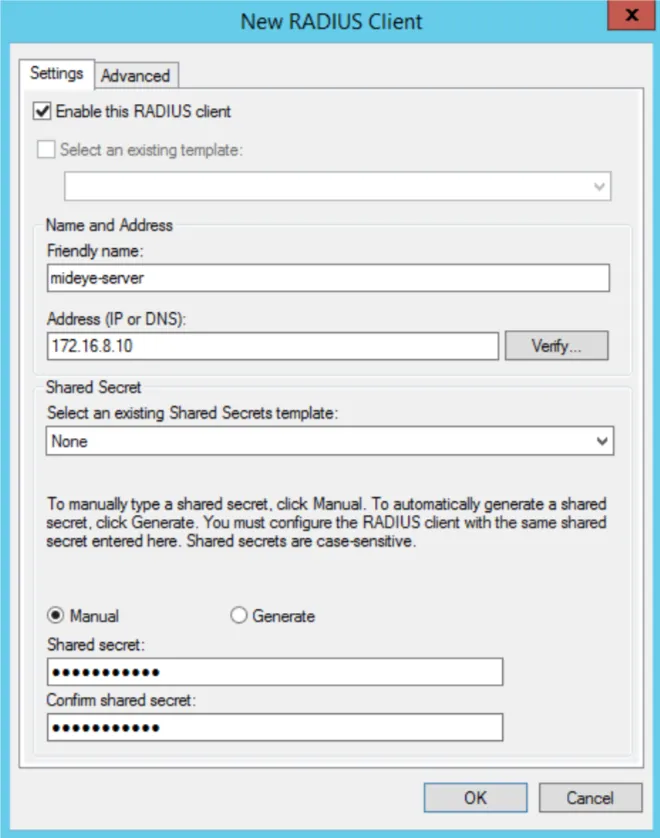
Section titled “Add a new RADIUS-client”The next step is to add your Mideye-server as a RADIUS-client. Expand “Radius Clients and Servers” and right-click “RADIUS Clients” followed by “New”. Give your Mideye-server a friendly name, IP-address and a shared-secret. This shared secret needs to be identical on your Mideye-server.
Create a new Network Policy
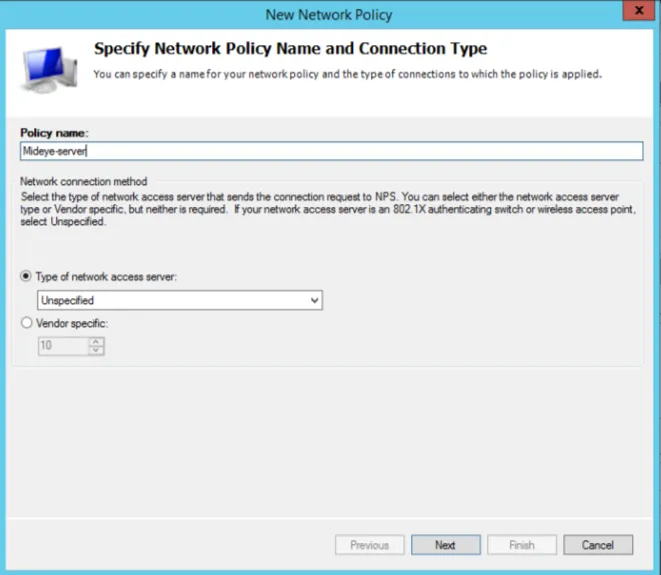
Section titled “Create a new Network Policy”Expand “Policies” and right-click “Network Policies” and click “New”.
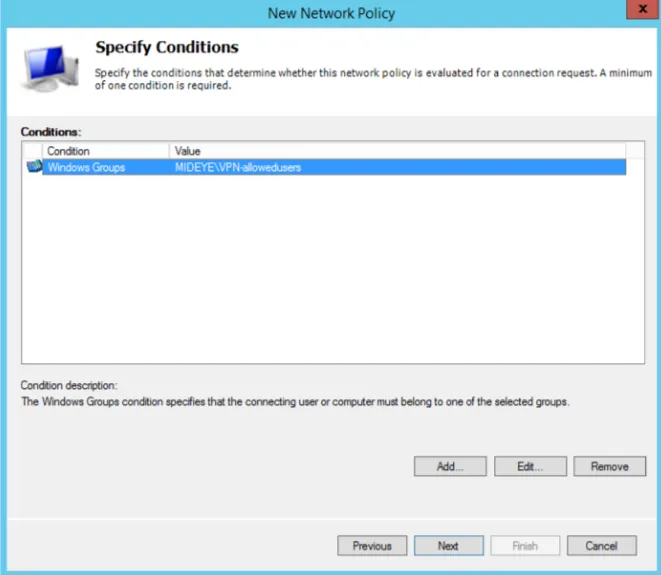
Add a windows-group that contains all users that should be allowed to use the service.
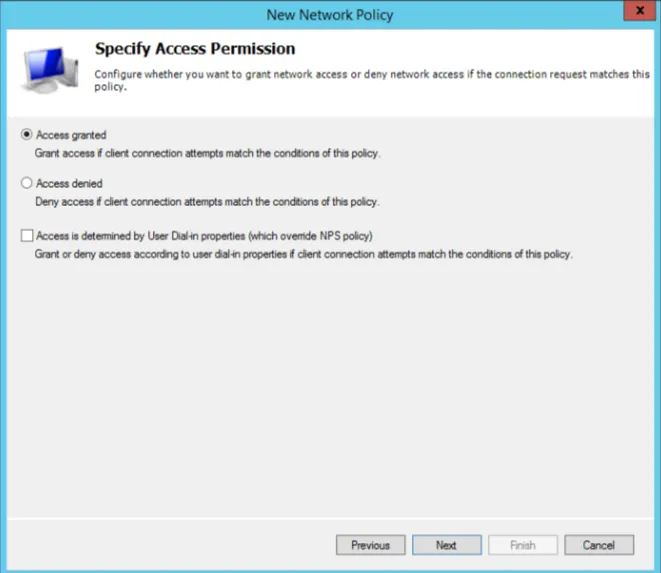
Select “Access granted”.
Make sure that both MS-CHAP and MS-CHAP-V2 are checked and that both authentication methods allow that users can change their password
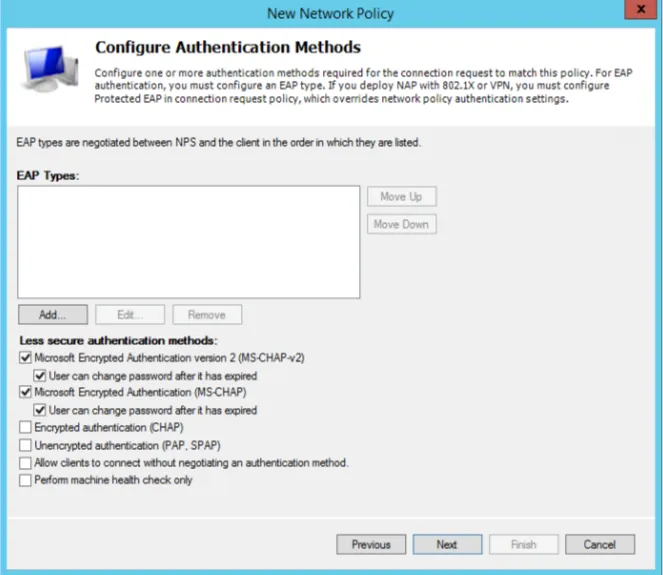
Click “Next”.
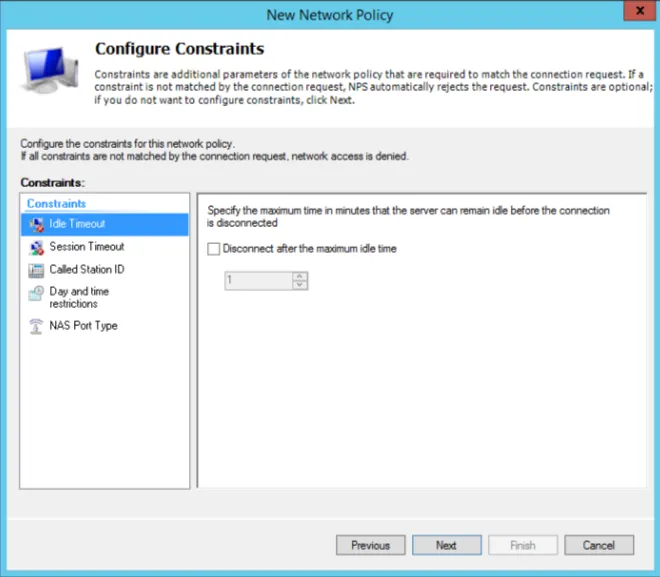
Click “Next”.
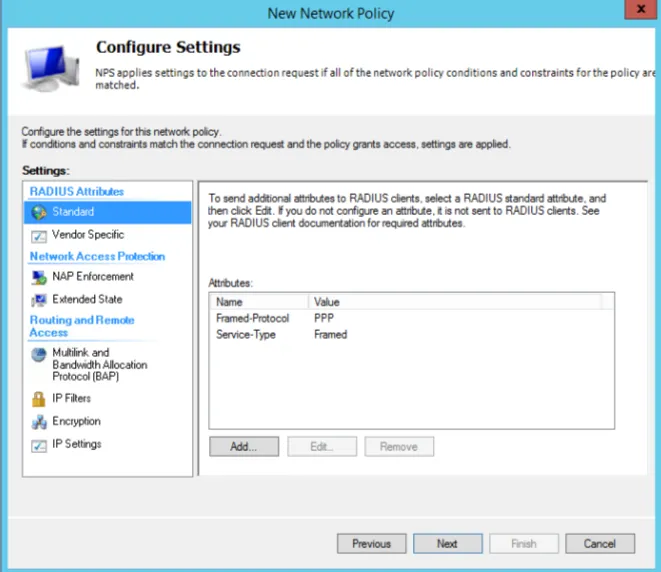
Click “Finish”.
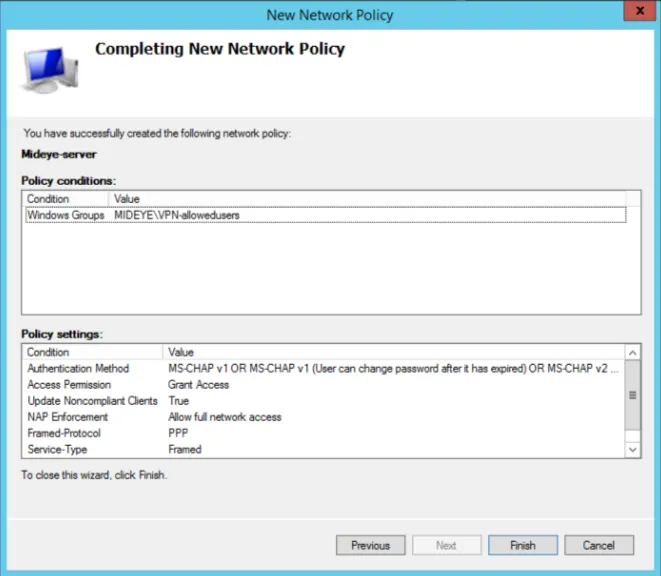
Configure Mideye-server to communicate with NPS
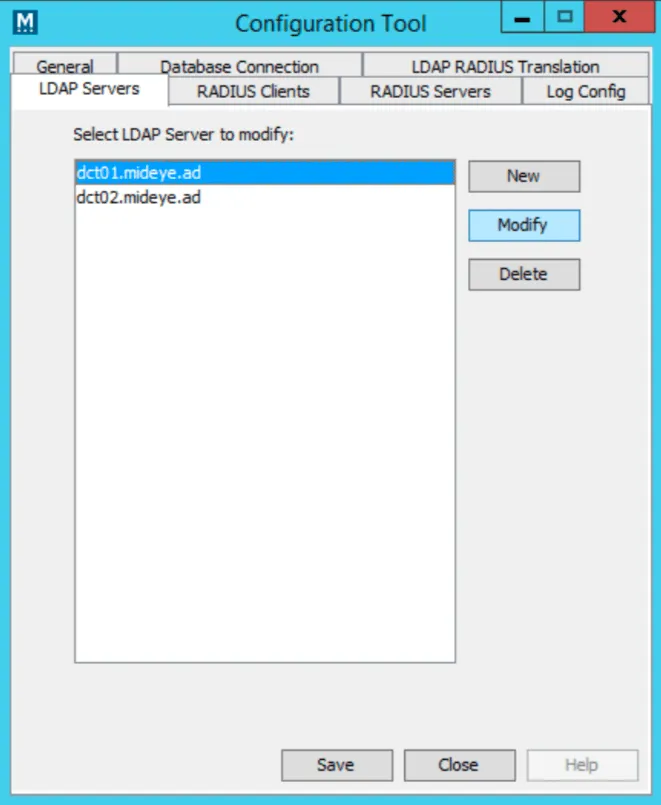
Section titled “Configure Mideye-server to communicate with NPS”On your Mideye-server open configuration-tool. Select “LDAP Servers” tab and choose to modify your existing LDAP-server used by your remote-solution.
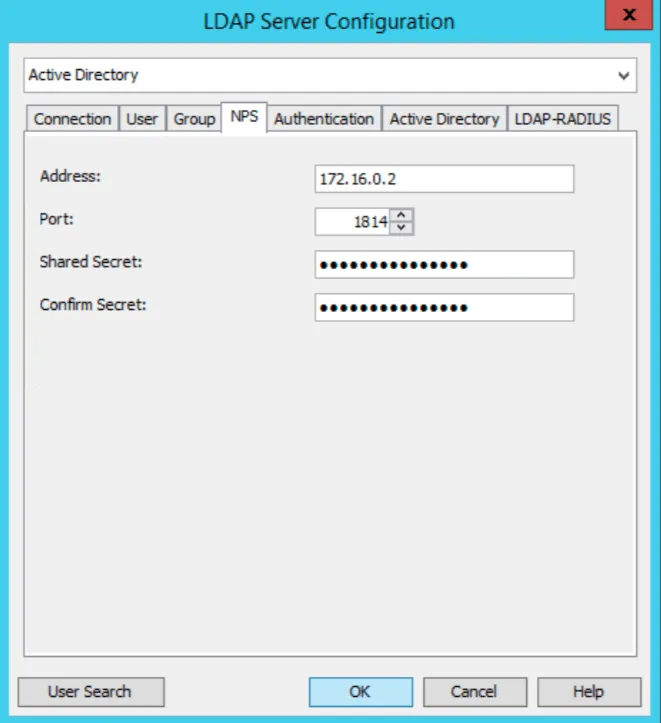
Click “NPS” tab and enter the IP-address of your NPS-server. Make sure to change the UDP-port to match the same as on the NPS-server. Enter the same shared-secret as on the NPS- server.
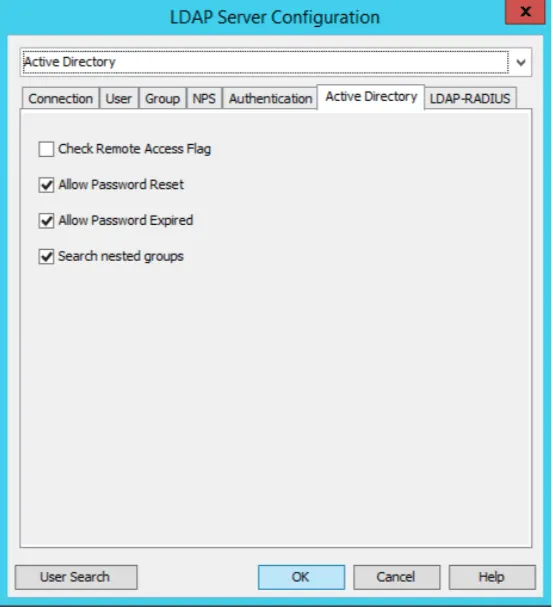
The last step is to enable your Mideye server to allow password-changes. Click the “Active Directory” tab and check “Allow Password Reset” and “Allow Password Expired”.
Change your remote-solution to use MS-CHAP
Section titled “Change your remote-solution to use MS-CHAP”For instruction on how to enable this for Cisco Anyconnect and Citrix Netscaler, click the respective link. For other solutions contact your vendor on how to enable MS-CHAP-V2.
Troubleshooting
Section titled “Troubleshooting”Check RADIUS-logs
Section titled “Check RADIUS-logs”Check if anything is written to the Mideye RADIUS logs
Mideye Server\log\radius-messages.log