

Mideye Server 4 Web Admin Interface Setup
Overview
Section titled “Overview”Mideye Web Admin is a browser-based interface for managing users, viewing authentication logs, and configuring MFA (multi-factor authentication) settings. This guide explains how to access the Web Admin and create administrator accounts.
Use this guide to:
- Access the Web Admin interface for the first time
- Enable and configure the root account
- Create administrator and operator accounts
- Understand account permission levels
Mideye Web Admin
Section titled “Mideye Web Admin”Access URL
Section titled “Access URL”The Web Admin is available at:
https://<server-ip>:8443/webadmin/login.xhtmlOn Windows, you can also access it from Start Menu → Mideye Server.
First-Time Setup
Section titled “First-Time Setup”Step 1: Enable the Root Account
Section titled “Step 1: Enable the Root Account”The root account is used only for initial setup and should be disabled afterward.
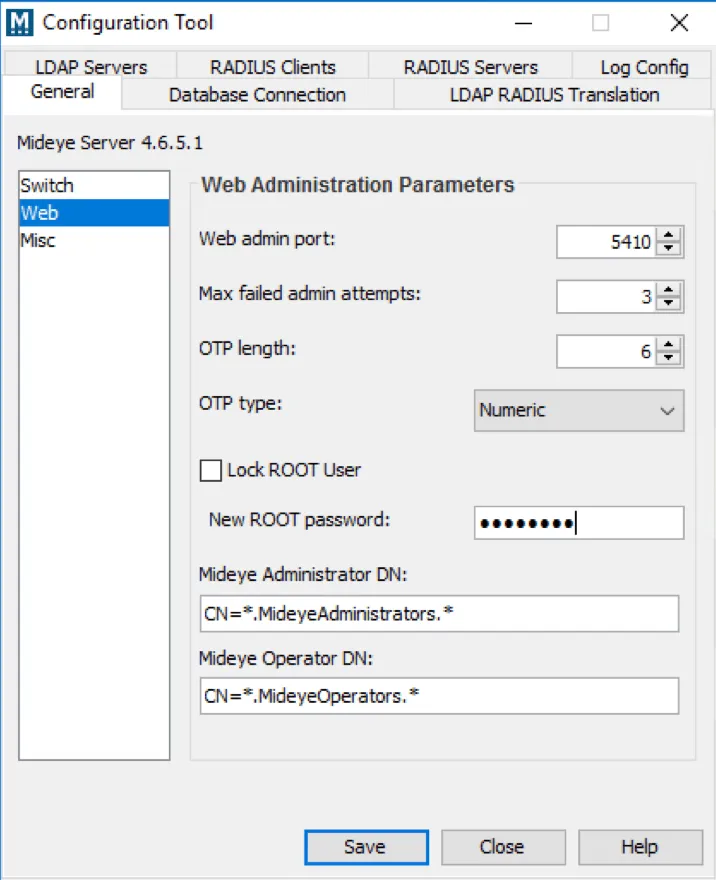
- Open Mideye Configuration Tool
- Go to General tab → select Web in the left menu
- Uncheck Lock ROOT User
- Set a strong password for the root account
- Click Save → Close to restart services
Step 2: Log In to Web Admin
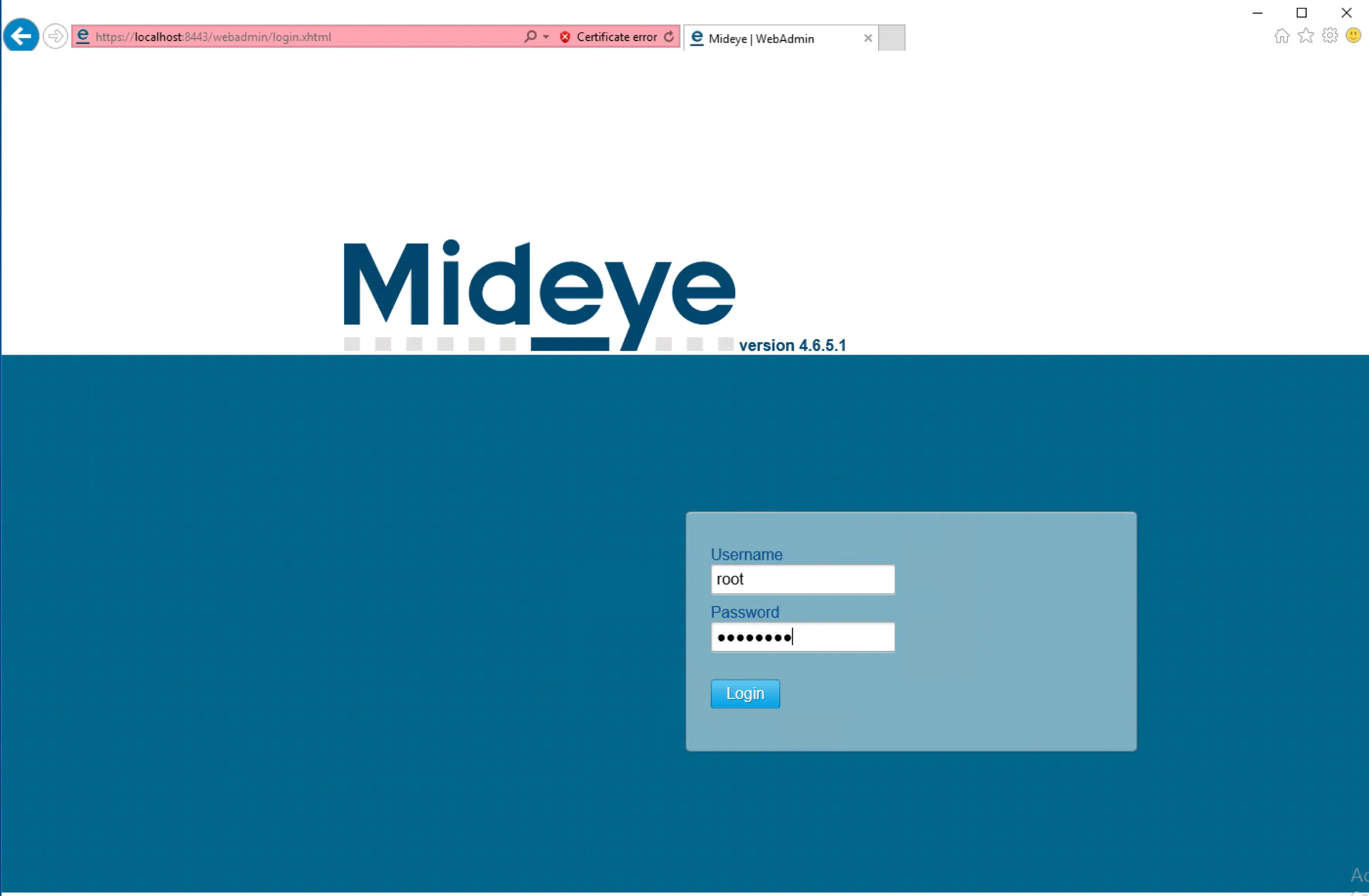
Section titled “Step 2: Log In to Web Admin”- Open a browser and navigate to:
https://<server-ip>:8443/webadmin/login.xhtml
- Enter username:
root - Enter the password you configured above
Step 3: Create an Administrator Account
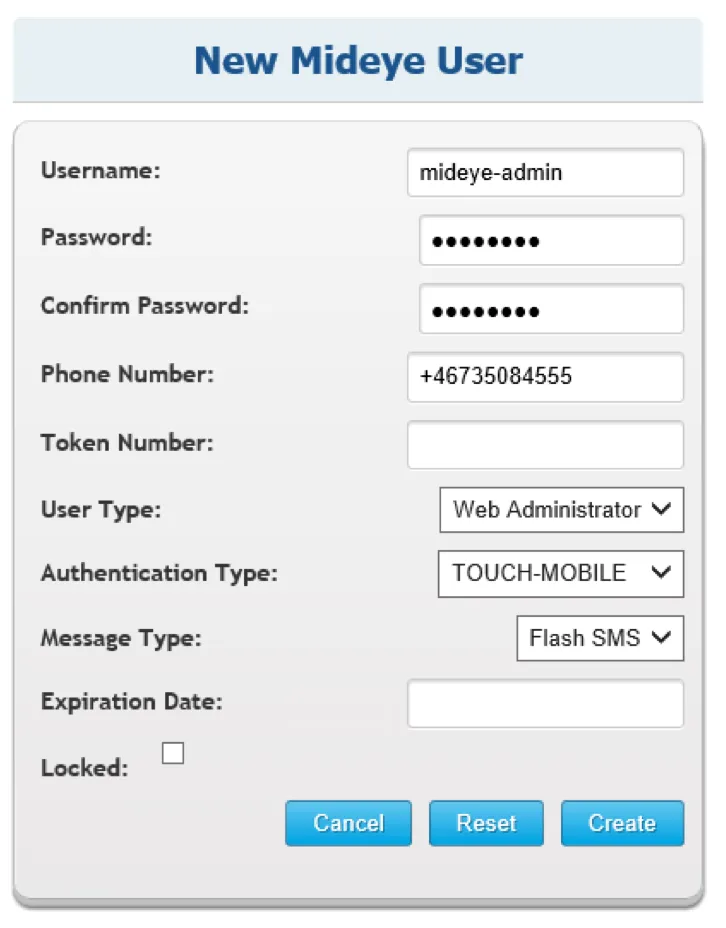
Section titled “Step 3: Create an Administrator Account”- Click Create a Mideye user
- Fill in the account details:
- Username: Choose a unique admin username
- Password: Set a strong password
- Phone number: Required for MFA authentication
- User Type: Select
Web Administrator - Authentication Type: See Authentication Types
- Click Create
Step 4: Disable the Root Account
Section titled “Step 4: Disable the Root Account”- Log out and log in with your new administrator account
- Open Mideye Configuration Tool
- Go to General → Web
- Check Lock ROOT User
- Click Save → Close to restart services
Account Types
Section titled “Account Types”| Account Type | Permissions |
|---|---|
| Web Administrator | Full access: create/modify/delete users, view all logs, change settings |
| Web Operator | Read-only access: view authentication and accounting logs only |