

Manage SSL/TLS Certificates & CSRs in Mideye
Mideye Server 6.2.8 and forward provides enhanced Certificate Management with support for CSR generation with existing key.
Mideye Server uses certificates for connections to the Central system, LDAPS/TLS, and the WebGUI. During the initial installation, a self-signed certificate is generated for the WebGUI.
The WebGUI certificate or LDAPS CA certificates can be imported into the Mideye Server using the Certificate Management tool.
Certificate Management enables the management of:
- LDAPS binding when using an encrypted connection to a configured LDAP server, such as Active Directory.
- The certificate for the Mideye WebGUI.
To access Certificate Management, navigate to Server Settings → Certificate Management. An overview of all imported and fetched certificates will be displayed.
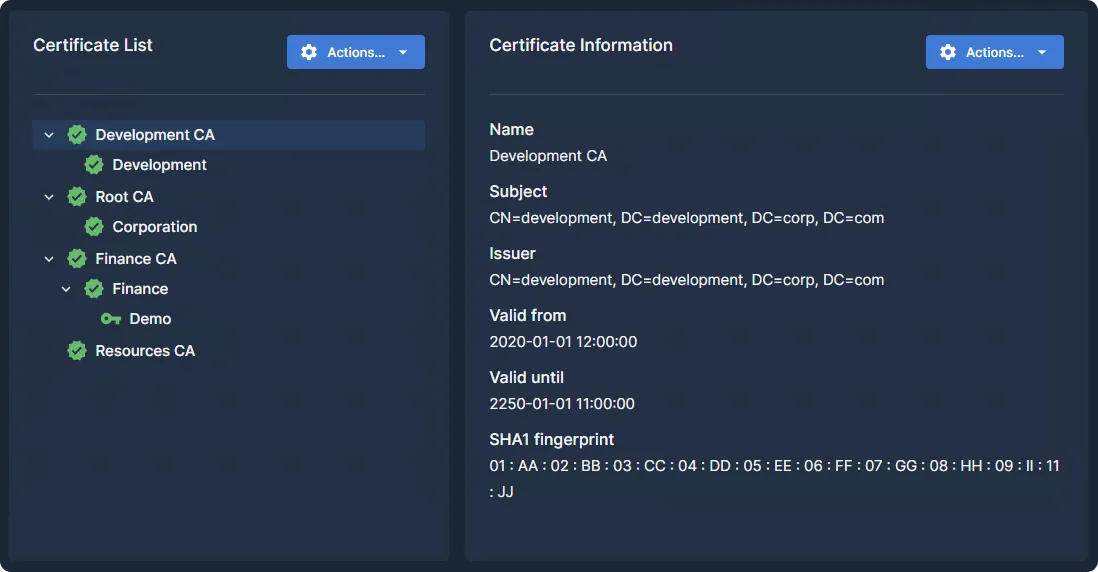
Import a new certificate
Section titled “Import a new certificate”To import a new certificate, click on “Actions…” and select the appropriate import method based on the certificate you need to import.
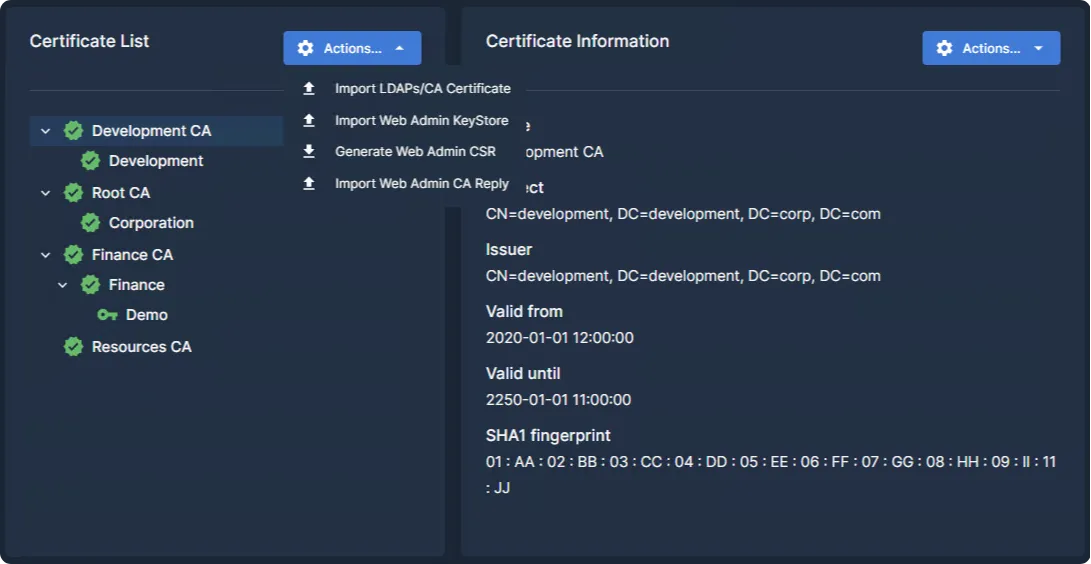
The Actions menu provides four options:
| Option | Purpose |
|---|---|
| Import LDAPS/CA Certificate | Import a trusted CA or LDAPS certificate |
| Import Web Admin KeyStore | Replace the Web Admin certificate with a .p12/.pfx keystore |
| Generate Web Admin CSR | Generate a Certificate Signing Request using the existing private key |
| Import Web Admin CA Reply | Import the signed CA reply after submitting a CSR |
Certificates for LDAPS and Trusted CA
Section titled “Certificates for LDAPS and Trusted CA”When importing a new LDAPS or trusted CA certificate, ensure that the certificate is also present on the domain controller. Follow these steps to import the certificate:
- Select “Import LDAPS/CA Certificate.”
- Click “Choose File” and upload the desired file to the Mideye Server.
- Optionally, check “Enter alias for certificate” to provide a custom alias. If unchecked, the Common Name (CN) of the certificate is used as the alias.
- Click “Import.”
- The certificate will now appear in Certificate Management.
- Navigate to the LDAP profile and test the connection.
Certificate import for Web Admin
Section titled “Certificate import for Web Admin”- Select “Import Web Admin KeyStore.”
- Click “Choose File” and upload the file to the Mideye Server.
- Enter the password for the certificate keystore file.
- If the private key entry has a different password, check the box and enter the secondary password.
- Click “Import.”
- The certificate will now appear in “Certificate Management.”
- Open a web browser, navigate to the Mideye Web GUI, and verify that the correct certificate is being used.
Importing a Certificate Using a CA Reply for Web Admin
Section titled “Importing a Certificate Using a CA Reply for Web Admin”Available in Mideye Server 6.2.8 and later.
- Select “Generate Web Admin CSR” to create a CSR file from the Mideye Server. The CSR is signed using the existing private key with SHA256withRSA.
- Submit the CSR file to a trusted Certificate Authority (CA) for signing.
- Once the CA has signed the CSR, they will send back the CSR reply.
- Select “Import Web Admin CA Reply” from the Actions menu.
- Click “Choose File” and upload the CA reply file.
- Click “Import.” The imported CSR reply will replace the existing Web Admin Certificate.
- Navigate to the Certificate Management section on the Mideye Server to verify that the Web Admin Certificate has been updated.
Monitoring certificate expiry
Section titled “Monitoring certificate expiry”The expiry dates of imported certificates are monitored in two ways:
- Dashboard status badge — Certificates are shown as EXPIRING on the Web GUI dashboard starting 90 days before expiry.
- Log file warnings — The server issues warnings in the log files with increasing frequency as expiry approaches:
| Days until expiry | Log warning frequency |
|---|---|
| 10 days | Every 60 minutes (8 AM – 6 PM) |
| 7 days | Every 30 minutes |
| 3 days | Every 10 minutes |
Troubleshooting
Section titled “Troubleshooting”Resolving the Wrong Certificate Issue in the Web Browser
Section titled “Resolving the Wrong Certificate Issue in the Web Browser”User provided certificate alias is available in Mideye Server 6.0.2 and later.
If the incorrect certificate is being used in your web browser, follow these steps to select the correct certificate from the Mideye Server keystore:
- Log in to the Web GUI.
- Navigate to “Server Settings” → “Certificate Management.”
- Click on the desired certificate and take note of its “Alias.”
- Access the server where the Mideye Server is installed.
- Open the configuration file using a text editor at the appropriate path:
- Windows:
C:\Program Files (x86)\Mideye Server 6\config\application-prod.yml - Linux:
/opt/mideyeserver6/config/application-prod.yml
- Windows:
- Add the “Alias” string from step 3 to the key-alias entry in the configuration file. For example, if the alias is webadmin and it ends with a 0 (e.g., webadmin0), remove the 0.
- Restart the Mideye Server service to apply the changes.
Example configuration file:
server: port: 8443 ssl: key-store: C:\Program Files (x86)\Mideye Server 6\config\keystore.pfx key-store-password: "123456789" enabled: true key-alias: webadmin compression: enabled: true mime-types: text/html,text/xml,text/plain,text/css, application/javascript, application/json min-response-size: 1024