Mideye Admin Web: Access & Configuration
The Mideye Server uses a web interface for operation, administration, and management. Access it at:
https://<FQDN>:<ssl-port>Default ports: 443 (Windows) or 8443 (Linux). The port can be reconfigured in application-prod.yml — see Application Configuration.
SSL certificate
Section titled “SSL certificate”During installation, a self-signed SSL certificate is generated automatically. To replace it with a custom certificate, see Certificate Management.
Root password
Section titled “Root password”A root user is created during server installation. This account should only be used for creating administrative accounts and for emergencies.
Reset the root password
Section titled “Reset the root password”- Navigate to the encoding utility:
https://<FQDN>:<ssl-port>/utility/encode-password- Enter your new password:
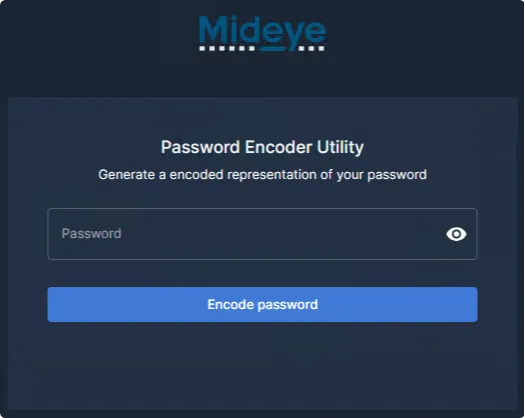
- Copy the generated encoded password:
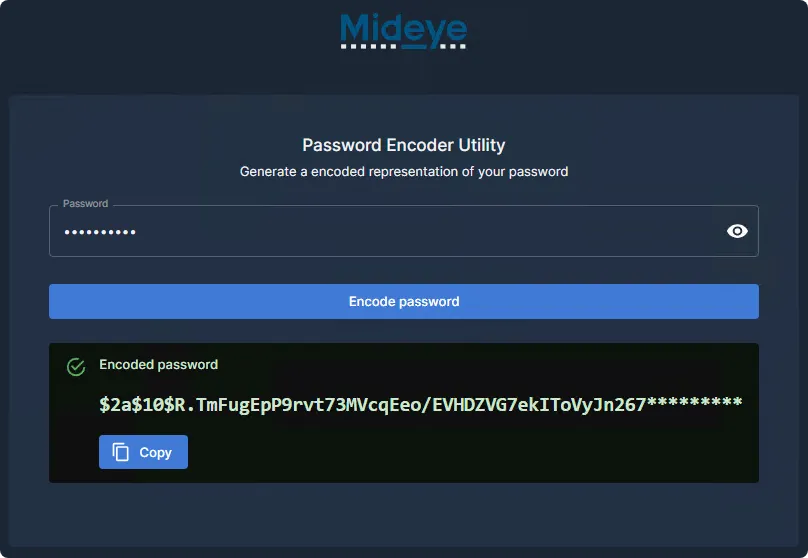
- Execute the appropriate SQL command on the database:
MySQL / MariaDB:
UPDATE mideyeserver_db_name.mideye_userSET jhi_password = 'encrypted_password'WHERE user_name = 'root';Microsoft SQL Server:
UPDATE mideyeserver_db_name.dbo.mideye_userSET jhi_password = 'encrypted_password'WHERE user_name = 'root';Unlock the root account
Section titled “Unlock the root account”MySQL / MariaDB:
UPDATE mideyeserver_db_name.mideye_userSET is_locked = 0WHERE user_name = 'root';Microsoft SQL Server:
UPDATE mideyeserver_db_name.dbo.mideye_userSET is_locked = 0WHERE user_name = 'root';Administrative roles
Section titled “Administrative roles”Mideye Server has four user roles:
| Role | Description |
|---|---|
| Root | Single built-in account — use only for initial setup and emergencies |
| Super Administrator | Same permissions as root |
| Administrator | Full management except user operations on same or higher roles |
| Operator | Read-only access; can only update locked LDAP users |
All roles except Root can be mapped to LDAP accounts.
Role permissions
Section titled “Role permissions”| Entity | Operation | Authorized Roles |
|---|---|---|
| RADIUS Server | Create / Update / Delete | Root, Super Admin, Admin |
| RADIUS Server | Read | Root, Super Admin, Admin, Operator |
| RADIUS Client | Create / Update / Delete | Root, Super Admin, Admin |
| RADIUS Client | Read | Root, Super Admin, Admin, Operator |
| LDAP Profile | Create / Update / Delete | Root, Super Admin, Admin |
| LDAP Profile | Read | Root, Super Admin, Admin, Operator |
| Approved RADIUS IP | Create / Update / Delete | Root, Super Admin, Admin |
| Approved RADIUS IP | Read | Root, Super Admin, Admin, Operator |
| LDAP RADIUS Translation | Create / Update / Delete | Root, Super Admin, Admin |
| LDAP RADIUS Translation | Read | Root, Super Admin, Admin, Operator |
| Accounting | Read | Root, Super Admin, Admin, Operator |
| Authentication Log | Read | Root, Super Admin, Admin, Operator |
| Locked LDAP Users | Update / Read | Root, Super Admin, Admin, Operator |
Create a Super Administrator
Section titled “Create a Super Administrator”- Navigate to Users and Tokens → Mideye Users.
- Select Actions → Add new database user.
- Set the Role to
Super Administrator. - Fill in the required fields:
- Username
- Authentication Type
- Password
- Phone number (optional)
- Token number (optional)
- Message type (default: FLASH-SMS)
- Expiration date (optional)
- Select Web Admin in the RADIUS Client dropdown.
- Save. To add RADIUS User Attributes, edit the user again after saving.
Change a database account password
Section titled “Change a database account password”Navigate to Mideye Users, find the user, and click the password change icon (between edit and delete).
A Super Administrator can only change passwords on accounts with lower permissions (Administrators, Operators, and database users).
Map LDAP groups to Web GUI roles
Section titled “Map LDAP groups to Web GUI roles”Instead of database accounts, LDAP groups can be mapped to all roles except Root:
- Connect to LDAP with an LDAP Profile.
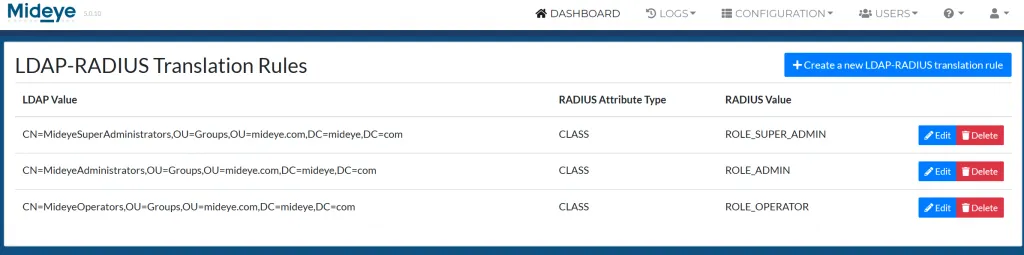
- Enable LDAP-RADIUS Translation and add the
memberOfattribute. - Navigate to RADIUS Settings → RADIUS Translation.
- Map LDAP user or group DNs to the predefined roles.