

Windows Hello for Business with Mideye MFA on ADFS
This page provides an overview of how Windows Hello for Business (WHFB) can work with Mideye multi-factor authentication on ADFS. After WHFB is configured, users enrol a PIN (or biometric) during their first sign-in and are prompted for Mideye MFA as part of the enrolment flow.
| Component | Versions |
|---|---|
| Windows Server (ADFS) | 2019 / 2016 |
| ADFS version | 4.0 (2016) / 3.0 (2012 R2) |
| Mideye Server | 4.7.2 or later |
| Mideye ADFS Module | Required on every ADFS server |
Supported deployment methods
Section titled “Supported deployment methods”WHFB with Mideye ADFS MFA works with the following deployment models:
- On-Premises Key Trust Deployment
- On-Premises Certificate Trust Deployment
- Hybrid Entra ID Joined Key Trust Deployment
- Hybrid Entra ID Joined Certificate Trust Deployment
Prerequisites
Section titled “Prerequisites”- Mideye Server 4.7.2 or later, reachable from the ADFS server(s) on UDP port 1812.
- Mideye ADFS Module installed on every ADFS server — see the ADFS Mideye Module installation guide.
- Each ADFS server must be defined as a RADIUS client in Mideye Server.
- If a firewall exists between ADFS and Mideye Server, allow two-way UDP traffic on port 1812.
- ADFS 2.0 is not supported.
Enrolment flow
Section titled “Enrolment flow”Once the WHFB Group Policy is applied and the Mideye ADFS Module is installed, the following enrolment flow is presented to the user:
1. Standard sign-in
Section titled “1. Standard sign-in”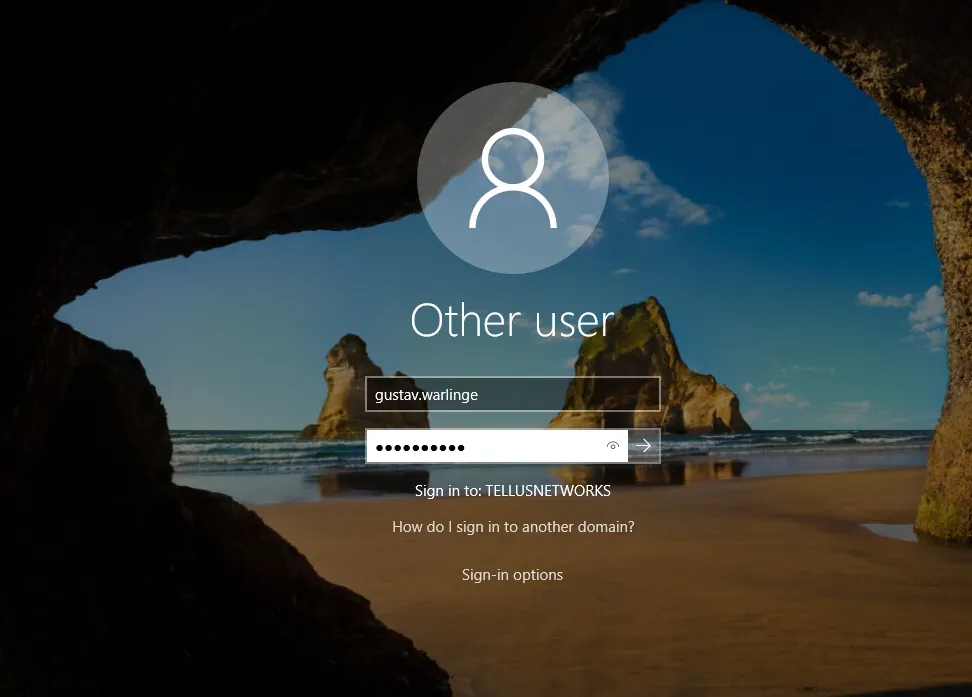
On the first sign-in after the GPO is applied, the user enters their username and password as usual.
2. WHFB enrolment starts
Section titled “2. WHFB enrolment starts”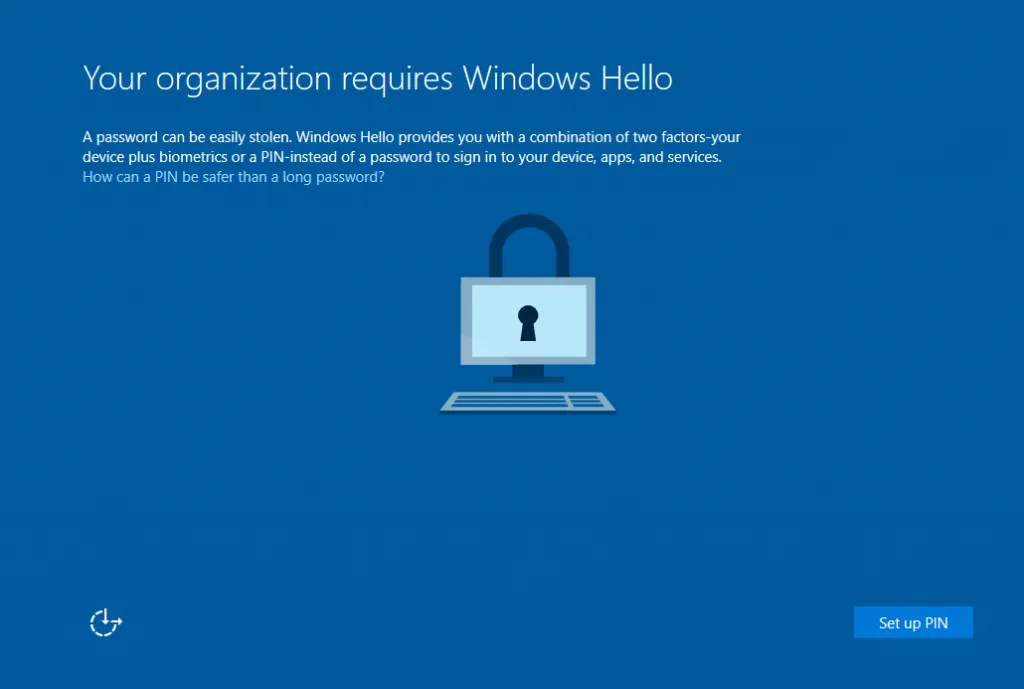
The WHFB enrolment process begins. The user clicks Set up PIN.
3. MFA method selection
Section titled “3. MFA method selection”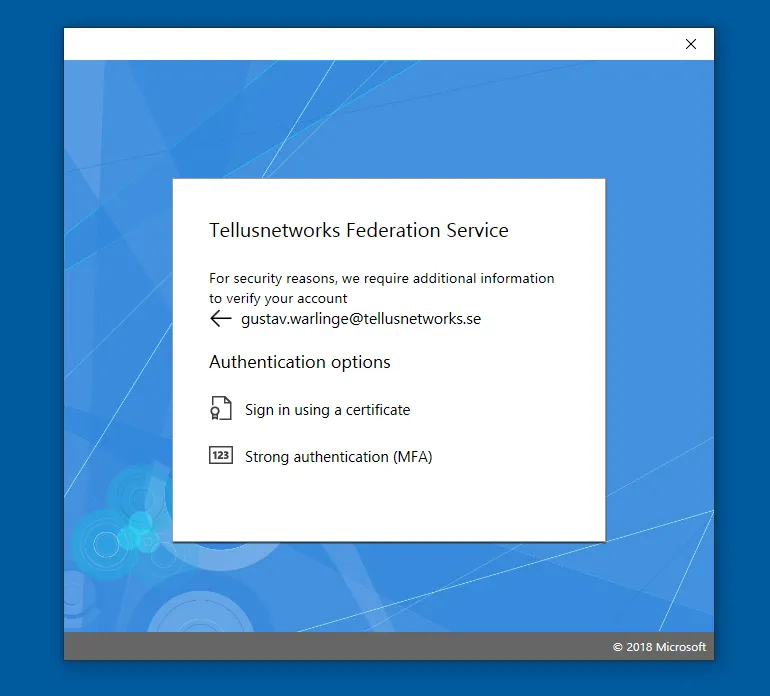
If multiple authentication methods are configured, the user selects Strong authentication (Mideye MFA).
4. Mideye MFA challenge
Section titled “4. Mideye MFA challenge”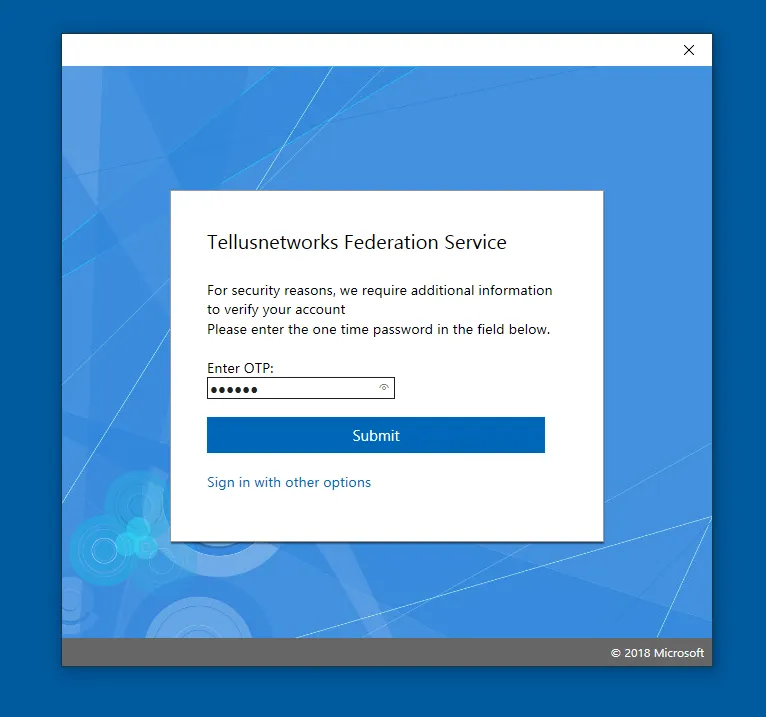
The user’s credentials are forwarded to the ADFS federation server. Mideye presents a challenge — the user enters the OTP, or if using Touch Accept, simply accepts the push notification.
5. PIN creation
Section titled “5. PIN creation”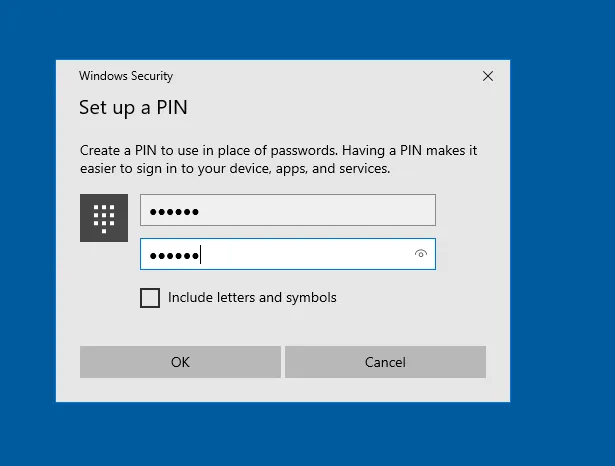
After successful MFA, the user creates a PIN. On subsequent logins, this PIN (or biometric) replaces the username and password.
Troubleshooting
Section titled “Troubleshooting”| Symptom | Check |
|---|---|
| WHFB enrolment does not start | Verify the Group Policy is applied to the user or computer. |
| ”Set up PIN” does not appear | Confirm ADFS is configured as the identity provider and the WHFB policy is linked. |
| MFA challenge not presented | Verify the Mideye ADFS Module is installed and enabled on all ADFS servers. |
| OTP / Touch Accept fails | Check that the ADFS server is defined as a RADIUS client in Mideye Server and that UDP 1812 is open. |
| ”Strong authentication” option missing | Confirm the Mideye MFA provider is registered in ADFS authentication policies. |
Related links
Section titled “Related links”Mideye documentation
Section titled “Mideye documentation”- ADFS Mideye Module — install and configure the Mideye ADFS authentication module
- RADIUS Clients — add the ADFS server as a RADIUS client in Mideye
- Windows Integrations — overview of all Windows integration options
Official Microsoft documentation
Section titled “Official Microsoft documentation”- Windows Hello for Business Overview — planning and deployment guidance
- WHFB Hybrid Entra ID Joined Key Trust — hybrid deployment reference
- ADFS MFA Overview — configuring additional authentication methods