

Mideye Touch for RDS 2016-2022 Setup Guide
Introduction
Section titled “Introduction”The purpose of this integration guide is to provide guidelines on how to integrate Mideye Touch-Accept with Remote Desktop Services 2016, 2019, and 2022.
Requirements and Limitations
Section titled “Requirements and Limitations”- Touch Accept with the Mideye+ app on Android and iPhone requires Mideye Server release 4.7.2 or later.
- Magic Link Authentication (No app required) requires Mideye Server release 6.1.4 or later, and a port opening for your outgoing IP in your firewall and Mideye Central system.
- RDG on Windows Server 2022 with KB5040268 update requires Mideye Server release 6.4.4 or later.
Prerequisites
Section titled “Prerequisites”- A functional RDS environment installed with a Remote Desktop Gateway. (This server will have an NPS installed, referred to as RDS-NPS in the documentation.)
- The correct version of Mideye Server for the required use case.
- A second NPS Server, either on the Mideye Server or another server. (This is referred to as Remote-NPS in the documentation.)
- Mideye Server up and running with LDAP connection and a connection to the Mideye Central System.
- If Magic Links are used, the Mideye Server requires an HTTPS connection to mas.mideyecloud.se.
- All shared secrets should be the same since the Mideye Server is simply proxying the requests between the NPSs.
How It Works
Section titled “How It Works”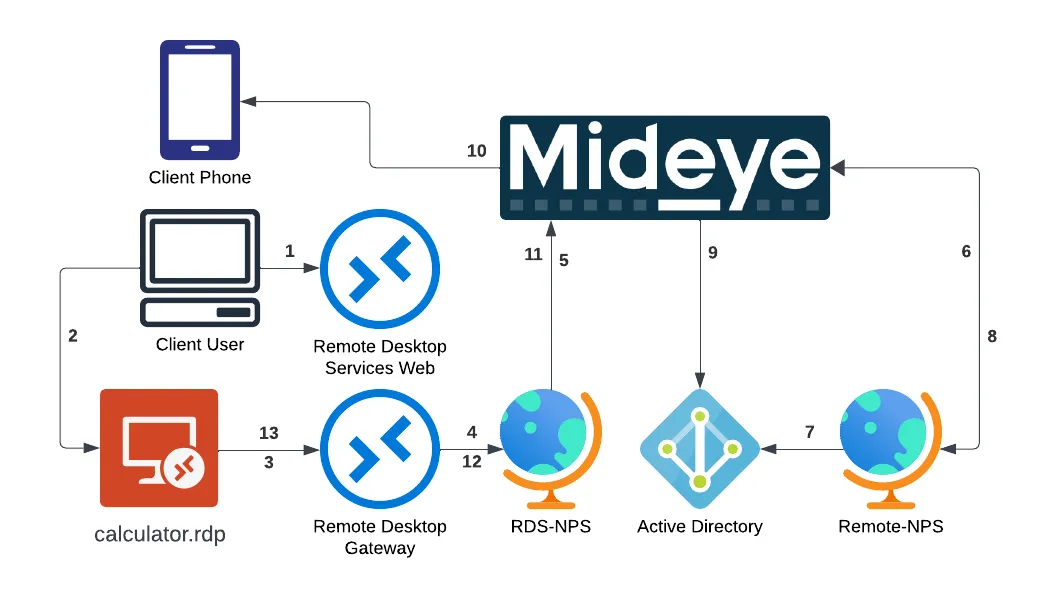
- The user logs in to the RDS webpage with a username and password.
- The user downloads the RDP file and opens it, then types the username and password and connects.
- The RDP file contains information about RDGateway and sends the login to the Remote Desktop Gateway.
- The Remote Desktop Gateway sends the login to the RDS-NPS, which is installed locally together with the RDG service.
- The RDS-NPS forwards traffic to the Mideye Server.
- The Mideye Server proxies the RADIUS request to the Remote-NPS.
- The Remote-NPS verifies the user based on the policies set on the server, such as domain user group requirements.
- The Remote-NPS sends an Access Accept message if the user is in the correct domain user group.
- The Mideye Server checks the phone number in Active Directory.
- The Mideye Server sends a notification to the Mideye+ application or a Magic Link via SMS, which the user can then accept or reject.
- The Mideye Server sends the accept or reject response to the RDS-NPS.
- The RDS-NPS forwards the response to the Remote Desktop Gateway.
- The user’s application is either opened or declined depending on whether they are in the correct group and have accepted the login via Mideye+ or Magic Link.
Network Policy Server (NPS)
Section titled “Network Policy Server (NPS)”An NPS must be configured and added to the LDAP profile on the Mideye Server. Please refer to the section Network Policy Servers in the reference guide for instructions on how to add and configure an NPS. Be advised that this NPS is not the same as the one installed on the Remote Desktop Gateway. Instead, the NPS used by the Mideye Server must be installed on a different server.
1. Remote Desktop Gateway Configuration
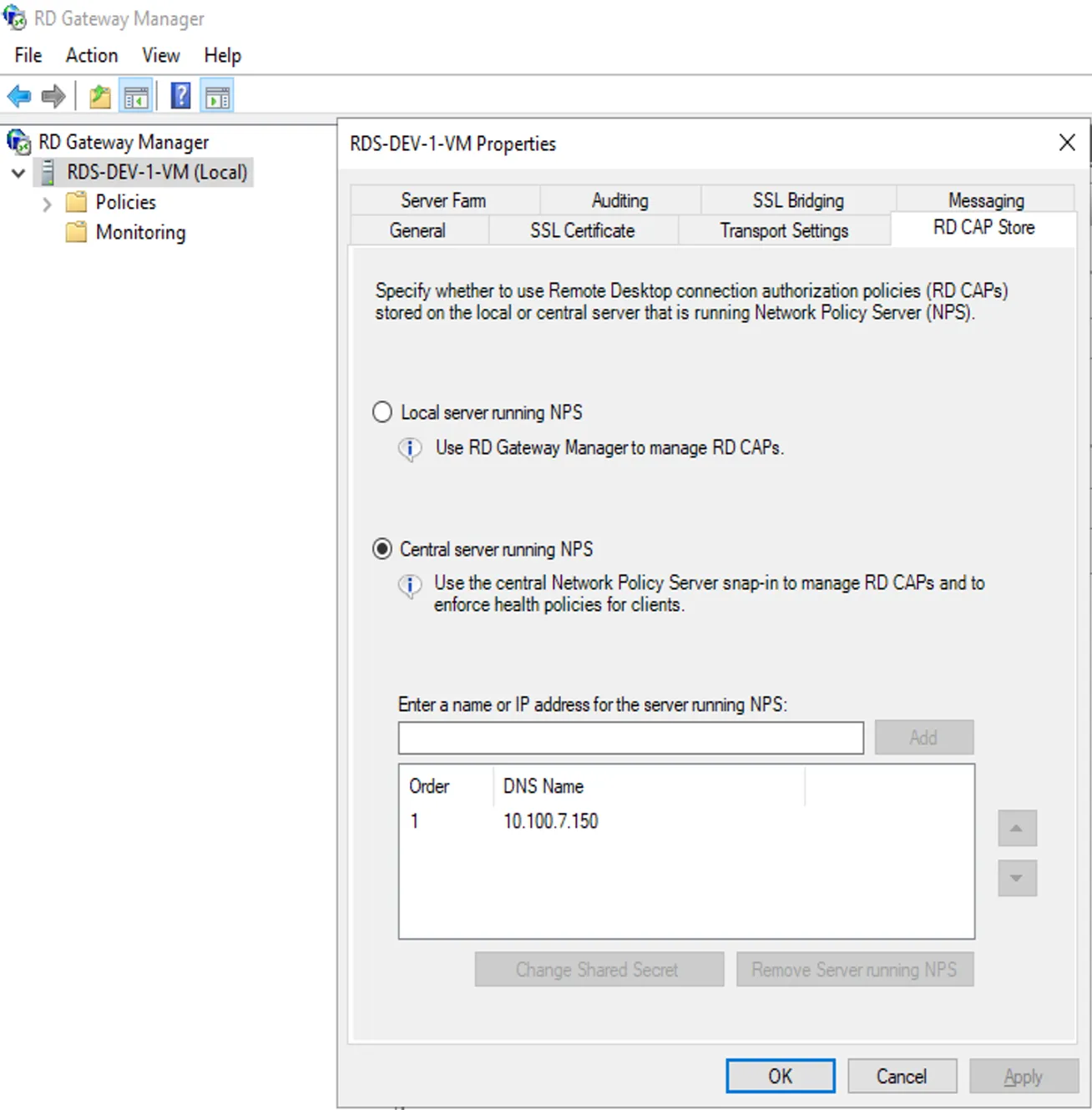
Section titled “1. Remote Desktop Gateway Configuration”- Open the Remote Desktop Gateway Manager from Server Manager, right-click the server, and select “Properties.”
- Navigate to “RD CAP Store” and select “Central server running NPS.”
- Enter the hostname or IP address of the Mideye Server and click “Add.” Add a shared secret.
- Change authentication to “Central server running NPS” and add the Mideye Server.
2. RDS-NPS Configuration
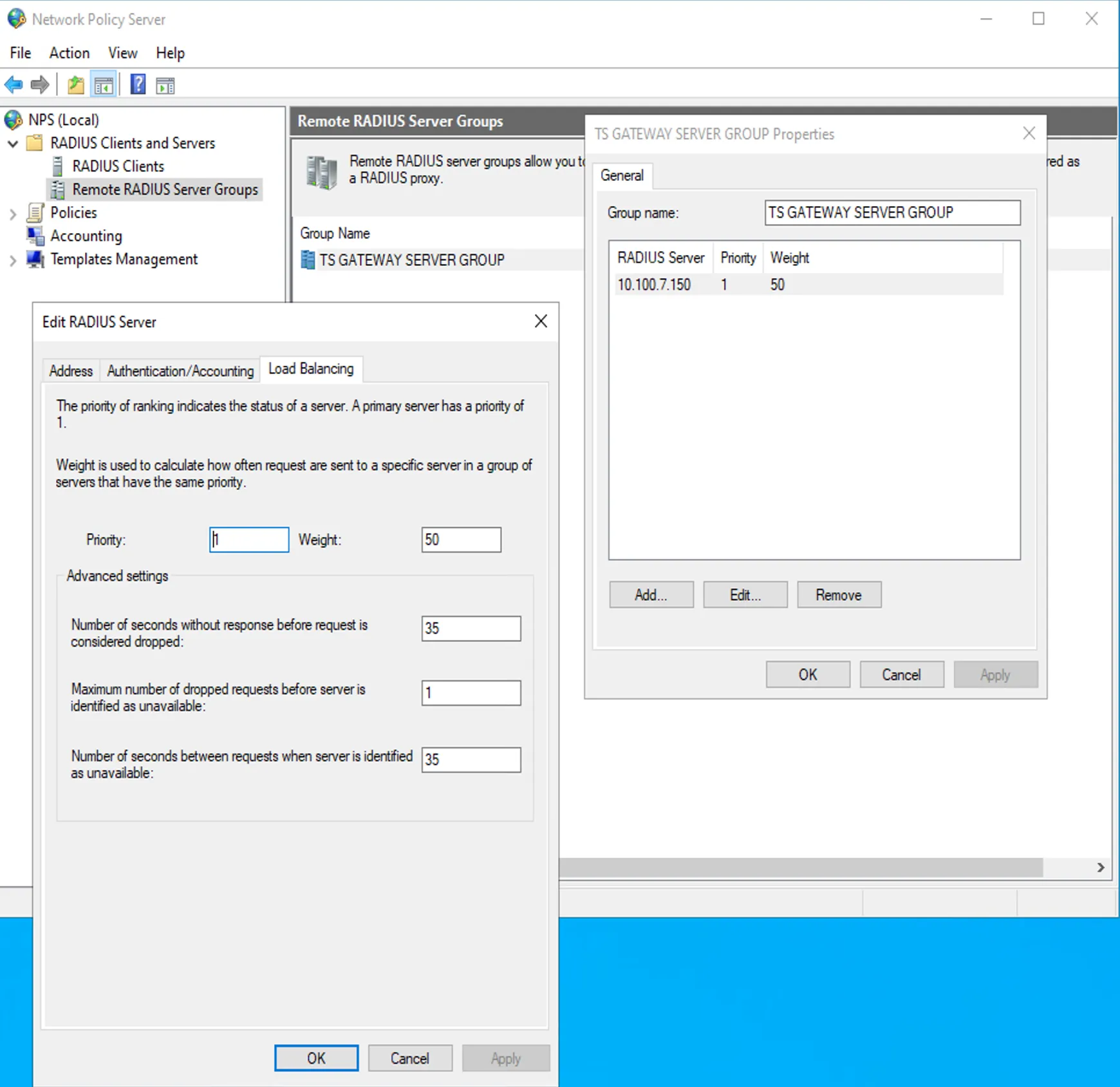
Section titled “2. RDS-NPS Configuration”Since RD Gateway does not support RADIUS natively, it uses the local Network Policy Server to send RADIUS requests. The default timeouts on the RDS-NPS are too low and need to be adjusted.
These adjustments are required to prevent the RD Gateway from timing out before the two-step verification is completed.
- On the RD Gateway server, open NPS and navigate to the “RADIUS Clients and Servers” menu in the left column, then select “Remote RADIUS Server Groups.”
- Select the “TS GATEWAY SERVER GROUP.”
- In the “Authentication/Accounting” tab, verify that the RADIUS port matches the Mideye Server’s RADIUS ports.
- In the “Load Balancing” tab, edit the Number of seconds without response before request is considered dropped and Number of seconds between requests when server is identified as unavailable to 35 seconds.
3. Remote-NPS Configuration
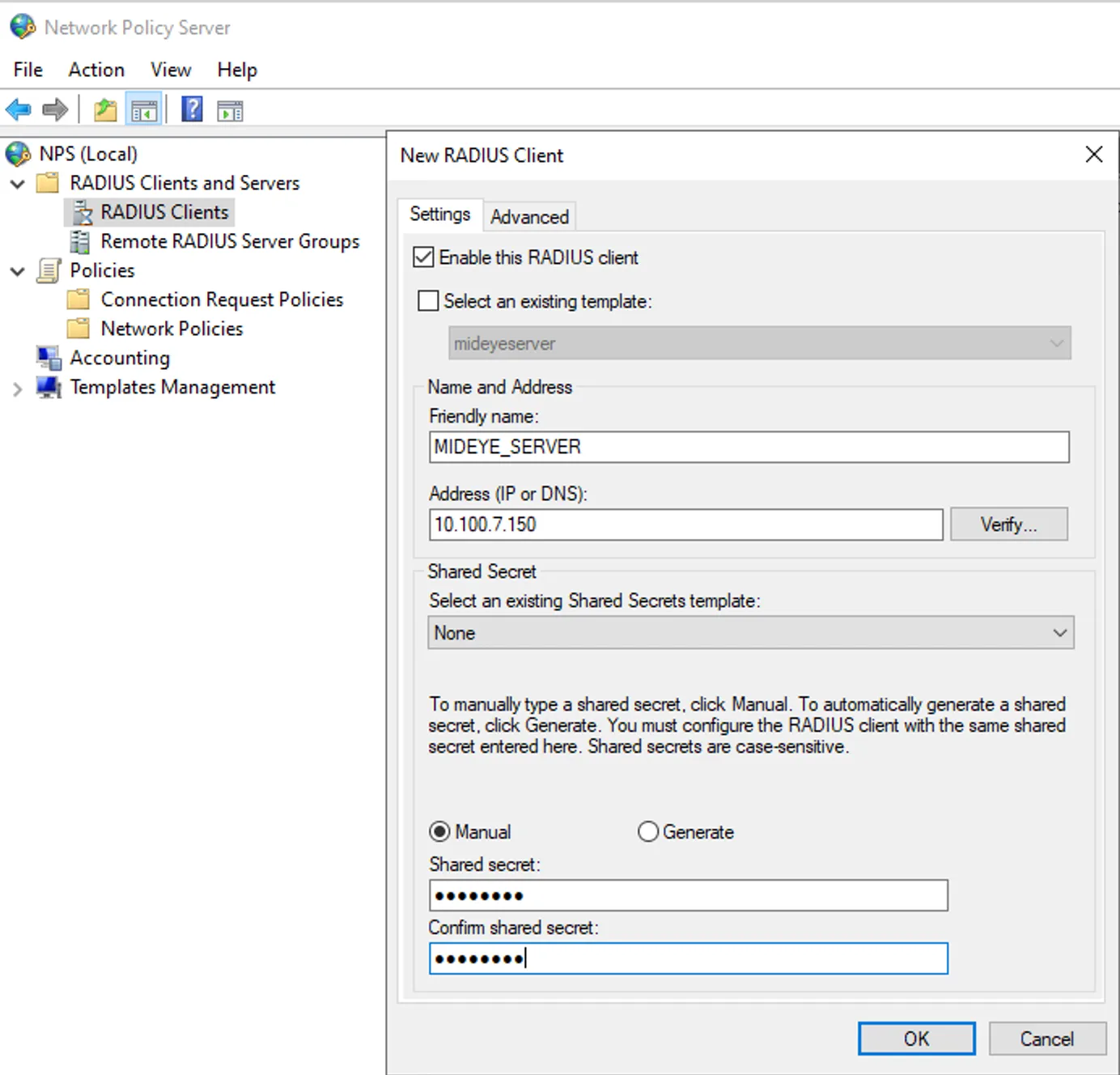
Section titled “3. Remote-NPS Configuration”- In Server Manager, open Network Policy Server from the Tools menu.
- Expand RADIUS Clients and Servers, then right-click RADIUS Clients and select “New.”
- Choose a friendly name (this is used in the connection policy), enter the IP of the Mideye Server, and specify the shared secret from step 1. Remote Desktop Gateway Configuration.
-
Create a new connection policy for the Mideye Server. Example configuration:
- Name: mideye_connection_policy
- Type of network access server: Remote Desktop Gateway
- Add Conditions:
- NAS Port Type: Virtual (VPN)
- Client Friendly Name: MIDEYE_SERVER (This should be the same as the name of the RADIUS client)
- Authentication: Authenticate requests on this server
-
Click Next, Next, and Finish to complete the wizard.
-
Create a new network policy for the Mideye Server. Example configuration:
- Name: mideye_network_policy
- Type of network access server: Remote Desktop Gateway
- Select Condition:
- User Groups: DEV\rdg_users (Select the domain group that can access RDG apps)
- Access Granted
- Authentication Methods: Only check “Allow clients to connect without negotiating an authentication method”
-
Click Next, Next, and Finish to complete the wizard.
4. Configure Mideye Server
Section titled “4. Configure Mideye Server”4.1 Add RADIUS Shared Secret for RDS-NPS in Mideye Server
Section titled “4.1 Add RADIUS Shared Secret for RDS-NPS in Mideye Server”- Log in to the Mideye WebGUI.
- Expand RADIUS Settings and click RADIUS Shared Secrets.
- Create a new shared secret with the IP of the RDS server and the shared secret noted in 1. Remote Desktop Gateway Configuration.
- In the left menu, select RADIUS Clients and add a new RADIUS client.
- Set a friendly name, and the IP should be the RDS-NPS IP (the same as in the shared secret step 4.1.3).
- In the User Repositories tab, select your configured LDAP Server.
- In the Username Filtering tab, select the filter method PREFIX.
- Save and select Network Policy Server from the left pane.
Troubleshooting
Section titled “Troubleshooting”| Symptom | Check |
|---|---|
| User receives Touch Accept but cannot connect to the RDG session | Possible issue with the connection from Mideye Server to RDS-NPS. Verify shared secrets and RADIUS port. |
| Remote-NPS rejects the user | Check: incorrect shared secret, wrong IP in RADIUS client, wrong Client Friendly Name in connection policy, user not in the required group, or “Allow clients to connect without negotiating” not selected. |
| No push notification received | Verify the Mideye+ app is installed and activated. Check that the phone number is in AD. |
| RADIUS timeouts | Increase both timeout values to 35 seconds in RDS-NPS Load Balancing tab. |
| Infinite loop / no response | Mideye Server is pointed at RDS-NPS instead of Remote-NPS. Verify the NPS configuration in Mideye. |
| All shared secrets must be the same | Verify: RDS-NPS Remote RADIUS Server Group, Mideye Server RADIUS Shared Secrets, Mideye Server NPS config, Remote-NPS RADIUS Client. |
| All servers reachable on UDP 1812 | Test connectivity between all components on the RADIUS port. |
Related links
Section titled “Related links”Mideye documentation
Section titled “Mideye documentation”- RADIUS Clients — add the RDS server as a RADIUS client
- Network Policy Servers (NPS) — configure NPS for Mideye
- Mideye+ — Touch Accept app setup
- Magic Link API — Magic Link authentication (no app required)
- ADFS with RDS and WAP — alternative RDS approach using ADFS + WAP
- Windows Integrations — overview of all Windows integration options
Official Microsoft documentation
Section titled “Official Microsoft documentation”- Remote Desktop Services — RDS deployment and configuration
- Remote Desktop Gateway — RD Gateway role reference
- NPS Overview — Network Policy Server documentation