

HID Token Configuration for Mideye
Mideye supports HID Mini Token cards as a second authentication factor. Instead of receiving one-time passwords on a mobile phone, users obtain OTPs from a physical token card.

Token cards are ordered from Mideye Support. These tokens are integrated into the Mideye system — the only difference compared to phone-based authentication is that the user is assigned a token serial number (e.g., AI0123456789) instead of a mobile number.
Setting authentication type
Section titled “Setting authentication type”For LDAP users, there are two ways to assign token authentication:
Option A — Token serial in the mobile phone field
Section titled “Option A — Token serial in the mobile phone field”Register the token serial with the AI prefix (e.g., AI0750123456) in the mobile phone field. Mideye Server automatically assigns the Token authentication type. Set the Token Number parameter in the User tab to the mobile phone field.
Option B — Separate field with authentication type
Section titled “Option B — Separate field with authentication type”In addition to the token serial field, assign another vacant LDAP attribute to indicate the authentication type:
| Value | Type |
|---|---|
| 1 | Password |
| 2 | Mobile |
| 3 | Token |
| 4 | Concatenated |
| 5 | Plus |
| 6 | Touch |
| 7 | Touch-Plus |
| 8 | Touch-Mobile |
Configure this via the LDAP profile → Authentication tab → Authentication Type Attribute. Check Read Optional Attributes.
Provisioning an HID token
Section titled “Provisioning an HID token”-
Obtain the serial number from the back of the token. All Mideye-dispatched tokens start with
AI. -
Add the serial to the user repository. By default, Mideye Server searches the
ipPhoneattribute. In Active Directory, open the user properties → Telephones tab → enter the serial in the IP Phone field. -
Set authentication type to Token. In the LDAP profile → Authentication tab, check Read Optional Attributes and specify an attribute (e.g.,
pager) for the Authentication Type Attribute.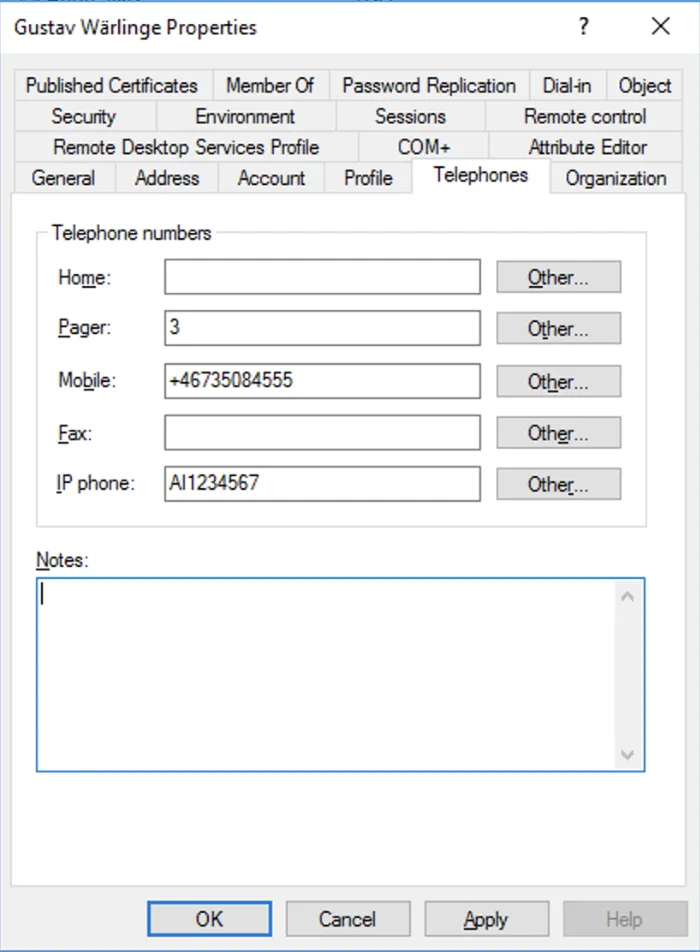
-
Set the value to 3 in the user’s
pagerfield (3 = Token). See Authentication Types for all values.
Re-synchronization
Section titled “Re-synchronization”Token cards generate OTPs in a sequence unique to each token (time and event synchronous). If more than 10 OTPs are generated without being validated by the server, the token becomes out of sync.
- Automatic re-sync: Within a window of 100 OTPs — enter a new OTP for verification.
- Manual re-sync: If out of sync by more than 100 OTPs — contact Mideye Support with the serial number and counter value.
Obtaining token information
Section titled “Obtaining token information”Serial number
Section titled “Serial number”If the printed serial is not readable:
- Press and release the button to generate an OTP.
- While the OTP is displayed, press and hold the button until you see alternating strings:
SN1= XXXXX2= YYYYY
- The serial number is
AIXXXXXYYYY.
Clock value
Section titled “Clock value”- Follow the serial number steps above.
- When the serial is displayed, release and press-hold again until:
SN1= XXXXX2= YYYYY
- The clock value is
XXXXXYYYYY.
Counter value
Section titled “Counter value”- Follow the clock value steps above.
- When the clock value is displayed, release and press-hold again until:
Count1= XXXXX2= YYYYY
- The counter value is
XXXXXYYYYY.
Related links
Section titled “Related links”- Authentication Types — All authentication type values
- YubiKey Administration — YubiKey provisioning guide
- On-premise TOTP Tokens — Software and hardware TOTP tokens