
YubiKey User Guide
Authenticate with a simple touch using your YubiKey hardware token
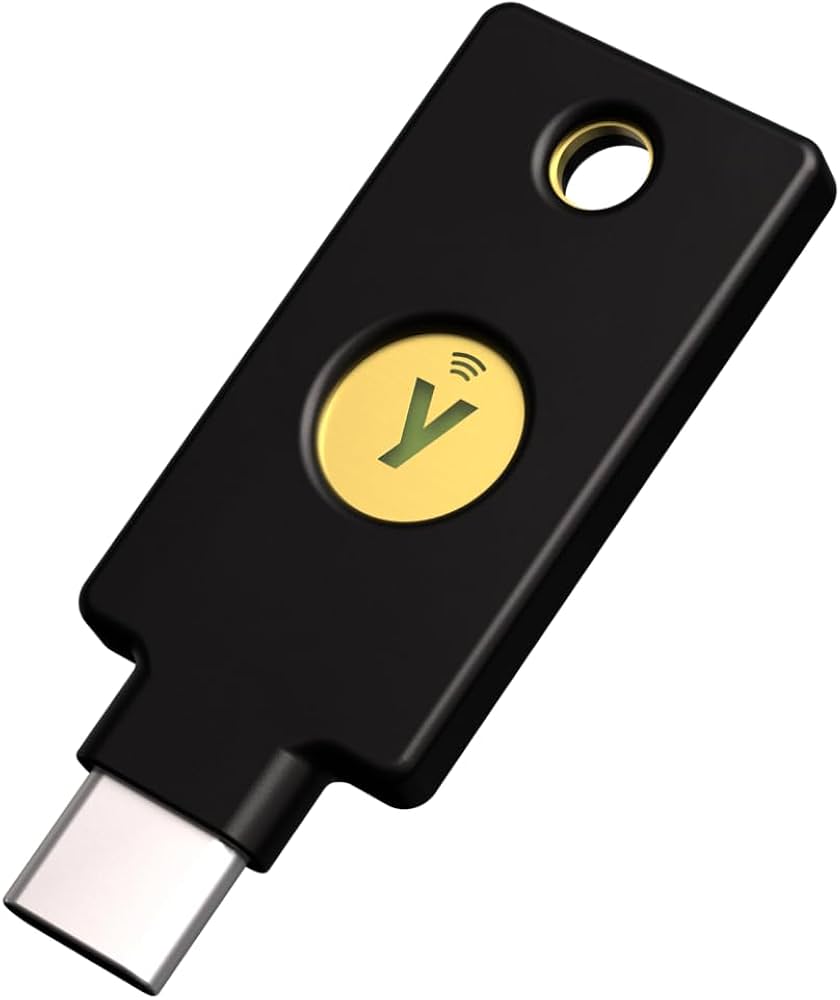
How Do You Log In with a YubiKey?
Start your login
Open the service protected by Mideye authentication (VPN, web portal, etc.) and enter your username and password as usual.
Insert your YubiKey
Plug the YubiKey into a USB port on your computer. If it is already plugged in, make sure the cursor is placed in the one-time password field.
Touch the YubiKey button
Lightly touch the gold button on the YubiKey. It will type a long one-time password into the active field and automatically submit it. Authentication is complete — the login should proceed.
Touch vs. press-and-hold
A short touch (under 1 second) triggers the YubiKey OTP in slot 1 — this is the one used for Mideye authentication. A long press (3+ seconds) triggers slot 2, which may be configured for something else or not at all. For Mideye, always use a short touch.
How Do You Get Started with a New YubiKey?
Depending on how your organisation has set things up, you may have received a YubiKey in one of two ways:
What If Your YubiKey Was Provided by Your Company?
If your company provided a YubiKey that came through Mideye, it is already pre-configured and ready to use. Your IT administrator registers the key's serial number in the system — you don't need to do anything extra.
The serial number is printed on the back of the YubiKey. If your administrator asks for it, that's the number they need.
What If You Purchased Your YubiKey Separately?
If you bought a YubiKey yourself or your company gave you a standard retail YubiKey, your administrator needs your key's serial number to register it in the Mideye system.
The serial number may be printed on the back of the key, but if it is not readable or your admin needs to verify it, you can find it using the Yubico verification tool:
Go to the Yubico OTP verification page
Open demo.yubico.com/otp/verify in your web browser.
Touch your YubiKey
Click in the OTP field on the page and touch the button on your YubiKey. It will type a one-time password into the field.
Read your serial number
Click Validate. If the key is valid, the page displays your YubiKey's serial number along with other details. Share the serial number with your IT administrator so they can register it.
Pre-configured vs. custom keys
Standard retail YubiKeys from Yubico come pre-configured with keys registered in the YubiCloud validation service. These work out of the box — you just need to share the serial number with your administrator.
If your YubiKey has been re-programmed with a custom key (the OTP string will start with vv instead of cc), the custom key must first be uploaded to YubiCloud at upload.yubico.com before it can be used. This is typically handled by your IT administrator.
How Does YubiKey Authentication Work?
When you touch the YubiKey button, it generates a unique one-time password — a long string of characters that looks something like:
cccccckdnhjrjgtkhgrvljhfrjtecfhkgefnteictlcc
This string is sent to a validation service which verifies it is genuine and has not been used before. Depending on your YubiKey type:
- Mideye-provided YubiKeys — verified directly by the Mideye central service.
- Off-the-shelf YubiKeys — verified via Yubico's YubiCloud service.
Each OTP can only be used once and is tied to your specific YubiKey, making it an effective second authentication factor.
What Else Should You Know About YubiKeys?
My YubiKey is not recognised when I plug it in
YubiKeys act as a USB keyboard — they do not require drivers or software. If nothing happens when you touch the button:
- Make sure the cursor is in a text input field (click on the OTP / password field first).
- Try a different USB port.
- If using a USB hub, try connecting directly to the computer.
- On some systems, USB security policies may block HID devices — contact your IT administrator.
The OTP is rejected when I log in
Possible causes:
- Wrong slot: You may have held the button too long, triggering slot 2 instead of slot 1. Use a short, light touch.
- Already used: Each OTP can only be used once. Touch the button again to generate a new one.
- Not registered: Your YubiKey's serial number may not yet be registered in the Mideye system. Contact your IT administrator.
- Custom key not uploaded: If your YubiKey was re-programmed with a custom key (OTP starts with
vv), it needs to be uploaded to YubiCloud. Ask your administrator.
Can I use the same YubiKey on multiple computers?
Yes. The YubiKey is not tied to a specific computer. Plug it into any computer with a USB port and it will work the same way. Some YubiKey models also support NFC for use with mobile devices.
I lost my YubiKey — what should I do?
Contact your IT administrator or helpdesk immediately. They can disable the lost key in the Mideye system and assign you a replacement. A lost YubiKey cannot be used by someone else without your username and password, but it should still be revoked as a precaution.
Does the YubiKey need batteries or charging?
No. YubiKeys are powered by the USB port and have no battery. They are designed to be durable and long-lasting with no moving parts.
Where can I test that my YubiKey works?
You can verify your YubiKey at Yubico's test page: demo.yubico.com/otp/verify. Plug in your YubiKey, touch the button in the OTP field, and click Validate. If the test succeeds, your key is working correctly.
What is the difference between a Mideye-provided YubiKey and a retail one?
Mideye-provided YubiKeys come pre-configured with keys validated against the Mideye central service. Retail YubiKeys authenticate via Yubico's YubiCloud service. Both work for Mideye login — the difference is where the OTP is validated. Your IT administrator handles the setup regardless of which type you have.